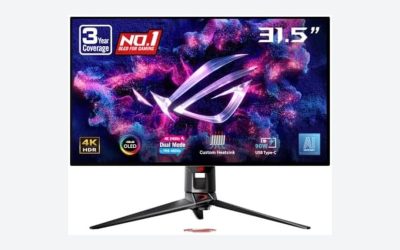
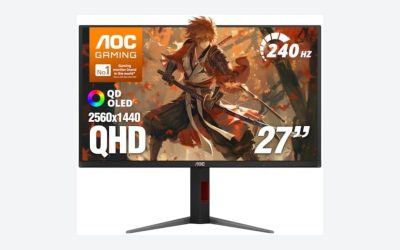
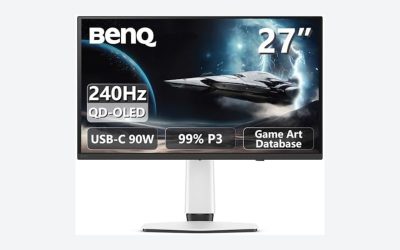
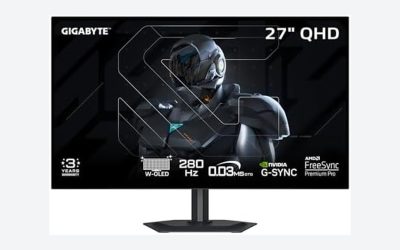
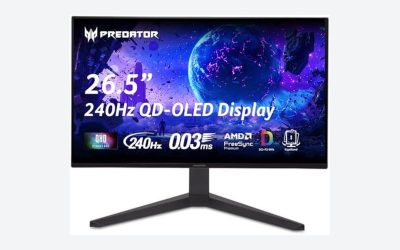
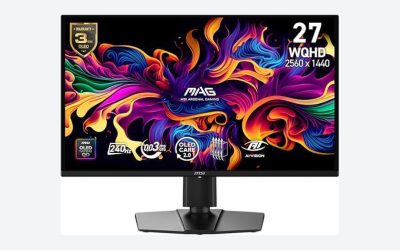
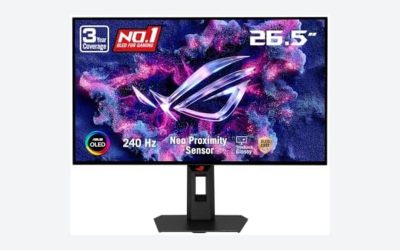
Our Top Picks
 msi MPG 491CQPX QD-OLED 49-inch QD-OLED 5120 x49"12.92 x 47.05 x 16.15 Inches22.2 PoundsCheck on Amazon
The Short Answer
Yes — for most enthusiasts who care about image quality and are willing to spend $850 to $1,000, QD-OLED monitors are worth the burn-in risk, provided you use your monitor for a mixed workload rather than as a static display. The one condition: if your screen shows the same static elements (a fixed taskbar, a trading dashboard, a news ticker, a HUD-heavy game played for hours on end) for the majority of every day, the risk tips the math against OLED, and you should buy a mini-LED or IPS panel instead.
That’s the honest framing. Modern QD-OLED panels ship with pixel-shift, logo dimming, panel refresh cycles, and multi-year warranties that cover burn-in from major brands like MSI. The technology has matured significantly — by 2026, these mitigations are genuinely effective for normal mixed use. But the underlying physics haven’t changed: organic compounds in the emissive layer degrade with use, and static content accelerates that degradation unevenly. “Worth it” depends entirely on how honestly you assess your own usage.
As an Amazon Associate we earn from qualifying purchases at no extra cost to you.


What You Actually Get
QD-OLED combines an OLED emissive layer with a quantum dot color conversion layer. Unlike traditional LED-backlit LCDs, every pixel produces its own light and can switch off completely. Add the quantum dot layer, and you get brightness and color volume that standard WOLED panels can’t quite match in the same way.
What that translates to on your desk: true, per-pixel black. An “infinite” contrast ratio, because off pixels emit nothing at all. Near-instant response times — the 0.03ms gray-to-gray spec on panels like the MSI MPG 321CURX isn’t marketing fluff; OLED transitions are effectively instantaneous compared to the 1–5ms of even fast LCDs. Wide color gamut coverage (these panels typically cover well over 90% of DCI-P3), deep saturated HDR with perfect local dimming because there’s no dimming to do, and viewing angles without the contrast shift and color wash you get on VA and IPS panels.
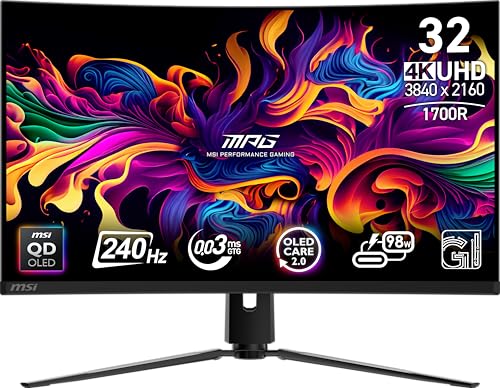
The two reference products here show the range of what you’re buying. The 32-inch MSI MPG 321CURX is a 4K UHD (3840×2160) panel with a 1700R curve, running at 240Hz with G-SYNC compatibility, DisplayHDR True Black 400 certification, HDMI 2.1 and DisplayPort 1.4a inputs, plus a 98W USB-C power delivery port — enough to drive and charge a laptop over a single cable. It’s height adjustable and runs around $850. The 49-inch MSI MPG 491CQPX is a superultrawide monster: 5120 x 1440 (DQHD), effectively two 27-inch 1440p displays fused into one curved 240Hz panel, with a 0.03ms response time, built-in speakers, G-SYNC compatibility, and full VESA mountability at around $950.
Pros
- Perfect blacks and infinite contrast. Every pixel is self-emissive, so dark scenes in movies and games look the way the director intended — no glow, no halos, no gray “black” floors.
- 0.03ms response times. Motion clarity and input latency are best-in-class; competitive players notice the difference immediately over LCD alternatives.
- 240Hz refresh with G-SYNC compatibility on both panels, paired with HDMI 2.1 bandwidth for modern consoles and GPUs.
- Superior HDR experience. True Black 400 certification plus per-pixel dimming delivers HDR that most similarly priced LCD monitors can’t approach, even ones with higher peak brightness numbers.
- Strong connectivity. The 321CURX’s 98W USB-C power delivery turns it into a single-cable dock for laptops; both panels cover HDMI, DisplayPort, and VESA mounting needs.
- Wide color gamut and excellent viewing angles thanks to the quantum dot layer — color stays accurate even off-axis, which matters on the curved 49-inch panel where your eyes are never centered on every region of the screen.
- Burn-in warranties and mitigation features. Three-year burn-in coverage (on MSI’s QD-OLED line), pixel shift, static logo dimming, and periodic panel refresh routines substantially reduce real-world risk.
- Falling prices. A 4K 240Hz QD-OLED at around $850 was unthinkable at launch pricing for the category; the premium over comparable mini-LED has narrowed considerably.
Cons
- Burn-in is real and permanent. Static UI elements — taskbars, browser tabs, HUDs, streaming overlays — can leave ghost images over months to years of heavy static use. Mitigations reduce but don’t eliminate this.
- Lower full-field brightness than LCD. A QD-OLED displaying a full white screen (spreadsheets, documents) measures well below what a good mini-LED can sustain. In a bright, sunlit room, HDR highlights pop but full-screen SDR content can feel dim.
- Text fringing. The subpixel layout of QD-OLED panels can make fine text look slightly less crisp than on a standard RGB-striped IPS. Most people adapt within a week; some never do. If you spend 8+ hours a day in code or documents, test one in person first.
- Brightness compensation over time. These monitors gradually reduce peak brightness as the panel ages (ASBL, or automatic brightness limiting) during static content — noticeable if you switch from a bright spreadsheet to a game.
- Weight and desk depth on the 49-inch model. A 49-inch superultrawide demands roughly 47 inches of desk width and a mounting solution rated for its size; measure before you buy.
- Resale uncertainty. Used QD-OLED panels carry unknown usage history, which depresses resale value compared to LCDs.
Who Should Buy It
Buy a QD-OLED monitor if your screen time is dominated by games, movies, and mixed desktop use — content where dark scenes, fast motion, and HDR are the payoff. A 50/50 or heavier split of dynamic content, combined with basic mitigation habits (hiding the taskbar, a dark theme, a screensaver after five minutes of idle), puts you firmly in “worth it” territory. The MSI MPG 321CURX at around $850 is the sweet spot for a single-desk gaming and media setup; the 49-inch MPG 491CQPX at around $950 suits sim racers, flight sim enthusiasts, and productivity power users who want genuine multitasking screen real estate with OLED image quality.
Who Should Skip It
Skip it if your monitor is a workstation first. Day traders with fixed grid layouts, writers and coders who stare at white documents all day, and anyone running the same static dashboard for 10+ hours daily are exactly the profile where burn-in claims actually happen. Also skip it if your desk sits in direct afternoon sun — the full-screen brightness limitation will bother you daily, and you’ll get more from a high-nit mini-LED. Finally, if you replace monitors every seven or eight years and expect a panel to look identical at year six, LCD technology’s slower, more uniform degradation is the safer bet.
Cheaper Alternatives
| Option | Cost | Trade-off |
|---|---|---|
| 27-inch 1440p high-refresh IPS gaming monitor (180–240Hz) | $200–$400 | No burn-in worry at all, but IPS glow and gray-ish blacks; contrast around 1,000:1 versus effectively infinite. You lose the HDR “wow” entirely. |
| 32-inch 4K mini-LED monitor | $500–$750 | Much higher full-screen brightness, immune to burn-in, but visible blooming around bright objects on dark backgrounds and slower response times (1–4ms). |
| 34-inch 1440p ultrawide VA monitor (100–165Hz) | $300–$450 | Curved immersion and decent contrast (around 3,000:1) without OLED pricing, but noticeably slower pixels and weaker HDR. |
| Two 27-inch 1440p IPS monitors in a dual setup | $400–$500 | More total productivity space than a single 32-inch OLED, but no HDR appeal, more desk clutter, and bezels mid-view. |
FAQ
How long does burn-in take to appear on a QD-OLED monitor?
There’s no fixed timeline — it depends on brightness settings, static content, and daily hours. Manufacturers have made panels and heat management progressively better, and most mixed-use owners never see visible degradation within a typical ownership period. Heavy static use at high brightness is where reports cluster. Because major brands back these panels with multi-year burn-in warranties, you have recourse if it happens early, but read the warranty terms: coverage typically requires the retention of pixel-shift and refresh features enabled.
Do the burn-in prevention features hurt the experience?
Slightly, but mostly invisibly. Pixel shift moves the image by a few pixels periodically — you won’t notice it in games or movies, and the screen buffers the edges with content you never see. Logo dimming detects static bright logos (like a network bug on a news stream) and slightly reduces their brightness; occasionally it false-triggers on static UI elements and causes a subtle flicker in one corner. Both can be tuned or, at your own risk, disabled in the OSD.
Is a QD-OLED monitor good for console gaming?
Yes. Both reference panels offer HDMI 2.1-class inputs, 240Hz refresh, G-SYNC compatibility, and 0.03ms response, which covers current console output modes comfortably. One caution: consoles persistently display static UI — dashboard tiles, launcher menus — so build the habit of turning the monitor off when you step away rather than leaving the dashboard parked on screen.
QD-OLED or mini-LED: which should I pick?
Choose QD-OLED for dark-room and dim-room gaming, movie watching, and motion clarity; choose mini-LED for bright rooms, heavy static desktop work, and maximum full-screen brightness. If your budget lands around $850, the question is really whether your room is bright and your content static (mini-LED) or your room is controlled and your content dynamic (QD-OLED). Answer that honestly and the right choice makes itself.