
Ultrawide vs Dual Monitor for Programming: Which Is Right for Your Home
Ask ten programmers what belongs on their desk and you’ll get two answers: one ultrawide monitor that spans the whole setup, or two standard monitors side by side. Both camps are convinced they’re right, and honestly, both have good arguments. The real decision you face isn’t “which is better” — it’s which layout fits your code, your desk, your room, and your budget. An entry-level dual setup can cost as little as $160, while a capable 34-inch ultrawide starts around $200. The differences in comfort, space, and long-term cost are bigger than most buyers expect, so it’s worth ten minutes before you spend anything.
Our Top Picks
 Kado Dual Monitor 2-Pack 27" Curved 1500R 1920x108027" Curved 2-Pack2.83 x 24.46 x 14.56 inches11 poundsCheck on Amazon
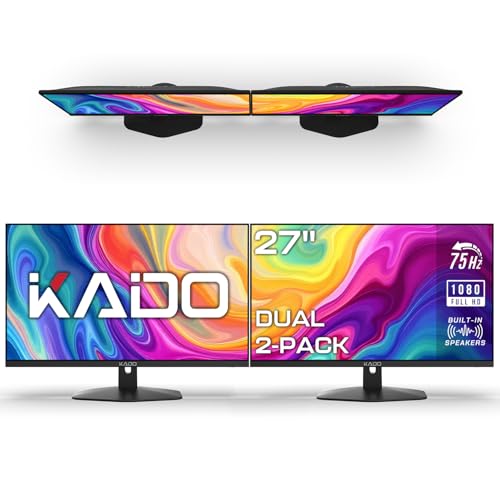 Kado Dual Monitor 2-Pack 27" 1920x1080 75Hz FHD27" Flat 2-Pack1.7 x 24.56 x 14.45 Inches8.8 poundsCheck on Amazon

Top 3 picks at a glance
Quick Verdict
If you mostly work in one or two full-screen apps — an IDE plus a browser — an ultrawide gives you a cleaner, cable-light setup with uninterrupted screen real estate. If your workflow depends on lots of separate windows (Slack, terminal, docs, video calls) or you want maximum pixels per dollar, dual monitors win. Budget builders should note that a 2-pack of 27-inch FHD panels can undercut a single ultrawide while giving you more total screen area, whereas a curved 34-inch ultrawide like the Sceptre C345B-QUT168 at around $200 is the cheapest no-compromise way into the ultrawide format. Most developers who try dual first end up happy either way; the format matters less than matching it to your room and workflow.
As an Amazon Associate we earn from qualifying purchases at no extra cost to you.


Side by Side
| Factor | Ultrawide (34″) | Dual Monitor (2 × 27″) |
|---|---|---|
| Viewing comfort | No center bezel; curved panels (1500R–1800R) keep edges within your field of view | Bezel gap sits dead center; can cause eye travel but aids window separation |
| Resolution typical | 2560 × 1080 or 3440 × 1440 | 1920 × 1080 per panel (3840 × 1080 combined) |
| Space needed | One stand, roughly 31–32 inches wide | Two stands or one dual arm; 48–55 inches of desk width is comfortable |
| Cabling and power | Single cable (DisplayPort or USB-C); 30–50W typical draw | Two cables, two power bricks; 25–40W total draw |
| Price range | $200–$450 for solid 34-inch options | $160–$260 for 2-packs; more with arms |
| Maintenance | One panel — if it fails, everything stops | Redundancy; a failed panel leaves you half a setup |
| Aesthetics | Clean, minimal, single footprint | Symmetrical, tech-forward look; more visible hardware |
| Resale | Narrower buyer pool but steady demand from gamers and developers | Easier to sell individually; wider buyer pool |
| Upgrade path | Replace one unit entirely | Add, swap, or mix panels over time |
| Best for | Focused coding, minimal desks, small rooms | Multi-app workflows, pairing, budget builds |
Where Ultrawide Wins
No bezel in your line of sight. The single biggest complaint about dual setups is the gap between panels. On an ultrawide, your IDE and browser sit side by side with nothing between them. Splitting a 3440 × 1440 panel gives you two effective 1720 × 1440 workspaces — taller than a 1080p half, which matters when you’re reading long stack traces or dense config files.
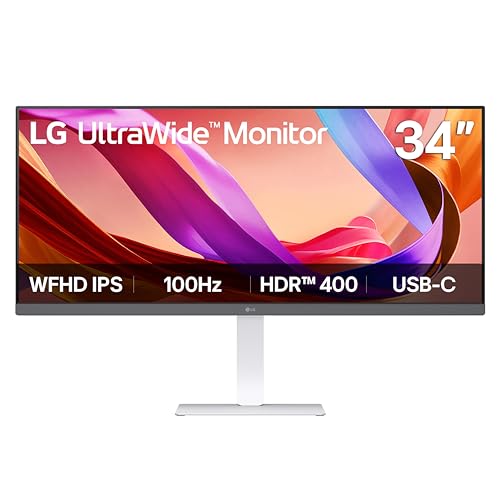
Simpler desk management. One stand, one power brick, one video cable. A monitor like the Sceptre 34-inch curved ultrawide needs roughly 31 inches of width and includes two DisplayPort inputs plus built-in speakers, so it can replace speakers on a compact desk too. Higher-end 34-inch ultrawides with USB-C, like the LG 34U530A-W at around $250, add single-cable laptop docking, an ergonomic height/swivel stand, and VESA DisplayHDR 400 — the kind of tidy setup that makes a small home office feel intentional rather than improvised.
Immersion during focus work. Curved panels (1500R–1800R are common) wrap the screen toward you, which reduces how far your eyes travel to the panel edges. Plenty of developers find long refactoring sessions less fatiguing as a result — that’s anecdotal, not lab-tested, but it’s consistent across a lot of user reports.
Where Dual Monitor for Programming Wins
Hard window separation. Many programmers think in terms of “screens,” not “regions”: terminal on the left, code on the right, docs on the second display. Operating systems snap windows to physical monitor edges far more reliably than to virtual zones on one panel, and full-screen apps (video calls, remote desktops) behave better on a dedicated display.
Pixels per dollar. A Kado 2-pack of 27-inch FHD panels costs around $160 for the flat version or around $200 for the curved 1500R pair. That’s 43 inches of diagonal screen area for less than the price of one decent ultrawide. You won’t get high pixel density at 1080p, but for code at normal viewing distance it’s entirely workable.
Redundancy and flexibility. If one panel dies, you keep working. Want to hand a monitor to a family member or upgrade one display later? You can. You can also mismatch — a vertical 27-inch panel for code next to a horizontal one for browsing is a layout ultrawides can’t replicate.
Ergonomics per panel. Two 27-inch monitors weigh around 10–12 pounds each, light enough for a $40–$70 dual arm. Arms free up desk depth and let you set each screen at eye level, which matters more for comfort than almost any panel spec.
Cost Over 5 Years
Assuming no accidental damage and typical home-office use (8 hours a day), here’s a realistic five-year picture:
- Budget dual: $160–$200 for a 2-pack, plus $30–$60 for cables and maybe an arm. Total: roughly $200–$260. Monitors this simple rarely fail inside five years; expected spend stays flat.
- Midrange ultrawide: $200–$300 upfront. If you add a mounting arm ($50–$80), you’re at $250–$380. No recurring costs.
- Nice ultrawide with USB-C docking: $250–$400 upfront, potentially offsetting a $100–$150 docking station you’d otherwise buy for a laptop.
Power costs are nearly a wash: a 34-inch ultrawide draws roughly 30–50W, and two 27-inch panels draw 25–40W combined. At average US electricity rates, five years of eight-hour days costs about $35–$55 either way. The real five-year variable is you — developers who change layouts tend to sell one setup and buy the other, and dual panels recoup more of their cost on the used market because each monitor sells individually.
Which One for Your Home
Small Apartment or Studio
Ultrawide, almost every time. A 34-inch panel needs about 31 inches of width and one shallow stand, fitting desks as small as 40 inches wide. The LG 34U530A-W’s USB-C input means one cable from your laptop handles video and charging — a genuine advantage when desk space and outlets are scarce. If budget forces dual, mount both panels on an arm to reclaim the footprint.
Family Home with Kids or Pets
Dual monitors have the edge. Two lighter panels (10–12 lbs each) on sturdy arms sit tighter to the wall and are easier to reposition away from little hands, and a spilled drink or dropped toy takes out half your setup, not all of it. A wide single panel is a bigger target and harder to replace on a family budget. If you go ultrawide, a fixed wall or hutch mount keeps it out of reach.
Rental or Temporary Setup
Either works, but prioritize resale and portability. A $161 Kado 2-pack is cheap enough that you won’t agonize over moving it, and each panel sells easily when you leave. Ultrawides are bulkier to transport (34-inch boxes are awkward in a car) and appeal to a narrower used buyer, though the around $200 Sceptre holds enough value that loss is limited. Keep original boxes either way.
Long-Term Home Office
Invest in what matches your workflow and don’t look back. If you’ve coded on dual monitors for years, spend on quality panels and a proper arm rather than switching formats. If you’re building a permanent setup from scratch and value a clean desk, a 34-inch ultrawide with height adjustment and USB-C — budget $250–$400 — will likely outlast two midrange panels and look better doing it. Buyers shopping in 2026 will find both formats mature and affordable, so the deciding factor should be your room and habits, not specs.
FAQ
Is one ultrawide the same as two monitors?
Functionally no. A 3440 × 1440 ultrawide split in two gives you taller halves than two 1080p monitors, with no bezel — but your OS treats it as one display, so full-screening an app covers everything unless you use window-management software.
Do programmers need 3440 × 1440, or is 2560 × 1080 enough?
2560 × 1080 is fine for code at typical viewing distance and costs less; 3440 × 1440 gives noticeably more vertical and horizontal room for split-screen work and sharper text. If you code daily, the higher resolution is worth the premium.
Is a curved monitor better for coding?
Curvature (1500R–1800R) reduces eye travel on wide panels and matters most on 34-inch ultrawides. On 27-inch panels it’s a mild preference — some people love it, others notice slight text distortion at the edges.
Can I use a laptop screen as my second monitor instead?
You can, but laptop panels are typically 13–16 inches at a different height and brightness than a desktop monitor, which strains your neck and eyes. A dedicated second panel — even a budget 27-inch — is the better ergonomic investment.









