
Most buyers shopping for a desktop screen focus entirely on resolution or display size, assuming a larger, sharper panel automatically solves fatigue. In reality, modern eye strain during 8-to-12-hour work sessions stems from micro-flicker, improper luminance contrast, restrictive stand mechanics, and harsh specular reflections. Buying a display purely on marketing buzzwords often leads to persistent headache triggers, neck stiffness, and dry ocular surface strain.
Learning how to choose a monitor for eye comfort during long sessions requires evaluating panel physics, illumination behavior, and physical adjustability. By understanding how backlights operate and how display proportions interact with desk depth, you can select a screen that supports focus without fatiguing your vision.
As an Amazon Associate we earn from qualifying purchases at no extra cost to you.

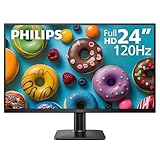


Our Top Picks
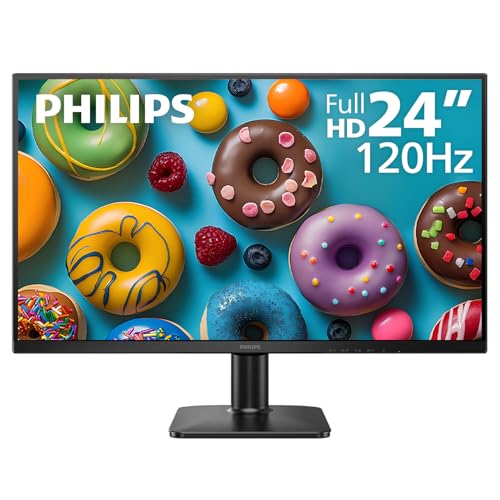 Philips 24 Inch Computer Monitor FHD 120Hz IPS24 inch 120Hz1.3 x 12.56 x 21.41 inches9.3 PoundsCheck on Amazon
 Philips 27 Inch Computer Monitor FHD 120Hz IPS27 inch 120Hz1.3 x 14.13 x 24.25 inches12 poundsCheck on Amazon


Top 3 picks at a glance
Decide These 3 Things First
Before comparing display specs or hardware features, anchor your decision around your physical workspace layout and routine:
- Your Desk Depth and Focal Distance: Measure the clearance between your eyes and where the screen base sits. A shallow 24-inch desk demands a 24-inch flat panel or a 27-inch curved panel (such as an 1800R curvature) to keep the screen edges within your natural peripheral focal plane without forcing constant re-focusing.
- Your Primary Ambient Lighting Environment: Assess whether your office relies on direct overhead sunlight or soft artificial lamps. High ambient glare requires high peak brightness (300 to 350 nits) paired with a heavy matte anti-glare finish, while low-light rooms require deep static contrast ratios (3000:1) and ultra-low minimum brightness controls (down to 30 nits).
- Your Daily Work Duration: If your screen time exceeds 6 hours daily, baseline hardware requirements shift. You must prioritize certified flicker-free Direct Current (DC) dimming, hardware-level blue light spectral shifts, and motion-smoothing refresh rates of 100Hz to 144Hz.
Screen Size and Pixel Density Balance
Screen size dictates not only physical desktop real estate, but also pixel density—measured in pixels per inch (PPI)—which directly influences how hard your eyes work to render character edges. Text with low pixel density appears soft or jagged, forcing your eye muscles to continually attempt micro-focusing adjustments.
A 24-inch 1080p (1920×1080) monitor delivers approximately 92 PPI. This ratio creates clean, easily readable text at a close distance of 20 to 24 inches without requiring software scaling. Compact displays like the 24-inch Philips 24E2N2100 (around $79) excel in compact setups where space is limited.
Moving to a 27-inch display at 1080p yields roughly 81 PPI. At a distance of 22 to 26 inches, text appears larger, which benefits users who prefer native font sizing without interface scaling, seen in value models like the Philips 27E2N2100 (around $99) or the BenQ GW2790C (around $120). However, if your seating position puts you closer than 22 inches, a 27-inch QHD (2560×1440) resolution panel at 108 PPI offers noticeably crisp text geometry.
Curvature radius is another mechanical factor for 27-inch and larger screens. An 1800R curve (where the display arc matches a circle with an 1800mm radius), found on panels like the Samsung 27-inch Essential S3 ($119), ensures that the outer edges of the screen remain the exact same distance from your eyes as the center. This equalized focal distance reduces ocular fatigue caused by scanning back and forth across a flat plane.
Display Panel Materials and Anti-Glare Finish
The panel underlying the glass determines color stability, contrast performance, and viewing angle drop-off. For long office sessions, three main panel technologies dominate:
- In-Plane Switching (IPS): Offers standard 178-degree horizontal and vertical viewing angles with consistent color accuracy. IPS panels minimize brightness shifting when you adjust your posture, keeping light distribution uniform across your field of view. Contrast typically sits at 1000:1.
- Vertical Alignment (VA): Provides higher static contrast ratios ranging from 3000:1 to 4000:1. VA panels produce deep black levels, reducing visual fatigue in dim environments by preserving dark content detail without washing out the backlight.
- Twisted Nematic (TN): Legacy technology with narrow viewing angles (170°/160°) and lower contrast performance. These are not recommended for extended comfort.
Screen coating surface treatment is critical for controlling ambient reflections. Opt for a 3H hard-coating matte finish with 25% anti-glare etching. Glossy glass panels act like mirrors under overhead LED light panels or open windows, creating high-contrast glare spots that induce squinting and tension headaches within minutes.
Stand Construction and Ergonomic Adjustability
Visual fatigue is directly linked to physical posture. When a monitor sits too low, you tilt your head forward, compressing the neck and restricting blood flow to the head, which compounds eye fatigue. The top edge of your display screen should rest at or slightly below eye level (about 1 to 2 inches below), tilted back 10 to 20 degrees.
Look for stands engineered with high-grade steel internal columns offering a full range of articulation:
- Height Adjustment: Look for 100mm to 150mm (4 to 6 inches) of vertical travel.
- Tilt Spectrum: -5 degrees forward to +20 degrees backward.
- Swivel and Pivot: ±45 degrees swivel; 90 degrees vertical rotation for long-form document editing.
If a monitor features a rigid, tilt-only plastic stand, ensure the rear chassis includes standard VESA mounting patterns (75x75mm or 100x100mm). Pairing an affordable panel with a counterbalanced gas-spring VESA arm lets you position the display weight (typically 7 to 12 lbs) precisely where your line of sight requires.
Eye Comfort Technologies and Refresh Performance
In 2026, baseline refresh rates for comfortable home office displays have shifted from legacy 60Hz panels to 100Hz, 120Hz, and 144Hz standards. A higher refresh rate updates the screen image up to 144 times per second instead of 60, eliminating subtle motion jitter when rapidly scrolling through documents, web pages, or spreadsheets. Smooth visual tracking decreases ocular motor muscle strain during intensive data work.
Backlight dimming technology dictates long-term eye comfort. Inexpensive monitors control screen brightness using Pulse-Width Modulation (PWM)—rapidly cycling the backlight on and off thousands of times per second. Even if invisible to the naked eye, PWM forces pupils to dilate and constrict rapidly, leading to eye strain. Certified Flicker-Free displays use direct current (DC) dimming to regulate luminance by varying electrical current, producing a steady stream of light.
Blue light protection must also be addressed at the hardware level. Cheap software modes simply overlay a warm yellow tint across the screen, distorting color accuracy and dulling image contrast. Advanced hardware-level solutions shift the toxic blue light wavelength peak away from the damaging 415–455nm spectrum up to safer 460nm bands without altering overall color balance. Features like BenQ’s Visual Optimizer and Eye-CareU system continuously modulate brightness according to real-time room lighting via ambient sensor arrays.
Price Tiers and Long-Term Value
Understanding cost tiers helps balance eye-care features against your hardware budget:
- Budget Tier ($75–$130): Offers 24-inch to 27-inch 1080p panels with 100Hz to 144Hz refresh rates, basic flicker-free DC dimming, and IPS or curved VA structures. Stands usually offer tilt-only adjustments, requiring a separate VESA mount for height changes. Examples include entry-level models like the Philips 24E2N2100 (around $79), the Philips 27E2N2100 (around $99), the curved Samsung Essential S3 ($119), and feature-rich options like the BenQ GW2790C (around $120).
- Mid-Range Tier ($150–$350): Delivers 27-inch QHD (1440p) or 32-inch resolutions, integrated full-ergonomic stands (height/swivel/pivot), peak brightness up to 350 nits, hardware low blue light certifications, and multi-port USB hub connectivity.
- Premium Tier ($350–$750+): Features 27-inch to 32-inch 4K panels, automatic ambient light sensors, factory color calibration (Delta E < 2), high-wattage USB-C Power Delivery (65W to 90W), and top-tier metal ergonomics.
Warranty Coverage and Safety Certifications
When selecting a monitor for health and comfort, rely on third-party technical certifications rather than subjective marketing claims. Look for official TÜV Rheinland certifications for Flicker-Free and Low Blue Light compliance. These guarantees confirm that the panel meets strict international standards for spectral emissions and waveform stability.
Examine the manufacturer’s dead pixel warranty policy under ISO 9241-307 Class 1 guidelines. A policy that guarantees zero bright-pixel defects gives peace of mind, ensuring you won’t be forced to stare at a stuck pixel near the center of your screen during work sessions. Standard commercial warranties should provide at least 3 years of coverage on parts, panel, and labor.
Delivery, Unboxing, and Workspace Assembly
Monitors arrive in protective foam packaging, with gross shipping weights ranging between 10 and 20 lbs. Upon delivery, inspect the outer carton for impact damage that could indicate internal panel flex or microscopic substrate cracking.
When setting up your monitor, look for toolless quick-release stand brackets that snap securely into the rear chassis without screws. Pay attention to power delivery design: screens with external power bricks (12V–19V DC transformers) keep the monitor chassis lighter and slimmer, while models with integrated internal power supply boards plug directly into the wall using a standard IEC C13 cord, keeping floor space clutter-free.
Spec Checklist
| Feature / Specification | Budget Tier ($75–$130) | Mid-Range Tier ($150–$350) | Premium Tier ($350–$750+) |
|---|---|---|---|
| Screen Size & Resolution | 24″–27″ FHD (1920×1080) | 27″ QHD (2560×1440) | 27″–32″ 4K UHD (3840×2160) |
| Refresh Rate | 100Hz – 144Hz | 120Hz – 180Hz | 120Hz – 240Hz |
| Backlight Dimming | Direct Current (DC) Flicker-Free | DC Dimming + Hardware Blue Shift | DC Dimming + Auto-Brightness Sensor |
| Panel Type & Coating | IPS or VA / Matte Anti-Glare 3H | IPS or Fast-VA / Matte 3H 25% Etch | Nano-IPS / OLED / Anti-Reflective Matte |
| Stand Ergonomics | Tilt-only (-5° to +20°), VESA ready | Full Height (120mm), Swivel, Pivot | Full Heavy-Duty Aluminum Stand (150mm) |
| Certifications | TÜV Rheinland Flicker-Free | TUV Low Blue Light (Hardware Solution) | TUV Eyesafe 2.0 / Eyesafe Certified |
Red Flags
- Pulse-Width Modulation (PWM) Backlight Control: Avoid monitors that utilize low-frequency backlight cycling, as it induces silent visual fatigue and tension headaches.
- Glossy Screen Finish in Bright Rooms: Uncoated glossy screens create severe reflection points, making comfortable long-term viewing nearly impossible under bright lighting.
- Fixed Stands Without VESA Compatibility: Monitors lacking both height adjustments and standard VESA mounting patterns limit proper eye-level placement.
- Legacy 60Hz Panels for High-Volume Text Reading: Low refresh rates increase text motion blur, straining ocular tracking muscles during quick scrolling.
- Software-Only Blue Light Modes: Low-cost software filters distort image colors by washing the display in a harsh yellow cast, reducing overall visual clarity.
FAQ
Is a 1080p resolution display enough for a 27-inch monitor?
Yes, a 27-inch 1080p monitor (providing roughly 81 PPI) works well if your screen sits 24 to 30 inches away from your eyes. This setup yields comfortable native text sizing without requiring software interface scaling. However, if you sit closer than 22 inches, a 27-inch QHD (1440p) panel provides sharper text edges.
Why does refresh rate matter for productivity and eye comfort?
Higher refresh rates (such as 100Hz, 120Hz, or 144Hz) update display frames far more rapidly than legacy 60Hz panels. This eliminates micro-stuttering and motion blur when scrolling through long documents, spreadsheets, or web pages, significantly reducing the tracking workload on your eye muscles.
Are curved monitors better for reducing eye strain than flat monitors?
Curved displays (especially 1800R or 1500R radii on 27-inch and wider screens) help maintain a consistent focal distance from your eyes to both the center and edges of the display. This uniform distance reduces micro-focusing adjustments as your eyes scan across the screen.
What is the difference between hardware and software low blue light modes?
Software modes apply an overlay tint across the image, which dulls white tones, turns screen colors yellow, and reduces overall contrast. Hardware solutions adjust the LED backlight’s phosphor composition to shift harmful shortwave blue light energy (415–455nm) into safer spectrum bands without altering overall color accuracy.









