
Choosing an esports monitor is easy to overcomplicate—and just as easy to get wrong by focusing on one headline number. A “1ms” label does not automatically mean clearer motion, 400Hz is not automatically the best value, and a larger 27-inch screen is not always better for competitive play. The most common mistake is buying the highest refresh rate or lowest advertised response time without considering resolution, panel behavior, PC performance, and the games you actually play.
For fast shooters, fighting games, racing titles, and competitive battle royale games, the goal is simple: a display that presents new frames quickly, keeps moving targets reasonably clear, and feels comfortable during long sessions. That usually points toward a 24.5-inch, 1080p monitor with a fast IPS or TN panel and a refresh rate matched to your computer’s real frame-rate output. In 2026, high-refresh displays are more accessible than ever, but the smartest purchase is still the one that fits your desk, budget, and system.
As an Amazon Associate we earn from qualifying purchases at no extra cost to you.


Our Top Picks



Top 3 picks at a glance
Decide These 3 Things First
- What games do you play most? Competitive FPS players benefit most from 240Hz, 300Hz, 360Hz, or 400Hz refresh rates. For mixed gaming, including cinematic single-player titles, a 1440p or 4K option may be more appealing.
- How many frames can your PC actually sustain? A 400Hz monitor can refresh 400 times per second, but it cannot create 400 fps if your system delivers 160 fps. Check your typical in-game frame rate at competitive settings before paying for extreme refresh rates.
- How far do you sit from the screen? Most esports players sit roughly 20 to 30 inches from the display. At that distance, 24- to 25-inch 1080p screens are easy to scan quickly, while 27-inch models require more eye movement.
Screen Size and Resolution: Prioritize Fast Visual Scanning
For traditional esports, 24.5 inches is the practical sweet spot. This size has become common in tournament-oriented setups because the full screen stays within a player’s natural field of view at a typical desk distance. A 24.5-inch monitor is usually about 22 inches wide and 13 inches tall without its stand, making it manageable on desks as narrow as 36 inches.
At 1920 x 1080, a 24.5-inch display has a pixel density of roughly 90 pixels per inch. Text will not look as fine as it does on a 27-inch 1440p monitor, but that is rarely the deciding issue in esports. The lower resolution reduces GPU load and makes high frame rates more attainable. If your primary games are Valorant, Counter-Strike 2, Overwatch, Fortnite, Rocket League, or similar competitive titles, 1080p remains a sensible performance-first choice.
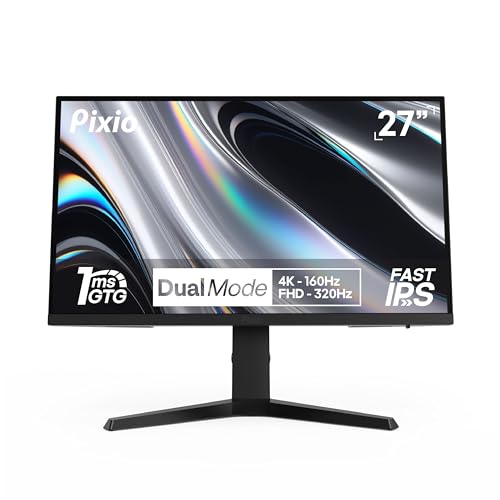
A 27-inch monitor can be worthwhile for players who split time between esports and immersive games. The tradeoff is that 1080p looks less crisp when stretched across 27 inches, at approximately 82 pixels per inch. A 27-inch 1440p screen is sharper, but it asks more from the graphics card. Dual-mode models can solve part of the problem: for example, a 27-inch display may run at 4K and 160Hz for detailed games, then switch to 1080p and 320Hz for competitive play.
Avoid assuming bigger equals better. If you sit only 22 inches away, a 32-inch monitor can make HUD elements, minimaps, and corner information harder to monitor without moving your head.
Panel Type and Materials: Understand What You Are Buying
The panel type matters because it affects pixel transitions, viewing angles, contrast, and the likelihood of visible motion artifacts. For esports, the main choices are fast IPS, TN, and OLED. VA panels can offer strong contrast for the price, but they are less consistently suited to high-speed competition because dark transitions can be slower and may produce noticeable smearing.
Fast IPS is the most balanced choice for most buyers. It provides wide viewing angles, generally accurate color, and strong enough pixel response behavior for 200Hz through 400Hz gaming when properly tuned. It is a practical fit for players who also stream, edit clips, work from their desk, or share the screen with someone nearby.
TN panels remain capable of excellent motion handling, especially in specialized high-refresh displays, but their narrower viewing angles and weaker color reproduction make them less appealing for general use. If every millisecond matters and you always sit directly in front of the screen, TN can still make sense. For most shoppers, however, fast IPS is the easier recommendation.
OLED offers extremely fast pixel transitions and excellent contrast, but it costs more and requires more care with static desktop elements. Many esports interfaces leave health bars, maps, scoreboards, and crosshairs in the same position for hours. OLED protections have improved, but buyers who play one game for six or more hours daily should review the panel warranty carefully.
The exterior materials are less important than the panel, but they still affect daily usability. Most gaming monitors use black or white ABS plastic housings, a metal-reinforced stand neck, and a steel base plate. Look for a stand with a stable footprint around 8 to 10 inches deep. A thin plastic stand can wobble when a desk is bumped, especially on a lightweight desk surface.
Response Time Construction: Read Beyond the “1ms” Label
Response time describes how quickly pixels change from one shade to another. It is often shown as gray-to-gray, or GTG, in milliseconds. A monitor advertised as “1ms GTG” may be capable of that figure only in a particular overdrive setting, and that setting may create inverse ghosting or bright halos around moving objects.
Rather than treating 1ms as a guarantee, consider response time as part of a system. At 240Hz, each refresh cycle lasts about 4.17ms. At 360Hz, it lasts 2.78ms. At 400Hz, it lasts 2.5ms. To show clean motion at these rates, the panel needs fast and well-controlled pixel transitions across many color changes—not simply a favorable best-case number.
Use the monitor’s overdrive controls thoughtfully. Many models provide Off, Normal, Fast, and Faster settings. In practice, the middle setting is often the best place to start. The maximum setting may reduce traditional trailing but introduce overshoot, which can look like pale or dark outlines behind moving objects.
Adaptive Sync is also part of the construction of a good esports experience. It helps match the refresh cycle to changing frame rates, reducing tearing when your fps dips below the monitor’s maximum refresh rate. If you consistently run a game at 280 to 350 fps on a 400Hz display, adaptive sync can still make moment-to-moment changes look more stable.
Comfort and Performance: Refresh Rate, Ergonomics, and Input Feel
Refresh rate is the most immediately useful performance specification after choosing the right screen size. A 144Hz display refreshes every 6.94ms, 200Hz every 5ms, 240Hz every 4.17ms, 300Hz every 3.33ms, and 400Hz every 2.5ms. Higher refresh rates can improve motion continuity and reduce the delay between a newly rendered frame and its appearance on screen.
That does not mean every player needs 400Hz. Moving from 60Hz to 144Hz is dramatic; moving from 144Hz to 240Hz is substantial for many competitive players; moving from 240Hz to 360Hz or 400Hz is more incremental. The latter upgrade is most compelling when your game runs near the display’s ceiling and you are sensitive to motion clarity.
Ergonomics deserve equal attention. Look for at least 4 inches of height adjustment, tilt in the range of about -5 to +15 degrees, and VESA mounting support—commonly 100 x 100mm. A stand that can swivel 20 to 30 degrees in each direction is useful on shared desks. Pivot rotation is less important for esports but useful for chat, coding, or vertical content.
Set the top of the screen at or slightly below eye level. Keep the monitor roughly an arm’s length away, usually 20 to 30 inches. A monitor drawing 25 to 45 watts during use will not significantly affect room temperature on its own, but a PC tower, console, and multiple displays can make a small gaming room feel warmer during long sessions.
Price Tiers: Spend Where It Improves Your Game
Budget: $120 to $180. This range typically includes 24-inch or 24.5-inch 1080p monitors at 165Hz to 200Hz. A 200Hz fast IPS model around $130 is a strong entry point for players coming from 60Hz or 75Hz. Expect a basic stand, limited USB connectivity, and fewer premium motion-tuning options.
Midrange: $180 to $260. This is often the best-value category for committed esports players. Expect 24.5-inch 1080p fast IPS panels at 240Hz to 300Hz, adaptive sync, and more robust stands. A 300Hz, 24.5-inch fast IPS monitor priced around $200 fits neatly here.
Premium: $260 to $450. At this level, buyers can find 360Hz or 400Hz 1080p esports monitors, plus versatile dual-mode displays. A 24.5-inch 400Hz fast IPS model at approximately $280 targets pure competitive speed, while a 27-inch 4K 160Hz/1080p 320Hz dual-mode monitor around $300 favors players who want one screen for both esports and detailed single-player gaming.
Do not sacrifice refresh rate for cosmetic extras such as aggressive RGB lighting, unusually thin bezels, or bundled speakers. Those features are nice, but they rarely improve competitive performance.
Warranty and Support: Check the Fine Print
A 2- or 3-year limited warranty is a reasonable baseline for a gaming monitor. Confirm whether the policy covers dead pixels, bright pixels, power supplies, and panel defects. Pixel policies vary: some brands require several defective pixels before approving a replacement, while others offer a more buyer-friendly zero-bright-pixel policy for a limited period.
Also check whether the manufacturer covers return shipping for confirmed defects. A 24.5-inch monitor typically weighs about 7 to 11 pounds with its stand, while a 27-inch adjustable model can weigh 12 to 16 pounds. Repacking and shipping a display is inconvenient, so clear support terms have real value.
Delivery, Assembly, and Desk Setup
Most monitors arrive in a carton measuring roughly 26 to 30 inches wide for a 24.5-inch model and 30 to 34 inches wide for a 27-inch model. Keep the box and molded foam for at least the return window. Assembly usually takes 5 to 15 minutes: attach the stand neck, secure the base with a captive screw or tool-free mechanism, then connect power and DisplayPort or HDMI.
For high refresh rates, use the cable included with the monitor when possible and verify the selected refresh rate in your operating system’s display settings. A monitor may default to 60Hz after setup even when connected to a capable PC. Make sure your desk can support the stand or monitor arm, and leave at least 3 to 4 inches behind the display for cable bend radius and ventilation.
Spec Checklist
| Spec | Budget | Mid | Premium |
|---|---|---|---|
| Screen size | 24 to 24.5 inches | 24.5 inches | 24.5 or 27 inches |
| Resolution | 1080p | 1080p | 1080p, 1440p, or dual-mode 4K/1080p |
| Refresh rate | 165Hz to 200Hz | 240Hz to 300Hz | 320Hz to 400Hz |
| Panel type | Fast IPS preferred | Fast IPS | Fast IPS or OLED |
| Response-time claim | 1ms to 4ms GTG | 1ms GTG class | 1ms GTG class with refined overdrive controls |
| Stand | Tilt; VESA preferred | Height and tilt | Height, tilt, swivel, pivot, and VESA |
| Typical price | $120 to $180 | $180 to $260 | $260 to $450 |
Red Flags
- A monitor marketed as “1ms” with no explanation of whether that is GTG or an artificial motion-blur-reduction mode.
- A 360Hz or 400Hz display paired with a system that usually runs competitive games below 180 fps.
- A 27-inch 1080p model purchased solely because it is larger, without considering its lower pixel density.
- A VA panel for twitch-focused gaming if dark-scene smearing is likely to bother you.
- A fixed stand with no VESA mount on a desk where the screen height cannot be adjusted.
- Paying a large premium for HDR branding on an esports monitor when refresh rate, motion tuning, and ergonomics are more important.
FAQ
Is 1ms response time necessary for esports?
Not by itself. A low advertised GTG number is useful, but controlled pixel behavior matters more than the label. Choose a monitor with a fast panel, sensible overdrive settings, and a refresh rate your PC can support.
Is 240Hz enough for competitive gaming?
Yes. For many players, 240Hz is an excellent esports target because it provides a major improvement over 144Hz while being easier to drive than 360Hz or 400Hz. Higher refresh rates are worthwhile for players with very high frame rates and a competitive focus.
Should I choose fast IPS, TN, VA, or OLED?
Fast IPS is the safest all-around recommendation. TN can suit players who prioritize speed above image quality, VA is better for contrast-focused mixed use than pure esports, and OLED offers exceptional motion and contrast at a higher price with additional static-image considerations.
Do I need a 4K monitor for esports?
No. A 24.5-inch 1080p monitor is often the more practical competitive choice because it supports higher frame rates and keeps the screen easy to scan. Consider 4K if you also value detailed single-player games, creative work, or a dual-mode monitor that can switch to high-refresh 1080p.









