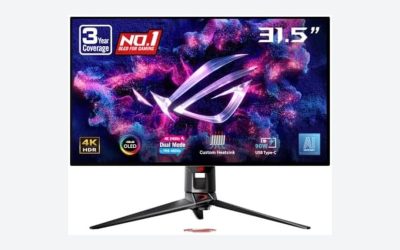
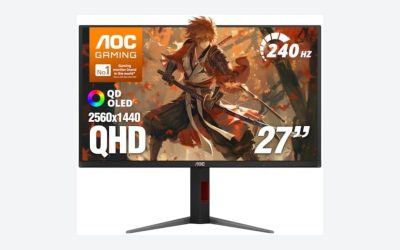
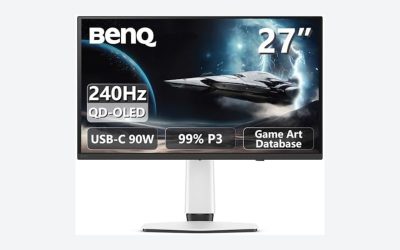
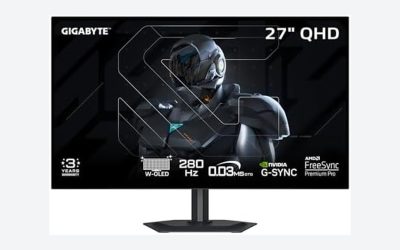
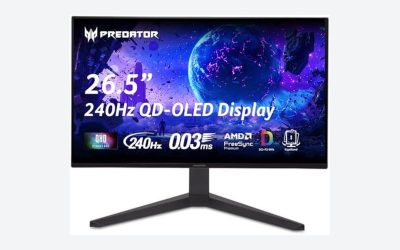
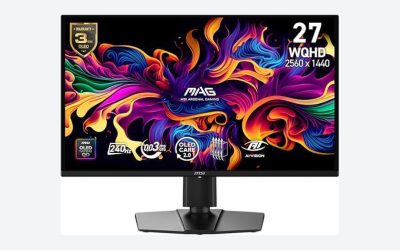
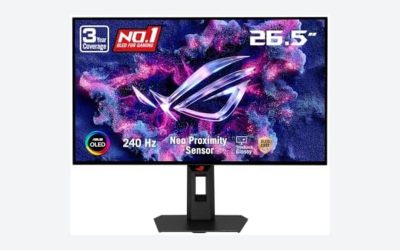
Our Top Picks


The Short Answer
Yes — but only if you also game or watch a lot of media on the same monitor. If your screen time is 90% spreadsheets, documents, and code on a static layout, a good IPS monitor delivers 95% of the productivity benefit for roughly half the money, and it won’t make you think about burn-in. That’s the one condition: OLED is worth it for productivity work when mixed use justifies the premium, not when pure office tasks are the whole story.
What You Actually Get
OLED technology lights each pixel individually, so blacks are truly black — there’s no backlight bleeding through dark areas. For productivity, that translates into a few real, measurable differences:
As an Amazon Associate we earn from qualifying purchases at no extra cost to you.


Text clarity. Most OLED panels use a triangular subpixel layout rather than the standard RGB stripe you’ll find on IPS and VA monitors. On a 27-inch QHD panel like the Samsung Odyssey OLED G6, this can make small text look slightly fringed at the edges. At 100% scaling it’s noticeable to sharp-eyed users; at 125–150% scaling it mostly disappears. This is the single most common complaint from writers and coders who switch to OLED and then switch back.
Contrast and eye comfort. Dark-mode devotees benefit most. A document with black background renders with essentially zero glow, which many users report as less eye strain over long sessions. On an IPS panel, that same black background looks charcoal gray in a dark room.
Speed. OLED response times are near-instant (around 0.03ms pixel response versus 1–5ms for IPS). For typing and scrolling, you won’t perceive this. For fast-motion video review, photo editing with dark content, or gaming after hours, you will.
Power and heat. OLED draws more power on bright, mostly-white screens — a typical 27-inch OLED monitor pulls roughly 40–60W under office workloads, compared to 25–35W for a comparable IPS panel. OLEDs also run warmer to the touch and many include pixel-shift or refresh features that nudge the image slightly to prevent burn-in.
Pros
- Perfect blacks and effectively infinite contrast — a genuine advantage for dark-mode work, media, and photo review
- Near-zero motion blur; scrolling and video look exceptionally smooth
- Wide viewing angles with no color shift, useful for shared screens or presentations
- Excellent HDR performance if you review photo or video content
- Thin panels (typically 4–12mm without the stand) and clean, modern aesthetics
Cons
- Burn-in risk. Static elements — taskbars, email clients, IDE toolbars — are exactly what OLED handles worst. Most warranties cover burn-in for 1–3 years, but it’s a real consideration for 8-hour workdays.
- Brightness limitations in SDR. Full-screen white content (a Word document, a browser page) typically maxes out around 250–275 nits on OLED versus 350–400+ nits on good IPS panels. In a sunlit office, OLED can look dim.
- Subpixel layout. The triangle arrangement can soften small text, which matters most for the very people doing productivity work.
- Higher price. Expect $400–$900 for a 27–34 inch OLED versus $200–$350 for an equivalent-size IPS.
- Higher power draw on bright content — roughly 1.5–2x an equivalent IPS monitor.
Who Should Buy It
You work in dark or dim conditions, favor dark-mode interfaces, and your day mixes writing or coding with media editing, video calls, and evening gaming. If a monitor is a hybrid work-and-play device and your budget stretches to $450+, a QD-OLED like the Samsung 27″ Odyssey OLED G6 (around $450) is a legitimate splurge that pays off outside of office hours too. Creative professionals reviewing HDR video or dark photography also get real value here.
Who Should Skip It
You spend eight hours a day in Excel, Word, or a browser with a bright theme, in a room with big windows. You’ll pay more for a dimmer, hungrier panel whose headline advantages — contrast and motion — barely register in your workflow, all while babysitting burn-in concerns. Buy the best IPS you can afford and pocket the difference.
Cheaper Alternatives
| Option | Cost | Trade-off |
|---|---|---|
| Dell 27 Monitor S2725QS — 4K UHD IPS, 120Hz | Check on Amazon | Grayer blacks and modest HDR, but sharper 4K text (163 PPI vs. 109 on a 27″ QHD OLED), brighter in daylight, no burn-in anxiety, and ~$180 savings |
| 27–28″ 4K IPS monitors from mainstream brands | $200–$350 | You lose OLED contrast and speed but gain brightness, lower power draw, and standard RGB subpixels for crisper small text |
| 34″ ultrawide VA or IPS (3440×1440) | $300–$500 | More screen real estate for multitasking instead of better pixels — often the bigger productivity win |
| Previous-generation OLEDs on clearance | $350–$600 | Sets up a middle path: OLED experience at a discount, with shorter remaining warranty coverage |
FAQ
Do OLED monitors cause eye strain during long work sessions?
Not inherently — many users find them more comfortable in dark rooms because there’s no backlight glow. However, lower full-screen brightness in bright offices and PWM dimming (flicker at lower brightness levels on some models) can bother sensitive users. Check whether a model uses flicker-free DC dimming before buying if you’re prone to headaches.
How long will an OLED monitor last with daily office work?
Modern QD-OLED and WOLED panels are typically rated for tens of thousands of hours to half brightness, and burn-in mitigation features (pixel shift, logo dimming, periodic refresh cycles) have improved substantially. With varied content and a dark theme, most owners will replace the monitor for other reasons before degradation matters. With a static bright layout all day, every day, expect visible wear sooner.
Is a 27-inch QHD OLED or a 4K IPS better for reading text?
For pure text sharpness, the 4K IPS wins — at 27 inches it packs about 163 pixels per inch versus roughly 109 for QHD, and its standard RGB subpixel layout renders cleaner glyph edges than OLED’s triangular layout. If you run 150% scaling anyway, the gap narrows considerably.
What settings help if I do buy an OLED for productivity?
Use a dark theme system-wide, enable pixel-shift and panel-refresh features, set a short screen timeout (under 5 minutes), drop the taskbar to auto-hide, and cap brightness around 150–200 nits for office work. These habits meaningfully extend panel life and cost you nothing in day-to-day use.