
Choosing between USB-C and DisplayPort for a laptop monitor is less about picking the “best” cable and more about matching the connection to the way your home works. A USB-C setup can keep a desk calmer by carrying video, data, and laptop charging through one slim cable. DisplayPort is often the more straightforward choice for a dedicated desk, especially when high refresh rates, multiple screens, or a desktop-style workstation matter most.
The real decision is whether you want a flexible, plug-in-and-go laptop station or a more permanent monitor connection. USB-C can make a kitchen counter, small bedroom desk, or shared home office feel tidier. DisplayPort can be the better fit when your monitor stays put and you want reliable, high-bandwidth video without relying on a dock or charging-capable display.
As an Amazon Associate we earn from qualifying purchases at no extra cost to you.




Our Top Picks
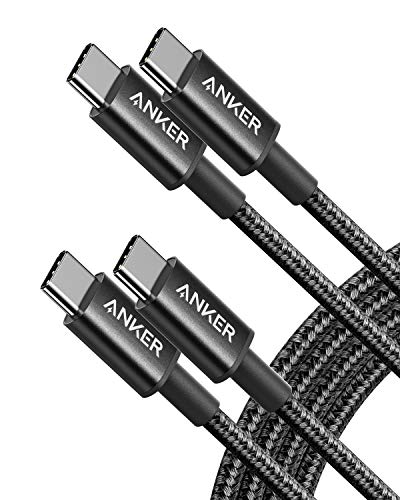

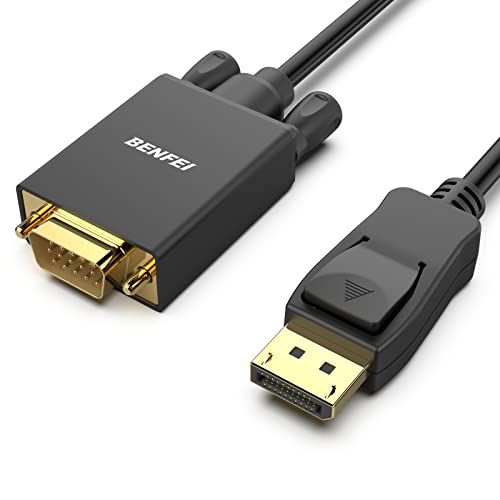
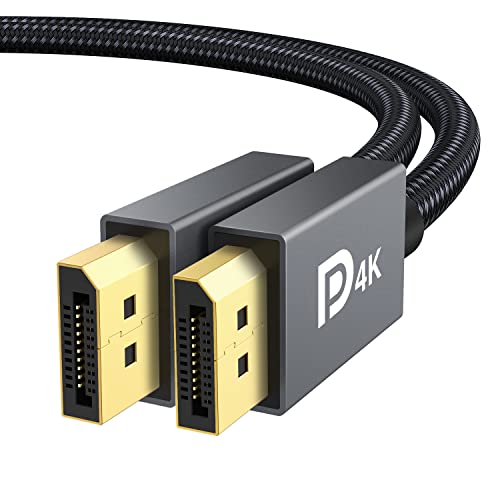
Top 3 picks at a glance
Quick Verdict
Choose USB-C when you want one cable to charge a compatible laptop and send video to a monitor. It is usually the best choice for compact homes, hybrid workers, and anyone who connects and disconnects a laptop every day.
Choose DisplayPort when your laptop has a full-size DisplayPort or Mini DisplayPort output, or when you use a USB-C-to-DisplayPort adapter or dock and prioritize monitor performance. It is particularly practical for a fixed workstation with a high-resolution or high-refresh-rate monitor.
One important detail: USB-C describes the connector shape, not automatically its video ability. A laptop USB-C port must support DisplayPort Alt Mode, USB4, or Thunderbolt for direct monitor video output. Likewise, not every USB-C cable carries video. A basic charging cable, such as a 60W USB-C-to-USB-C cable, may be perfect for power but not suitable for connecting a display. Check the laptop manual, port symbols, and monitor specifications before buying.
Side by Side
| Consideration | USB-C Monitor Connection | DisplayPort Monitor Connection |
|---|---|---|
| Comfort | One-cable charging and display connection can make daily docking easier. | Simple for a monitor that stays connected; charging usually needs a separate laptop charger. |
| Durability | Small reversible plug is convenient but can wear faster with rough daily handling. | Larger connector has a firm fit and often a release latch; better suited to a mostly stationary desk. |
| Typical cable price range | $10 to $40 for a properly rated video-capable cable; $150 to $400 more for a USB-C monitor with power delivery. | $7 to $25 for a standard cable; adapters and docks can add $15 to $150. |
| Maintenance | Keep the port clear of lint and avoid sharply bending the cable near the connector. | Occasionally check latch alignment and avoid pulling the cable without releasing the connector. |
| Space needed | Ideal for shallow desks and shared surfaces because it can replace a separate charging cable. | Needs room for a video cable plus laptop power cable in most setups. |
| Look | Minimal and uncluttered, especially with a monitor that supplies 65W to 100W of power. | More traditional desktop appearance, with separate cables often visible behind the desk. |
| Resale and reuse | USB-C monitors are broadly useful for newer laptops, tablets, and some phones. | DisplayPort remains valuable for desktop monitors and performance-focused setups, but is less universal on thin laptops. |
| Best for | Hybrid work, small apartments, hot desks, and single-cable laptop setups. | Dedicated home offices, multi-monitor arrangements, and high-refresh-rate displays. |
| Watch-outs | Port and cable capabilities vary widely; “USB-C” alone does not guarantee video or charging. | Many laptops lack a native full-size DisplayPort, so an adapter, dock, or USB-C-to-DisplayPort cable may be required. |
Where USB-C Wins
USB-C wins on everyday simplicity. With a compatible USB-C monitor, a single 3.3-foot to 6.6-foot cable can send video to the screen, charge the laptop, and sometimes connect USB accessories plugged into the monitor. That means a keyboard, mouse, webcam, and external drive can remain at the desk while the laptop leaves with you.
For a home workspace, this can make a bigger visual difference than buyers expect. Instead of routing a monitor cable, a charger, and possibly a separate USB hub across a 24-inch-deep desk, you may only need one cable from the monitor to the laptop. A monitor with 65W USB-C Power Delivery is commonly enough for many ultrabooks and 13- to 14-inch work laptops. Larger performance laptops may need 90W, 100W, or their original power brick to maintain full charging speed under demanding work.
USB-C is also more forgiving in shared spaces. If a dining table becomes a workstation at 9 a.m. and returns to family use by dinner, one reversible connector is easier for everyone to use. It is a strong option for a guest room desk, a studio apartment, or a household where two people use different recent-model laptops.
Cable shopping does require care. An inexpensive charging product such as the Anker USB-C to USB-C 60W Fast Charging Cable two-pack, listed at around $9, or the five-pack LISEN USB-C to USB-C 60W cable set at around $8, can be useful for charging around the home. But buyers should not assume those cables are rated for monitor video. For display use, look specifically for USB-C video support and the resolution and refresh rate you need.
USB-C also has a cleaner path for people who may upgrade devices. By 2026, USB-C is familiar across many laptops, tablets, accessories, and charging systems. A USB-C monitor with power delivery can remain useful even if the household changes laptop brands later.
Where DisplayPort Monitor Connection for Laptops Wins
A DisplayPort monitor connection for laptops wins when display performance and predictability matter more than all-in-one convenience. DisplayPort was designed around display transport, and it is a dependable choice for a permanent desk with a 144Hz, 165Hz, or higher-refresh-rate monitor. It is also common on monitors aimed at gaming, creative work, and multi-screen productivity.
If your laptop includes a dedicated DisplayPort or Mini DisplayPort output, the setup is straightforward: connect a DisplayPort cable from laptop to monitor, then use the normal laptop charger. A 6.6-foot cable is long enough for many desks while still being manageable behind a monitor arm. For example, an IVANKY VESA Certified DisplayPort cable in a 6.6-foot length, priced at around $6, illustrates how inexpensive a basic direct connection can be.
DisplayPort is especially sensible when the monitor is effectively furniture: mounted on an arm, positioned on a 48- to 60-inch desk, and used in the same spot every day. The larger connector is not as sleek as USB-C, but it is less likely to be mistaken for a charging lead or unplugged casually by children. Many full-size DisplayPort connectors also use a latch, which helps keep a cable seated when it is routed behind a desk.
For older equipment, DisplayPort adapters can extend the life of an existing screen. A BENFEI DisplayPort-to-VGA 6-foot cable, listed at around $8, is an example of the kind of one-direction adapter cable used to connect a DisplayPort source to an older VGA monitor or projector. It is not a solution for modern high-resolution monitor performance, but it can be useful when a household needs to keep an older display in service.
Keep direction in mind with adapters. DisplayPort-to-VGA is typically one-way, and a cable intended for one direction will not necessarily work in reverse. For newer laptops without DisplayPort, a USB-C-to-DisplayPort cable or dock can still deliver DisplayPort to the monitor, provided the USB-C laptop port supports video output.
Cost Over 5 Years
The five-year cost difference depends more on the monitor than the cable. A basic DisplayPort cable generally costs about $7 to $25, and a replacement is inexpensive if a connector gets bent, lost during a move, or damaged by a pet. If your laptop already has the right port, your total connection cost may stay under $30.
A USB-C video cable often costs $10 to $40, while a quality dock can cost roughly $80 to $250. The larger expense is a monitor with USB-C power delivery. Compared with a similar monitor that only has HDMI or DisplayPort, a USB-C charging monitor may cost about $150 to $400 more, depending on screen size, resolution, hub features, and available wattage.
That premium can be worthwhile if it lets you avoid replacing a separate dock or reduces clutter enough to make a small workspace usable. Over five years, budgeting $20 to $60 for one or two replacement cables is reasonable for either style. For USB-C, consider whether the monitor’s 65W, 90W, or 100W charging output will still suit your next laptop; buying too little power can create an unnecessary upgrade sooner than expected.
Which One for Your Home
Small apartment
Choose USB-C if the monitor lives on a narrow desk, console table, or multipurpose dining surface. A one-cable setup makes it easier to pack the laptop away and reduces visual clutter. Look for a 24- or 27-inch monitor with at least 65W charging if your laptop is a typical lightweight work model.
Family with kids or pets
Choose DisplayPort for a desk that remains assembled and out of the way. Route the cable through a desk grommet or cable sleeve, leaving enough slack that the monitor can move without stressing the connector. If the laptop is frequently removed, USB-C remains convenient, but use a cable organizer so the small connector is not dragged or chewed.
Rental
Choose USB-C for a flexible, no-installation workstation. It works well with freestanding monitor arms and compact desks that can move from room to room. Avoid committing to a complicated dock unless you need several accessories; the simplest setup is usually easiest to move at lease end.
Long-term home
Choose DisplayPort for a dedicated office with a larger desk, permanent monitor arm, or high-refresh display. It is cost-effective and durable for a workstation that does not need to be packed up. Consider USB-C instead if multiple household members rotate through the same desk with modern laptops and value a universal plug-in point.
FAQ
Can every USB-C laptop connect to a monitor?
No. The USB-C port must support video output, commonly labeled as DisplayPort Alt Mode, USB4, or Thunderbolt. Check the laptop’s specifications rather than relying on connector shape alone.
Is USB-C better than DisplayPort for a 4K monitor?
Either can work well for 4K, provided the laptop, cable, and monitor support the desired refresh rate. USB-C is better for a clean one-cable setup with charging; DisplayPort is often preferable for a fixed, performance-oriented desk.
Can I use USB-C to DisplayPort with a laptop that has no DisplayPort port?
Yes, if the laptop’s USB-C port supports video output. A USB-C-to-DisplayPort cable connects the laptop’s USB-C port to the monitor’s DisplayPort input. It does not usually charge the laptop through that same cable.
Should I buy a USB-C monitor with 65W or 100W charging?
Choose 65W for many thin-and-light laptops. Choose 90W to 100W for larger laptops, frequent multitasking, or more headroom for future devices. Check the wattage printed on your laptop’s original charger before deciding.









