
The dream of a clean desk is one cable running from your laptop to your monitor, and everything else, power, peripherals, network, feeding through the screen. USB-C hub monitors promise exactly that, acting as a docking station built into the display. They are genuinely convenient, but whether one is worth the premium depends on your laptop, your peripherals, and how much you value the tidiness.
As an Amazon Associate we earn from qualifying purchases at no extra cost to you.

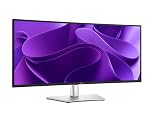

Our Top Picks


Top 3 picks at a glance
What a USB-C hub monitor actually does
A USB-C hub monitor accepts video, data, and often supplies power over a single USB-C cable to your laptop, while offering downstream USB ports, and sometimes ethernet, on the monitor itself. Plug one cable into your laptop and the screen charges it, connects your keyboard, mouse, webcam, and wired network, and displays your desktop. Unplug that one cable to grab the laptop and go. It replaces a separate docking station entirely.
| Capability | What to check | Typical range |
|---|---|---|
| Power delivery | Enough to charge your laptop | 65W–100W |
| Downstream USB | Ports for your peripherals | 2–4 ports |
| Ethernet | Only on some models | 1 GbE |
| Video over USB-C | Laptop must support DP Alt Mode | Required |
The power delivery detail that makes or breaks it
The most important spec is power delivery wattage. A thin ultrabook may charge fine off 65W, but a powerful laptop can need 90 to 100W, and if the monitor supplies less, your laptop charges slowly or drains under load. Match the monitor’s power delivery to your laptop’s charger rating, or the single-cable dream turns into a battery that slowly dies during work.
When it is worth it and when it is not
A USB-C hub monitor shines for laptop users who dock and undock daily and want a clean, instant setup. If that is you, the convenience is real and it saves buying a separate dock. It is less compelling for a desktop PC that never moves, since desktops connect over DisplayPort and do not benefit from power delivery or single-cable docking. And your laptop must support video over USB-C, called DisplayPort Alt Mode, or the video half simply will not work.
The premium and the trade-offs
Hub monitors cost more than plain panels because of the built-in dock electronics. If you already own a good docking station, or your peripherals are minimal, that premium may not pay off. Weigh the extra cost against what a comparable standalone dock would run; often the integrated approach is competitive and far tidier, but not always.
Frequently asked questions
Will a USB-C hub monitor charge my laptop?
Only if its power delivery wattage meets your laptop’s needs. Light laptops charge off 65W, but powerful machines can require 90 to 100W, and a monitor supplying less will charge slowly or not keep up under load. Check the monitor’s power delivery rating against your laptop’s official charger before relying on single-cable charging.
Does my laptop need anything special to use one?
Yes, its USB-C port must support DisplayPort Alt Mode to send video over the cable. Many modern laptops do, but some budget models have USB-C ports that only carry data and power, not video. Confirm your laptop’s USB-C port supports video output, otherwise the monitor cannot receive a picture over that single cable.
Bottom line
A USB-C hub monitor is worth it for laptop users who dock daily and want one cable to handle video, power, and peripherals; just match its power delivery wattage to your laptop and confirm your port supports video over USB-C. For a stationary desktop, or if you already own a dock, the premium is harder to justify. For the right user, though, it is the cleanest desk you will ever have.









