
The dream of a single cable that carries video, charges your laptop, and connects your peripherals is real, but the port on the monitor makes a big difference in how well it works. Both USB-C and Thunderbolt 4 use the same physical connector, which is exactly why buyers get confused. This guide clarifies what each can and cannot do for a one-cable monitor setup so you can match the right display to your laptop.
As an Amazon Associate we earn from qualifying purchases at no extra cost to you.


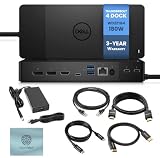

Our Top Picks
 Dell UltraSharp 27 Thunderbolt Hub MonitorU2726DER7.57 x 24.1 x 15.18 inches16.25 PoundsCheck on Amazon
- Dell UltraSharp 32 Thunderbolt Hub MonitorU3226QER8.46 x 28.08 x 18.46 inches20.59 poundsCheck on Amazon

Top 3 picks at a glance
Same connector, different capabilities
USB-C is a connector shape, not a single set of features. A USB-C monitor might support video (via DisplayPort Alt Mode), some power delivery, and a data hub, but the exact combination varies from model to model. Thunderbolt 4 is a stricter standard that runs over the USB-C connector and guarantees a high, consistent feature set: 40Gbps of bandwidth, robust power delivery, and support for daisy-chaining. Every Thunderbolt 4 port is also USB-C compatible, but not every USB-C port is Thunderbolt.
| Capability | Typical USB-C monitor | Thunderbolt 4 monitor |
|---|---|---|
| Bandwidth | Up to 10-20Gbps (varies) | 40Gbps guaranteed |
| Video | DisplayPort Alt Mode | DisplayPort over Thunderbolt |
| Power delivery | 15-100W (varies widely) | Up to 100W, consistent |
| Daisy-chain a 2nd monitor | Rarely | Yes, via second port |
| Downstream data/hub | Often, speed varies | Fast, high-bandwidth hub |
Where USB-C is perfectly fine
For most single-monitor setups, a good USB-C display is all you need. If it delivers 65 to 96W of power, that charges most thin-and-light and many performance laptops while carrying 4K video and hosting a couple of USB accessories over one cable. The key is to read the spec sheet: confirm the specific power-delivery wattage matches your laptop’s needs and that it supports DisplayPort Alt Mode for video. A USB-C monitor is usually cheaper than a Thunderbolt equivalent.
Where Thunderbolt 4 pulls ahead
Thunderbolt 4’s advantages appear in demanding, multi-device setups. Its guaranteed 40Gbps bandwidth comfortably drives high-resolution video while simultaneously running fast storage and a full dock’s worth of peripherals without the bottlenecks a lower-bandwidth USB-C link can hit. The standout feature is daisy-chaining: a Thunderbolt monitor with a second Thunderbolt port can pass the signal on to a second display, so two monitors run from one cable to the laptop. For a clean dual-monitor docking setup, that is genuinely useful.
Compatibility considerations
A Thunderbolt 4 monitor works with a Thunderbolt laptop at full capability and still functions as a standard USB-C display on a laptop that only has USB-C. Conversely, plugging a Thunderbolt laptop into a plain USB-C monitor simply falls back to USB-C features. The main gotcha is power: whichever you choose, verify the monitor supplies enough wattage to charge your particular laptop, since a power-hungry machine may need 100W and only trickle-charge from a 65W display under load.
Frequently asked questions
Do I need Thunderbolt 4 or is USB-C enough for one monitor?
For a single monitor with laptop charging and a few USB accessories, a well-specced USB-C display is enough and costs less. Thunderbolt 4 is worth the premium mainly if you want to daisy-chain a second monitor, run fast external storage alongside video, or guarantee no bandwidth bottlenecks in a heavy dock setup.
Will a Thunderbolt monitor work with a non-Thunderbolt laptop?
Yes. A Thunderbolt 4 monitor is backward compatible and behaves as a normal USB-C monitor when connected to a laptop that has only USB-C with DisplayPort Alt Mode. You lose the Thunderbolt-specific perks like guaranteed 40Gbps and daisy-chaining, but video, power, and hub functions still work.
Bottom line
USB-C and Thunderbolt 4 share a connector but not a guaranteed feature set. A good USB-C monitor with adequate power delivery covers most single-cable, single-monitor setups affordably, while Thunderbolt 4 earns its premium for daisy-chained dual monitors, high-bandwidth docks, and demanding pro workflows. Either way, check the exact power-delivery wattage against your laptop before buying.









