
Our Top Picks


Top 3 picks at a glance
The Short Answer
For an RTX 5080, the sweet spot is a 240Hz refresh rate at 1440p, or a 144Hz to 240Hz refresh rate at 4K, depending on the games you play. The RTX 5080 is built to push well above 144 frames per second at 1440p in most modern titles and can deliver 100 to 160 frames per second at 4K with DLSS 4 enabled in demanding games as of 2026. Pairing it with a 60Hz or 75Hz monitor wastes a significant amount of performance, while a monitor above 360Hz is only useful if you primarily play competitive esports titles.
Here is a simple rule to follow:
As an Amazon Associate we earn from qualifying purchases at no extra cost to you.


- For 1440p (2560×1440): Choose 240Hz to 360Hz. This lets you use the full power of the card in competitive and AAA games.
- For 4K (3840×2160): Choose 144Hz to 240Hz. This is the best balance of sharp image quality and high frame rates for the RTX 5080.
- For Ultrawide 3440×1440: Choose 175Hz to 240Hz. The card handles this resolution very well and benefits from the extra refresh headroom.
If you can only buy one monitor, a 27-inch 1440p 240Hz or a 32-inch 4K 144Hz display with G-Sync Compatible and DisplayPort 2.1 will give you the most value from the RTX 5080 without overpaying for refresh rate you will not see.
Standard Sizes
Refresh rate is only one part of the decision. Physical size, viewing distance, and desk space determine whether a high refresh rate monitor is actually comfortable to use. A 32-inch 4K monitor looks stunning but is too large for a 24-inch deep desk, while a 24-inch 1080p monitor will not show off what the RTX 5080 can do. Use this table to match screen size to the right resolution and refresh rate for this GPU.
| Screen Size (Diagonal) | Best Resolution for RTX 5080 | Recommended Refresh Rate | Typical Dimensions Without Stand (W x H) | Ideal Viewing Distance |
|---|---|---|---|---|
| 24 inches | 1920×1080 (Full HD) | 360Hz | 21.0 x 12.3 inches / 53.3 x 31.2 cm | 24 to 30 inches / 61 to 76 cm |
| 25 inches | 1920×1080 to 2560×1440 | 280Hz to 360Hz | 22.0 x 12.8 inches / 55.9 x 32.5 cm | 26 to 32 inches / 66 to 81 cm |
| 27 inches | 2560×1440 (QHD) | 240Hz to 360Hz | 23.9 x 13.8 inches / 60.7 x 35.1 cm | 30 to 36 inches / 76 to 91 cm |
| 32 inches | 3840×2160 (4K UHD) | 144Hz to 240Hz | 28.1 x 16.5 inches / 71.4 x 41.9 cm | 32 to 42 inches / 81 to 107 cm |
| 34 inches Ultrawide (21:9) | 3440×1440 (UWQHD) | 175Hz to 240Hz | 31.8 x 14.2 inches / 80.8 x 36.1 cm | 32 to 40 inches / 81 to 102 cm |
| 39 to 42 inches Ultrawide (21:9) | 5120×2160 or 3840×2160 | 144Hz to 240Hz | 37.2 to 38.2 x 16.8 to 17.5 inches / 94.5 to 97.0 x 42.7 to 44.5 cm | 36 to 48 inches / 91 to 122 cm |
| 49 inches Super Ultrawide (32:9) | 5120×1440 (DQHD) | 144Hz to 240Hz | 47.4 x 14.3 inches / 120.4 x 36.3 cm | 36 to 48 inches / 91 to 122 cm |
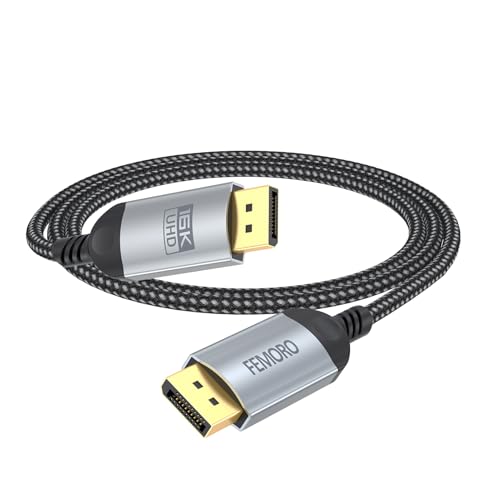
Cable and Connection Notes for These Sizes: To hit the refresh rates above with an RTX 5080, you need DisplayPort 2.1. A certified DP80 cable supports up to 80Gbps and handles 4K at 240Hz or 8K at 120Hz without compression. Most RTX 5080 cards have three DisplayPort 2.1 ports and one HDMI 2.1 port. Budget DP 2.1 cables in the around $6 to around $9 range for 3.3-foot / 1 meter lengths perform the same as longer fiber optic options in the around $37 to around $55 range for 6 to 15 feet when both are certified; choose length based on your desk setup, not image quality alone. Fiber optic cables are lighter, typically 0.18 to 0.35 pounds / 82 to 159 grams, and better for runs over 10 feet.
Power and Weight Reference: Monitors in this class typically weigh 11.5 to 18.5 pounds / 5.2 to 8.4 kg without the stand and 14.5 to 23 pounds / 6.6 to 10.4 kg with the stand. Power draw ranges from 35 to 55 watts for a 27-inch 1440p 240Hz model to 70 to 110 watts for a 32-inch 4K 144Hz model. The RTX 5080 itself has a Total Graphics Power of 360 watts, so factor in a 750W to 850W power supply for the full system.
How to Measure Your Space
Choosing the right size is about fit, not just screen specs. A monitor that is too big forces you to turn your head constantly, while one that is too small makes you sit too close. Follow these steps before you buy.
- Measure desk depth: Use a tape measure from the wall or back edge of the desk to the front edge where you sit. If your desk is less than 26 inches / 66 cm deep, limit yourself to 27 inches or smaller. For desks 30 inches / 76 cm or deeper, a 32-inch or ultrawide fits comfortably.
- Measure desk width: Measure the usable width between legs, drawers, or walls. A 27-inch monitor with stand needs about 24 to 26 inches / 61 to 66 cm of width. A 34-inch ultrawide needs 32 to 34 inches / 81 to 86 cm. A 49-inch super ultrawide needs at least 48 inches / 122 cm.
- Check viewing distance: Sit in your normal chair and measure from your eyes to the back of the desk. Compare this to the Ideal Viewing Distance column in the table above. Your eyes should be at least that far from the screen to see the entire panel without strain.
- Measure height clearance: Measure from the desk surface to the bottom of any overhead shelf or cabinet. A 32-inch monitor on its stock stand is typically 18.5 to 22 inches / 47 to 56 cm tall. If you have low shelving, consider a monitor arm which lowers the height range to 16 to 20 inches / 41 to 51 cm.
- Check stand footprint: Stock stands are deep. Measure the stand base, typically 9 to 11 inches / 23 to 28 cm deep and 16 to 20 inches / 41 to 51 cm wide. If your desk is shallow, a VESA arm with a 100x100mm mount saves 6 to 8 inches / 15 to 20 cm of depth.
- Verify cable length: Measure from the RTX 5080 DisplayPort on your PC case to the monitor location, adding 12 inches / 30 cm of slack for routing. For most desk setups, a 6-foot / 1.8 meter cable is sufficient. For floor-mounted PCs or long wall runs, choose a 10 to 15-foot / 3 to 4.6 meter fiber optic cable to maintain signal integrity.
- Confirm vertical clearance for airflow: The RTX 5080 exhausts significant heat. Leave at least 4 inches / 10 cm behind the PC and do not push the monitor flush against a wall if it blocks rear vents.
By Room or Use Case
Competitive Gaming on a Small Desk or Bedroom (100 to 130 sq ft)
For desks 42 to 55 inches / 107 to 140 cm wide, a 24-inch to 27-inch 1440p 240Hz to 360Hz monitor is ideal. The RTX 5080 will easily exceed 240 fps in Valorant, Overwatch 2, Fortnite, and Apex Legends at 1440p, and hit 300+ fps in many cases. A 24-inch 360Hz panel keeps every enemy in your central field of view, which is preferred for esports. Weight and power stay low, and a short 3.3-foot / 1 meter DP 2.1 cable keeps the setup clean.
Main Living Room or Large Home Office Setup (150 sq ft and up)
For a spacious desk or a console-style living room PC, a 32-inch 4K 144Hz to 240Hz display is the best showcase for the RTX 5080. At 4K, you get razor-sharp text and detail for creative work, and the card still delivers smooth 120 to 165 fps in AAA titles like Cyberpunk 2077 and Alan Wake 2 with DLSS enabled. This size requires a viewing distance of at least 32 inches / 81 cm and a deep desk or media console that is 30 to 36 inches / 76 to 91 cm deep. Consider a tilt of 10 to 15 degrees and a VESA wall mount if using from a couch at 5 to 8 feet / 152 to 244 cm away.
Ultrawide Productivity and Immersive Gaming
A 34-inch 3440×1440 240Hz ultrawide is the most versatile option if your PC doubles as a home office workstation. It provides the equivalent width of 1.3 standard monitors, equal to about 43 inches / 109 cm of horizontal screen real estate, without a center bezel. The RTX 5080 handles this resolution about 20 to 30 percent easier than full 4K, so you can sustain 160 to 200 fps in most titles. For video editing, spreadsheets, or multitasking, the extra width reduces the need for a second monitor. A 49-inch super ultrawide is only recommended if your desk is at least 60 inches / 152 cm wide.
Small Apartment or Multi-Purpose Room with Limited Space
If your desk also serves as a dining or craft table, or if you are in a studio, choose a 27-inch 1440p 240Hz monitor with a compact stand or monitor arm. The panel itself is roughly 24 inches / 61 cm wide, but the full stand can occupy 25 percent of a small desk. An arm reduces the footprint to about 8 x 8 inches / 20 x 20 cm and lets you push the monitor flush to the wall when not gaming. Pair it with a 6-foot / 1.8 meter DP 2.1 cable to avoid excess cable clutter and to maintain 240Hz without signal drop.
Common Sizing Mistakes
1. Buying a 4K 60Hz monitor for an RTX 5080: This is the most expensive mistake. Your GPU will render 120 to 240 frames per second, but a 60Hz screen can only display 60. The extra frames are discarded, causing screen tearing if G-Sync is not active. Always match the monitor’s maximum refresh to at least 144Hz for 4K or 240Hz for 1440p.
2. Choosing 32 inches for 1440p: A 32-inch 1440p display has a lower pixel density, about 92 pixels per inch, compared to 109 pixels per inch on a 27-inch 1440p display. Text and games look softer and pixelation becomes visible at close viewing distances. If you want 32 inches, go 4K. If you want 1440p, stay at 27 inches.
3. Ignoring DisplayPort version: Older DisplayPort 1.4 cables cannot reliably run 4K at 240Hz without Display Stream Compression, which can cause black screens or limited color. The RTX 5080 and all recommended high refresh monitors use DisplayPort 2.1. Look for cables explicitly rated for 54Gbps (DP54) or 80Gbps (DP80) and the DP 2.1 logo.
4. Forgetting about monitor height and ergonomics: A large 32-inch monitor on a short desk forces you to look slightly up, leading to neck strain after an hour. The top bezel should be at or slightly below eye level. If the included stand does not have at least 4.7 inches / 12 cm of height adjustment, budget an extra $35 to $75 for a VESA arm.
5. Underestimating cable length and stiffness: Thick copper cables over 10 feet / 3 meters can be stiff and place stress on the RTX 5080’s port when bent behind a desk. If your PC is on the floor and the monitor is at the back of a 30-inch deep desk, a 10-foot length may be tighter than expected once routed. A flexible fiber optic cable is worth the premium price from around $37 to around $55 for long runs.
FAQ
Is 144Hz enough for an RTX 5080?
144Hz is enough at 4K for most players, but it is a minimum, not the ideal for 1440p. At 4K, the RTX 5080 often sits between 120 and 180 fps in modern AAA games, so a 144Hz panel captures most of the performance, and 240Hz gives you headroom for less demanding titles. At 1440p, the card regularly exceeds 200 fps, so a 240Hz or higher monitor makes a noticeable difference in smoothness and input lag.
Do I need DisplayPort 2.1 for 240Hz?
Yes, for the resolutions the RTX 5080 is designed for. To run 4K at 240Hz with 10-bit color and HDR without compression, you need DisplayPort 2.1 with 80Gbps bandwidth. A standard DisplayPort 1.4 or HDMI 2.1 cable is limited to about 48Gbps and will either cap you at 4K 144Hz or force compression. For 1440p at 240Hz, DisplayPort 1.4 can work, but DisplayPort 2.1 ensures a cleaner signal and support for future monitors.
What monitor size is best for the RTX 5080 for work and gaming?
For most home offices, a 27-inch 1440p 240Hz monitor is the best all-around size. It fits standard desks 47 to 60 inches / 119 to 152 cm wide, offers high pixel density for reading, and lets the RTX 5080 run at high frame rates without requiring the most expensive panels. If your primary work involves photo or video editing where 4K resolution matters more than maximum frame rate, a 32-inch 4K 144Hz model is the better investment.
Is a 49-inch super ultrawide too big for an RTX 5080?
It is not too demanding for the GPU, but it is very large for a room. A 49-inch 5120×1440 panel has 7.37 million pixels, which is fewer than 4K’s 8.29 million, so the RTX 5080 runs it easily at 144Hz to 240Hz. The challenge is physical space. The monitor is nearly 4 feet / 122 cm wide and requires a viewing distance of at least 36 inches / 91 cm. On a desk smaller than 60 inches / 152 cm wide, it will overhang the edges and dominate the room.









