
Choosing a monitor for competitive gaming is not just about grabbing the highest refresh rate you can afford. The most common mistake is assuming that 240Hz is automatically better for everyone, regardless of their PC, the games they play, or how they play them. A 240Hz display paired with a GPU that can only push 110 frames per second will not feel any smoother than a 144Hz model, and on an oversized 32-inch 1080p panel, you trade sharpness for speed. Another mistake is chasing refresh rate while ignoring response time, adaptive sync, and panel type, which are what actually prevent ghosting, tearing, and smeary motion in a fast-paced match. Get those details wrong and you pay more for a worse experience.
This guide cuts through the marketing and shows you how to match refresh rate to your system, your games, and your budget so you buy speed you can actually use.
As an Amazon Associate we earn from qualifying purchases at no extra cost to you.




Our Top Picks
 SANSUI 32 Inch Curved 240Hz Gaming Monitor High32 inch24.19 x 8.06 x 17.75 Inches9.7 PoundsCheck on Amazon
 AOC 27" Gaming Monitor QHD 260Hz Overclocked IPS27" 240Hz IPS7.46 x 24.17 x 17.7 InchesCheck on Amazon

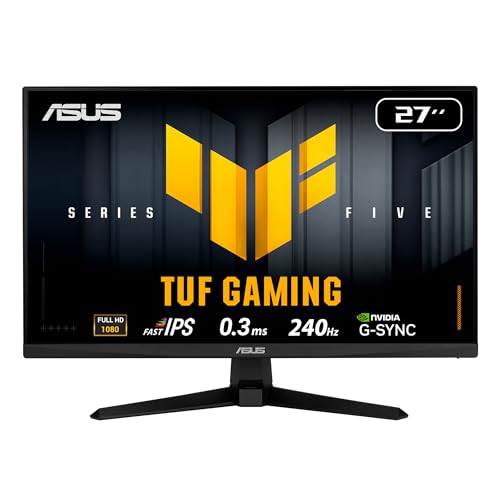
Top 3 picks at a glance
Decide These 3 Things First
Before you compare specific monitors, lock in these three decisions. They determine which refresh rate tier makes sense and which models to eliminate immediately.
1. What frame rate can your PC consistently deliver? Your monitor cannot display more frames than your system produces. Check your average frames per second in your main competitive titles at your target settings. If you play Valorant, Overwatch 2, or Fortnite on a mid-range GPU like an RTX 4060 or RX 7600, hitting 200 to 280 fps at 1080p is realistic. If you play Call of Duty or Apex Legends at high settings on the same hardware, you may sit closer to 120 to 165 fps. Buy a refresh rate that sits at or just below your sustained frame rate.
2. What games decide your buying choice? For esports-first shooters and fighters where milliseconds matter, prioritize raw speed: 240Hz to 260Hz at 1080p. For hybrid players who split time between competitive shooters and story-driven or battle royale games, a 180Hz to 240Hz QHD panel gives you sharper visuals without giving up much competitiveness.
3. What is your competitive goal? Casual ranked players benefit most from 144Hz to 180Hz, which delivers a huge leap over 60Hz and 75Hz for a modest price. Serious ranked grinders and tournament players will feel the difference moving to 240Hz or 260Hz, where motion clarity and input-to-display latency are measurably tighter. As of early 2026, 240Hz has become the mainstream sweet spot for 1080p competitive monitors, with prices starting well under $200.
Size and Resolution Pairing: Where Refresh Rate Meets Clarity
Size and resolution dictate how useful a high refresh rate really is. Running a very high refresh rate at the wrong pixel density forces you to compromise on either clarity or performance.
For competitive gaming, 24 to 27 inches is the standard for a reason. At a typical desk viewing distance of 20 to 30 inches, this size lets you see the entire screen without excessive head movement. A 24.5-inch 1080p display offers about 90 pixels per inch, while a 27-inch 1080p display drops to about 82 pixels per inch. That is why 27-inch 1080p models like the Dell SE2726HG or ASUS TUF VG279QM5A look softer up close than a 27-inch QHD panel, which jumps to about 109 pixels per inch.
Use this pairing logic:
- 1080p at 24 to 27 inches: Best for maximizing frame rate on mid-range PCs. A 240Hz FHD panel is easier to drive at full speed and keeps pricing in the $149 to $189 range. Choose this if your GPU budget is under $350.
- QHD at 27 inches: Best for players who want both speed and sharpness. A 260Hz QHD IPS like the AOC Q27G41ZE at around $159 to $179 gives you crisper textures and better future-proofing, but you will need a stronger GPU to sustain 240+ fps at native resolution.
- 32 inches: Only consider 32 inches if you sit 30 to 36 inches away or prefer a curved, immersive feel, such as the SANSUI 32-inch Curved 240Hz model. At 1080p, 32 inches is about 70 pixels per inch and will show visible pixelation for competitive use. For 32 inches, QHD or higher is strongly preferred.
Weight and footprint matter for desk stability. Expect 24 to 27-inch competitive monitors to weigh 7.5 to 12 pounds without the stand and 10 to 15 pounds with the stand. Bases typically measure 9 to 11 inches deep. Make sure your desk is at least 24 inches deep to maintain proper viewing distance and avoid eye strain.
Panel Material and Coating: IPS, VA, and What They Mean for Speed
Panel material affects color, contrast, viewing angles, and how clean motion looks at high refresh rates. Do not choose by refresh rate alone.
Fast IPS: This is the default recommendation for competitive gaming. Modern Fast IPS panels deliver 1ms gray-to-gray response times, wide 178-degree viewing angles, and consistent color. They handle 180Hz to 260Hz well with minimal smearing. Most 240Hz models under $200, including Dell, ASUS, and AOC in the examples above, use IPS for this reason. Matte anti-glare coatings are standard and reduce reflections without dulling color.
VA (Vertical Alignment), including curved VA: VA offers higher native contrast, often 3000:1 compared to about 1000:1 on IPS, so blacks look deeper. Curved 1500R to 1800R VA panels like many 32-inch 240Hz options feel more immersive. The trade-off is slower dark-scene transitions, which can create black smear or ghosting in fast motion if overdrive is not tuned well. If you choose VA for competitive play, confirm the overdrive setting and look for a well-implemented adaptive sync range.
Coating and finish: A light matte coating with 25 percent haze is typical for competitive IPS. Heavy matte coatings cut glare more but can add a grainy look. Glossy coatings are rare on high-refresh esports models because they reflect room lighting.
Power draw is similar across materials at this size. Expect 18 to 35 watts during typical gaming and under 0.5 watts in standby for a 27-inch 1080p 240Hz display. QHD 260Hz models may draw 22 to 42 watts under load due to higher pixel throughput.
Construction and Ergonomics: The Stand, Ports, and Build That Actually Lasts
A monitor that cannot hold position, wobbles when you type, or lacks the right inputs will hurt your performance more than a 20Hz difference in refresh rate.
Stand and adjustability: Look for tilt of -5 to +20 degrees minimum. Height adjustment of 3.9 to 5.1 inches (100 to 130 mm) is ideal for aligning eye level and reducing neck strain. Swivel of plus or minus 20 to 30 degrees and pivot to portrait are bonuses but not critical for competitive play. If a budget model is tilt-only, plan for a VESA mount. Most 24 to 27-inch monitors use 75×75 mm or 100×100 mm VESA patterns and support arms rated for 13 to 17 pounds.
Build quality cues: Check bezel width, joint tightness, and base weight. A metal-reinforced stand column with a footprint of about 9 x 9 inches resists shake from keyboard and mouse impacts better than a light plastic leg. Button or joystick controls should feel tactile, not mushy, since you will use them to switch overdrive and crosshair modes.
Ports and connectivity: For 240Hz at 1080p, you need at least DisplayPort 1.4 or HDMI 2.0. For 260Hz at QHD, DisplayPort 1.4 is required and HDMI 2.0 may be limited to 144Hz or 180Hz unless it is HDMI 2.1. Verify the spec sheet lists the maximum refresh rate per port, not just the panel maximum. Most competitive monitors include one DisplayPort 1.4 and two HDMI ports. A headphone jack or audio line-out is useful if you route game audio through the display.
Cables included: Budget models often include only an HDMI cable. To hit full refresh rate out of the box, you may need to supply your own DisplayPort cable rated for HBR3.
Comfort and Real-World Performance: Response Time, Sync, and Tuning
Refresh rate is only one part of motion performance. These supporting features determine whether that refresh rate looks clean and feels responsive.
Response time and overdrive: Listed 1ms response times refer to gray-to-gray with overdrive enabled. The best setting is usually the middle overdrive level. The highest level often causes inverse ghosting or coronas, bright halos behind moving objects. Expect real-world transitions of 3 to 6ms on well-tuned Fast IPS at 240Hz, which still keeps motion crisp. VA panels may range from 4 to 8ms and need more careful tuning.
Adaptive sync: AMD FreeSync Premium and NVIDIA G-SYNC Compatible both eliminate tearing by matching refresh to frame rate. Check the adaptive sync range, ideally 48Hz to 240Hz or 48Hz to 260Hz. A wide range keeps low-frame moments smooth. If you run an NVIDIA GPU, G-SYNC Compatible or G-SYNC support, as on the ASUS VG279QM5A and AOC Q27G41ZE, ensures certified low flicker and no blanking at the bottom of the range.
Input lag and game modes: Competitive monitors now include a low-input-lag game mode and often a crosshair overlay, timer, and black equalizer. Enable game mode and set the monitor to its highest refresh rate in Windows display settings and in your GPU control panel. Disable power-saving features that limit brightness dynamically during play. Brightness of 250 to 350 nits is typical for IPS esports models and is comfortable for indoor play without washing out dark corners.
Eye comfort: Look for TÜV-certified flicker-free backlight dimming and low blue light modes. TÜV 3-Star or similar Rheinland certification indicates tested flicker reduction across the brightness range. Use low blue light for long sessions but turn it off for color-critical work.
Price Tiers and What You Actually Get
Refresh rate pricing has compressed significantly. You no longer need to spend $400 to get legitimate competitive performance.
Budget: $120 to $170. This covers 24 to 27-inch 1080p at 180Hz to 240Hz, usually Fast IPS, AMD FreeSync Premium, DisplayPort 1.4, and tilt-only stands. Examples in this bracket often include 1 HDMI and 1 DisplayPort cable requirement. Expect basic HDR support that adds brightness but not true HDR contrast. This tier is ideal if your PC consistently delivers 140 to 200 fps and you want a big upgrade from 75Hz to 144Hz without overspending.
Mid: $170 to $230. Here you get 27-inch 1080p or 27-inch QHD at 240Hz to 260Hz, factory-tuned overdrive with less ghosting, better stands with height adjustment, and often height plus pivot and stronger color factory calibration with delta E under 2. Models like the ASUS TUF VG279QM5A at $189 and the SANSUI 32-inch Curved 240Hz at $179 sit in this competitive sweet spot. This is the best value for players who hold 200+ fps and want a monitor that can stay competitive for three to five years.
Premium: $280 to $550. This is 27-inch QHD at 280Hz to 360Hz, or 1080p at 360Hz to 540Hz, plus HDMI 2.1, USB hubs, KVM switches, and ergonomic stands with full articulation. Premium models also offer tighter response tuning and wider adaptive sync ranges down to 1Hz with G-SYNC or FreeSync Premium Pro. Buy this only if your system can push 300+ fps consistently and you compete at a level where marginal motion clarity affects results. Otherwise, the gains over a good $170 to $210 monitor are small for most players.
Warranty, Delivery, and Assembly: Protect the Purchase
High refresh monitors are long-term tools. A weak warranty or difficult return can cost more than saving $20 up front.
Warranty: Look for at least a 3-year manufacturer warranty that covers backlight, panel defects, and bright or dead pixels. Some brands define a dead pixel policy as 3 to 5 bright pixels or 5 to 8 dark pixels before replacement. Keep your receipt and register the serial number within 30 days when the brand offers it.
Pixel and dead-on-arrival policy: Retailers typically allow 30 days for returns for defects. Test for stuck pixels on day one with solid color screens at native resolution. Check for backlight bleed in a dark room at 30 to 50 percent brightness, which is your real gaming range, not maximum brightness.
Delivery: Box dimensions for a 27-inch monitor are usually 26 to 30 inches long, 17 to 20 inches tall, and 6 to 9 inches deep. Carton weight is 11 to 18 pounds. If your building has a small elevator or narrow stairs, measure door clearance. Inspect the carton for crush damage before signing.
Assembly: Most competitive monitors are tool-free. You click the stand neck into the panel and secure the base with a captive screw, which takes 3 to 6 minutes. VESA arm mounting requires four M4 screws, typically 10 to 12 mm long, and should be hand-tightened. After assembly, allow 20 to 30 minutes to update drivers, enable the correct refresh rate in display settings, turn on adaptive sync, and select the optimal overdrive level.
Spec Checklist
| Spec | Budget | Mid | Premium |
|---|---|---|---|
| Refresh Rate | 165Hz to 180Hz | 240Hz to 260Hz | 280Hz to 360Hz+ |
| Resolution at 27 Inches | 1920×1080 | 1920×1080 or 2560×1440 | 2560×1440 |
| Panel Type | Fast IPS, matte | Fast IPS, low smear tuning | Fast IPS or OLED, premium overdrive |
| Response Time (Gray to Gray) | 1ms marketed, 4 to 6ms real | 1ms marketed, 3 to 5ms real | 0.5 to 3ms real, minimal overshoot |
| Adaptive Sync Range | 48Hz to 180Hz FreeSync | 48Hz to 240/260Hz FreeSync Premium / G-SYNC Compatible | 1Hz to max, G-SYNC / FreeSync Premium Pro |
| Ports Required for Max Hz | DisplayPort 1.4 or HDMI 2.0 | DisplayPort 1.4 required for full Hz, HDMI 2.0/2.1 varies | DisplayPort 1.4 and HDMI 2.1 for full Hz |
| Stand Adjustments | Tilt only | Tilt and height 100 to 130 mm | Tilt, height, swivel, pivot, full ergonomics |
| Brightness | 250 to 300 nits | 300 to 350 nits | 350 to 600 nits, better HDR handling |
| Power Draw (Typical) | 18 to 28 watts | 22 to 35 watts | 25 to 45 watts, higher with USB hub |
| Street Price | $120 to $170 | $170 to $230 | $280 to $550 |
Red Flags
Skip any monitor that shows these issues, even if the refresh rate looks impressive on the box.
- Vague refresh rate by port: If the listing says 240Hz but only achieves 120Hz over HDMI without clearly stating it, you may not get the advertised speed with your console or second PC.
- No adaptive sync range listed: A missing range often means narrow or poorly tuned sync that flickers below 60 fps.
- Overdrive limited to off or extreme: Good monitors offer at least three overdrive levels. Two levels usually means more ghosting or coronas at 240Hz.
- Heavy ghosting reports on VA at 240Hz: If multiple buyers report dark smear in fast shooters, the overdrive is not keeping up, even if the spec sheet says 1ms.
- Tilt-only stand with no VESA holes: This locks you into a poor ergonomic setup with no upgrade path to an arm.
- Unrealistic HDR claims at low price: HDR10 support at $150 does not mean true HDR. Look for local dimming zones or OLED if HDR performance is a priority.
- Single HDMI and no DisplayPort cable included for a 240Hz+ panel: You will be limited out of the box unless you buy a proper DisplayPort 1.4 cable.
FAQ
Is 240Hz worth it over 144Hz for competitive gaming?
Yes, if your PC can actually sustain 200+ fps in your main games. Moving from 144Hz to 240Hz shortens the time between frames from about 6.9ms to about 4.2ms, which makes tracking moving targets smoother and reduces motion blur. If you only get 120 to 160 fps, a good 165Hz or 180Hz monitor will feel nearly identical and costs less.
Do I need 360Hz or higher?
Only for high-level competitive play on a powerful system. The jump from 240Hz to 360Hz reduces frame time by about 1.4ms and helps in controlled tests, but most players see a smaller real-world benefit than going from 144Hz to 240Hz. A well-tuned 240Hz to 260Hz Fast IPS is the practical ceiling for most buyers and is much easier to drive at full speed.
Can HDMI handle 240Hz or 260Hz?
Sometimes. HDMI 2.0 handles 1080p at 240Hz but may cap QHD at 144Hz to 180Hz. HDMI 2.1 handles QHD at 240Hz to 260Hz and beyond. Always check the per-port maximum on the spec sheet and use DisplayPort 1.4 when you want guaranteed full refresh rate, especially for QHD 260Hz models.
What settings should I change after unboxing?
Set Windows display settings and your GPU control panel to the monitor’s maximum refresh rate, enable FreeSync or G-SYNC, set overdrive to the middle level, turn on game or instant mode to reduce input lag, and adjust brightness to 35 to 55 percent for indoor use. Then test in your main game with an uncapped frame rate or a cap 3 to 5 fps below the monitor’s max to keep adaptive sync engaged without tearing.









