The best PC controller adapters depend on the controller you already own: choose a dedicated 2.4 GHz adapter for the lowest and most consistent wireless latency, a Bluetooth 5.x USB adapter for broad everyday compatibility, or a wired USB connection when reliability matters more than convenience.
As an Amazon Associate we earn from qualifying purchases at no extra cost to you.

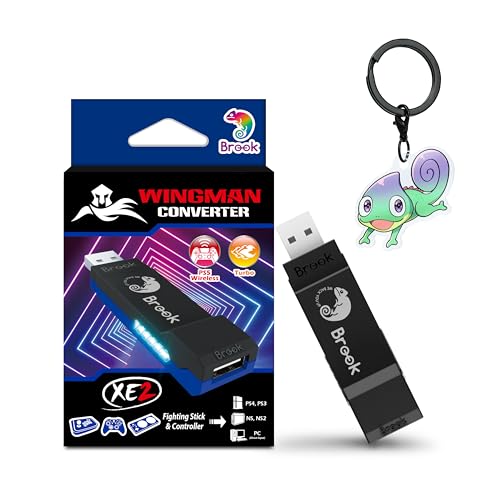
![Brook Wingman XE2 Wireless Controller Adapter [Exclusive Version] 2-in 1 Converter for PS5, PS4, Xbox Series, NS, NS 2 & PC Supports Turbo, Remap, Lag-Free Play Includes Keychain](https://m.media-amazon.com/images/I/41pyX5Ic9EL._SL160_.jpg)

Our Top Picks


Top 3 picks at a glance
Best PC controller adapters at a glance
| Adapter or connection | Best for | Typical latency target | Controller support | Remapping |
|---|---|---|---|---|
| Xbox Wireless Adapter for Windows | Xbox One and Xbox Series controllers | Usually about 4–8 ms wireless transport latency | Xbox Wireless controllers and compatible Xbox accessories | Xbox Accessories app; game-dependent button mapping |
| 8BitDo Wireless USB Adapter 2 | Mixing supported console controllers with Windows | Usually about 6–15 ms, depending on controller and mode | Selected Xbox, PlayStation, Switch and 8BitDo controllers; check the current compatibility list | 8BitDo Ultimate Software support varies by controller and adapter mode |
| Mayflash Magic-NS 2 | Using several console controllers across PC and Switch | Usually about 6–20 ms, depending on protocol | Broad support for selected Xbox, PlayStation, Switch, Wii and other controllers | Limited adapter-level remapping; use Steam Input or the game |
| Bluetooth 5.x USB adapter | Bluetooth gamepads, keyboards and headsets | Usually about 8–25 ms | Standard Bluetooth HID controllers, including many Xbox, PlayStation, Switch Pro and 8BitDo models | Steam Input, DS4Windows or controller software |
| USB cable | Competitive play and troubleshooting | Usually about 1–5 ms of connection latency | Any controller that supports wired USB data | Steam Input, Xbox Accessories or controller software |
Latency figures are practical ranges rather than guarantees. The controller’s polling rate, wireless interference, USB controller, game engine and display latency can all matter more than a small difference between adapters.
Head-to-head: wired versus wireless adapters
Wired USB: the reliability choice
A wired USB connection is the simplest option for PC gaming. It avoids pairing problems, radio interference and battery management, and it normally gives the most predictable input timing. Use a cable that supports data, not a charge-only cable. A USB 2.0 connection has more than enough bandwidth for controller input: even a 1,000 Hz controller sending a 64-byte report needs only about 64 KB/s before protocol overhead.
The drawbacks are cable drag, limited movement and occasional controller-specific behavior. Some PlayStation controllers expose extra features over USB, while others still require software such as Steam Input for consistent button prompts. A long cable can also introduce intermittent disconnects if it is poorly shielded or pulled tight.
Dedicated 2.4 GHz wireless: the low-latency compromise
Dedicated adapters use a proprietary 2.4 GHz connection rather than ordinary Bluetooth. The receiver and controller are designed to communicate directly, so they often provide faster wake-up, steadier polling and lower latency than a crowded Bluetooth connection. The Xbox Wireless Adapter for Windows is the clearest choice for Xbox One and Xbox Series controllers.
The limitation is ecosystem lock-in. An Xbox adapter is not a universal receiver for PlayStation or Switch controllers. Dedicated adapters also occupy a USB port and can behave poorly when placed behind a metal desktop or next to several USB 3.x devices. A short USB extension cable can move the receiver onto the desk and often improves reliability.
Bluetooth: the flexible but variable choice
A Bluetooth 5.x adapter is useful when you want one dongle for controllers, headphones and other peripherals. It can work well for casual and single-player gaming, particularly when the PC has a clear line of sight to the controller.
Bluetooth reliability depends heavily on the PC’s antenna, drivers and nearby radio traffic. Wi-Fi on the 2.4 GHz band, USB 3.x interference and several paired devices can cause delayed inputs or reconnects. Bluetooth also does not guarantee one universal feature set: rumble, motion controls, headset audio and analog triggers may work differently across controller families.
Which adapter should you buy?
| Your situation | Recommended route | Why |
|---|---|---|
| Xbox controller on Windows | Xbox Wireless Adapter for Windows, or USB cable | Reliable Xbox pairing, correct button behavior and strong Windows integration |
| PlayStation controller on Windows | USB cable or Bluetooth 5.x; use Steam Input when needed | More predictable feature support than relying on a universal adapter |
| Switch Pro controller on Windows | Bluetooth, 8BitDo Wireless USB Adapter 2 or Mayflash Magic-NS 2 | Good flexibility, especially when Steam Input handles XInput conversion |
| Several controller brands | Mayflash Magic-NS 2 or 8BitDo Wireless USB Adapter 2 | One receiver can cover multiple supported controller families |
| Competitive games | USB cable first; dedicated 2.4 GHz second | Minimizes uncertainty from pairing, interference and sleep behavior |
| Controller plus headset on Bluetooth | Use a dedicated controller adapter and separate headset connection | Reduces Bluetooth bandwidth and profile conflicts |
For most Xbox owners, the official Xbox Wireless Adapter remains the least complicated wireless choice. For mixed controller collections, the 8BitDo and Mayflash adapters are more useful, but compatibility is model-specific. For a new PC build with no controller yet, a native PC gamepad with its own 2.4 GHz receiver is often simpler than adapting a console controller.
Setup steps that prevent common problems
For a dedicated wireless adapter
- Install the adapter directly into a rear motherboard USB port first. This rules out a loose front-panel connection or an unpowered hub.
- Install Windows updates and the manufacturer’s firmware utility if one is provided. Firmware updates can improve pairing and controller identification.
- Place the receiver away from USB 3.x storage devices. If necessary, use a short USB extension cable so it sits on the desk.
- Put the controller into its pairing mode, then press the adapter’s pairing button. Wait until Windows finishes installing the HID or XInput device.
- Open joy.cpl from the Windows Run dialog. Confirm that every stick, trigger and button registers before launching a game.
- In Steam, open the game’s controller properties and choose the input mode that matches your goal. Steam Input is useful for remapping, but disable overlapping remappers if the game already supports the controller.
For Bluetooth
- Install the adapter’s current driver if Windows does not identify it correctly. Avoid pairing the controller through a second Bluetooth radio at the same time.
- Remove old entries for the same controller from Windows Bluetooth settings. Duplicate pairings can cause failed reconnects.
- Charge the controller, activate pairing mode and add it under Settings > Bluetooth & devices.
- Test the controller in joy.cpl, then check rumble and analog triggers in the game. A controller can appear connected while a particular feature is unsupported.
- Keep the PC’s Bluetooth antenna, or the USB dongle, in open air. If inputs stutter, temporarily disable nearby Bluetooth devices and switch Wi-Fi testing to 5 GHz or 6 GHz.
Remapping and platform compatibility
Adapters usually solve connection and protocol conversion; they do not automatically solve every remapping problem. Steam Input can translate a controller into an XInput-style layout, assign keyboard commands, create action layers and adjust dead zones. However, enabling multiple translation layers at once can create duplicate inputs or incorrect button prompts.
Use one remapping layer at a time. If a game natively supports the controller, start with native support. If it only recognizes Xbox-style XInput, enable Steam Input or a suitable controller utility. For PlayStation controllers outside Steam, DS4Windows can provide XInput emulation, but it should not run alongside another program performing the same conversion unless you have a specific reason.
Console compatibility does not equal PC compatibility. A universal adapter may support a controller on Nintendo Switch but not expose its motion controls, headphone jack or adaptive triggers on Windows. Before buying, verify the exact controller model, operating system, connection mode and required features.
Fixes for input delay, disconnects and wrong buttons
- Stuttering input: move the receiver away from USB 3.x devices, remove unnecessary Bluetooth pairings and test a rear motherboard port.
- Random disconnects: replace a charge-only or damaged cable, disable aggressive USB power saving and update controller and adapter firmware.
- Double inputs: close duplicate remappers, then check Steam Input and the game’s native controller setting.
- Wrong button prompts: use XInput mode where available, or select the correct controller layout in Steam Input.
- Large dead zones: calibrate only after checking the game’s own settings. Excessive software dead-zone compensation can hide stick drift while making aiming less precise.
- Controller will not reconnect: remove the Windows device entry, power-cycle the controller, then pair it again with only one adapter enabled.
Frequently asked questions
Can I use a Bluetooth adapter and a dedicated wireless adapter at the same time?
Yes, but pairing the same controller through both can cause failed reconnects or conflicting connections. Avoid pairing a controller through a second Bluetooth radio at the same time. If you use a dedicated controller adapter, keep the headset on a separate connection when possible, because this reduces Bluetooth bandwidth and profile conflicts.
How can I tell whether my controller cable will work for gaming?
Use a USB cable that supports data, not a charge-only cable. A wired connection should then provide predictable input timing without pairing, radio interference or battery management. Test every stick, trigger and button in joy.cpl before launching a game, because controller-specific behavior and feature support can still vary.
Will a universal adapter provide every controller feature on Windows?
No, console compatibility does not guarantee full PC feature support. A universal adapter may connect a controller while not exposing motion controls, a headphone jack or adaptive triggers on Windows. Before buying, verify the exact controller model, operating system, connection mode and features you need.
Why does my controller appear connected but not work correctly in a game?
The game may require XInput conversion or a remapping layer even when Windows shows the controller as connected. If the game only recognizes Xbox-style XInput, enable Steam Input or a suitable controller utility. Use one remapping layer at a time, because overlapping tools can create duplicate inputs or incorrect button prompts.
Where should I place a wireless receiver for the best connection?
Place it in open air and away from USB 3.x storage devices, metal desktops and other sources of interference. Start with a rear motherboard USB port, then use a short USB extension cable to move the receiver onto the desk if needed. Nearby Bluetooth devices and 2.4 GHz Wi-Fi can also contribute to stuttering or reconnects.
Final recommendation
Choose the Xbox Wireless Adapter for Windows if you mainly use Xbox controllers, an 8BitDo Wireless USB Adapter 2 or Mayflash Magic-NS 2 if you need cross-controller flexibility, and a Bluetooth 5.x dongle if general-purpose wireless convenience matters most. For ranked shooters, rhythm games or troubleshooting, keep a known-good USB data cable available: it remains the most dependable reference connection and the fastest way to determine whether a problem is caused by the controller, adapter or game software.