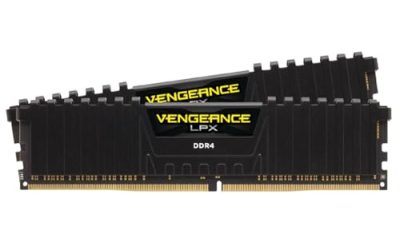
The best DDR5 RAM for most gaming PCs in 2026 is a 32GB kit of two matched DIMMs, typically DDR5-6000 with sensible timings for AMD systems or DDR5-6400 when your Intel platform and motherboard support it reliably.
As an Amazon Associate we earn from qualifying purchases at no extra cost to you.



Our Top Picks
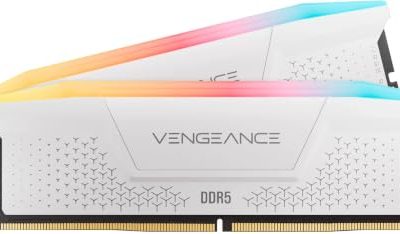
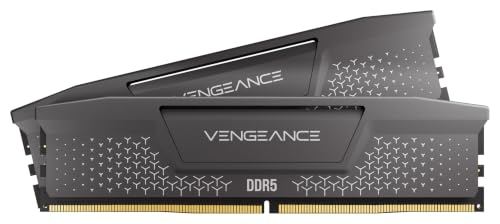
 Corsair Vengeance RGB RS DDR5 32GB32GB (2 x 16GB)5.43 x 0.27 x 1.77 inches0.11 PoundsCheck on Amazon

Top 3 picks at a glance
Best DDR5 RAM at a glance
| Gaming PC use case | Recommended capacity | Useful speed range | Preferred configuration | Why it fits |
|---|---|---|---|---|
| Mainstream 1080p or 1440p gaming | 32GB | DDR5-5600 to DDR5-6000 | 2 x 16GB | Good frame rates without unnecessary capacity |
| High-end gaming and streaming | 32GB or 48GB | DDR5-6000 to DDR5-6400 | 2 x 16GB or 2 x 24GB | Handles games, browsers, recording and voice chat together |
| Modded games, simulation and multitasking | 64GB | DDR5-5600 to DDR5-6000 | 2 x 32GB | More headroom for large mods and background applications |
| Content creation, virtual machines or development | 96GB or 128GB | DDR5-5200 to DDR5-6000 | 2 x 48GB or 4 x 32GB | Capacity matters more than peak gaming latency |
How much DDR5 RAM do you need?
Capacity affects whether a system has enough memory; speed and timings affect how quickly that memory responds. For a new gaming build, 32GB is the practical starting point. A 2 x 16GB kit leaves enough room for modern games, Windows, a browser, Discord and game-capture software without immediately forcing background programs to close.
Choose 64GB if you play heavily modded games, run local servers, edit high-resolution video, use virtual machines or keep many large applications open. A 2 x 32GB kit is usually preferable to four smaller modules because it places less electrical load on the memory controller and is more likely to run at its advertised profile.
Use 48GB as a useful middle option when a 2 x 24GB kit costs close to a 32GB kit but you want extra multitasking headroom. For professional workloads, 96GB using 2 x 48GB or 128GB using 2 x 64GB can be sensible, but check the motherboard’s memory support list before buying.
DDR5 speed versus timings
DDR5 speed is normally written as an effective data rate, such as DDR5-6000. Its theoretical bandwidth is calculated as:
Data rate in MT/s x 8 bytes x number of memory channels.
A dual-channel DDR5-6000 system therefore offers approximately 6000 x 8 x 2 = 96,000MB/s, or 96GB/s, of theoretical bandwidth. Real applications deliver less because of controller overhead and access patterns, but the calculation shows why two matched modules are important: one module runs in a reduced single-channel configuration.
Timings describe delays in memory clock cycles. The most visible number is often CAS latency, or CL. To estimate first-word latency in nanoseconds, use:
Latency = CL x 2000 / data rate.
- DDR5-6000 CL30: 30 x 2000 / 6000 = 10ns
- DDR5-6000 CL36: 36 x 2000 / 6000 = 12ns
- DDR5-6400 CL32: 32 x 2000 / 6400 = 10ns
- DDR5-7200 CL34: 34 x 2000 / 7200 = 9.4ns
Lower latency can help CPU-limited games, but the difference between two kits is usually smaller than the effect of the processor, graphics card and game settings. Compare the complete primary timing set, such as 30-36-36-76, rather than choosing solely by the first CL number. A well-balanced DDR5-6000 CL30 kit is often a better buy than a much faster kit that needs relaxed timings or fails to run consistently.
AMD and Intel compatibility
AMD Ryzen platforms
For AM5 processors such as the Ryzen 7 7800X3D, Ryzen 7 9800X3D and other Ryzen 7000- or 9000-series desktop chips, DDR5-6000 is a strong starting point. Kits marketed with AMD EXPO profiles make setup easier because the motherboard can apply a profile intended for Ryzen systems.
DDR5-6000 often offers a useful balance between memory speed, latency and memory-controller stability. Faster kits can work, but the result depends on the individual processor’s memory controller, motherboard firmware and DIMM layout. If a DDR5-6400 or faster kit requires manual troubleshooting, a stable DDR5-6000 kit is usually the better gaming choice.
Intel platforms
Intel Core desktop platforms that use DDR5, including systems built around Core Ultra desktop processors and compatible 600-series or newer motherboards, can often scale well with DDR5-6400 and beyond. XMP profiles are the normal method for loading the rated speed and timings.
That does not mean every Intel system should use the fastest kit available. A four-DIMM configuration, large-capacity modules or a budget motherboard may require a lower setting. Check the board’s qualified memory list and the processor’s official memory specification before treating an advertised overclocked speed as guaranteed.
Match the kit to your motherboard
DDR5 is not interchangeable with DDR4. A motherboard accepts one memory generation only, so confirm the exact board model before ordering. Then check these details:
- DIMM slots: Most gaming boards have four slots, while compact boards may have two.
- Maximum capacity: Verify support for 24GB, 48GB or 64GB modules if you are choosing a nonstandard capacity.
- Memory profile: Use EXPO for AMD-oriented kits and XMP for Intel-oriented kits, while noting that many boards support both.
- QVL: The qualified vendor list is useful for confirming that a particular module layout and capacity has been validated.
- Physical clearance: Tall RGB heat spreaders can interfere with large air coolers, especially when the front fan sits over the DIMM slots.
- Firmware: Update the motherboard BIOS before troubleshooting high-speed memory, particularly with newer processors or high-capacity modules.
Two DIMMs or four DIMMs?
Buy one matched kit rather than combining separate kits, even when their specifications appear identical. Memory kits are validated as a group, and mixing kits can introduce boot loops, crashes or a lower maximum speed.
Two modules installed in the motherboard’s recommended paired slots—usually A2 and B2, though the manual takes priority—are the easiest arrangement to run at a high frequency. Four modules increase capacity but also increase the load on the memory controller. A four-DIMM DDR5 system may need a lower data rate, looser timings or a small amount of manual tuning.
If you need 64GB, choose 2 x 32GB instead of adding another 2 x 16GB kit. If you need 96GB, choose 2 x 48GB where the motherboard supports it rather than filling all four slots.
Decision guide: which DDR5 kit should you buy?
| Your situation | Best starting choice | What to avoid |
|---|---|---|
| Ryzen 7000 or 9000 gaming build | 2 x 16GB DDR5-6000 CL30 or CL32 with EXPO | Paying a large premium for speeds your board cannot run reliably |
| Intel gaming build with a capable Z-series or equivalent board | 2 x 16GB DDR5-6000 to DDR5-6400 with XMP | Four DIMMs when maximum frequency is the priority |
| Heavy mods and streaming | 2 x 32GB DDR5-5600 to DDR5-6000 | Choosing 16GB because the advertised speed is higher |
| Compact PC with only two DIMM slots | 2 x 24GB or 2 x 32GB, after checking board support | Buying a future upgrade kit that leaves no open slots |
| Workstation-style multitasking | 2 x 48GB or 2 x 64GB at a board-supported speed | Prioritising DDR5-7200 when applications are capacity-limited |
Setup steps after installation
- Install the two modules in the paired slots specified by the motherboard manual.
- Enter UEFI setup and confirm that the full capacity is detected.
- Enable the EXPO or XMP profile. Without this step, DDR5 may run at a conservative default speed.
- Save, reboot and check stability with several hours of normal gaming and a memory diagnostic.
- If the system fails to boot, clear or reset the memory settings, update the BIOS and try the next lower speed. For example, reduce DDR5-6400 to DDR5-6200 or DDR5-6000 before changing multiple timings.
Lowering the data rate is the first useful fix because it reduces the workload on the memory controller while retaining the kit’s capacity. If instability continues, return to default settings, test each module separately, and inspect that both latches are fully closed. Persistent errors can indicate a defective DIMM, motherboard slot or processor memory controller.
Frequently asked questions
Can DDR5 RAM run at its advertised speed automatically?
No, you usually need to enable the appropriate EXPO or XMP profile in UEFI setup. Without this step, DDR5 may run at a conservative default speed. EXPO is commonly used for AMD-oriented kits, while XMP is normal for Intel-oriented kits, although many motherboards support both. Confirm that the full capacity is detected after enabling the profile.
What happens if I install only one DDR5 memory module?
Installing only one module runs the system in a reduced single-channel configuration. Two matched modules are important because a dual-channel DDR5-6000 system offers approximately 96GB/s of theoretical bandwidth, while real applications deliver less. For most gaming PCs, a 2 x 16GB kit is the practical starting point and is preferable to relying on one module.
Should I update my motherboard BIOS before installing high-speed DDR5?
Updating the motherboard BIOS can help when using high-speed memory, newer processors or high-capacity modules. The article recommends updating firmware before troubleshooting high-speed memory. If the system fails to boot after enabling a profile, reset the memory settings, update the BIOS and try the next lower speed, such as reducing DDR5-6400 to DDR5-6200 or DDR5-6000.
Can tall DDR5 heat spreaders cause installation problems?
Yes, tall RGB heat spreaders can interfere with large air coolers, particularly when the cooler’s front fan sits over the DIMM slots. Check physical clearance between the memory and cooler before buying. Compact boards may also have only two DIMM slots, so confirm the motherboard layout and the required module capacity before choosing a kit.
What should I check if my PC becomes unstable after enabling XMP or EXPO?
First lower the data rate, because this reduces the workload on the memory controller while retaining the kit’s capacity. If instability continues, return to default settings, test each module separately and check that both latches are fully closed. Persistent errors can indicate a defective DIMM, motherboard slot or processor memory controller.
Bottom line
For most new gaming PCs, choose 32GB as 2 x 16GB and prioritise a stable DDR5-6000 kit with an appropriate EXPO or XMP profile. Move to 64GB when your games or applications actually use more memory, and choose higher speeds only after confirming motherboard and processor support. The best DDR5 RAM is not the kit with the largest number on the box; it is the matched capacity, speed and timing combination that your platform can run reliably.