
Handhelds like the ROG Ally, Legion Go, and their rivals are surprisingly capable when you plug them into a big screen, but the right monitor changes the experience completely. Because these devices output over USB-C and have a modest power envelope, the smart pick is a screen that plays to their strengths instead of demanding frames they cannot deliver.
Our Top Picks
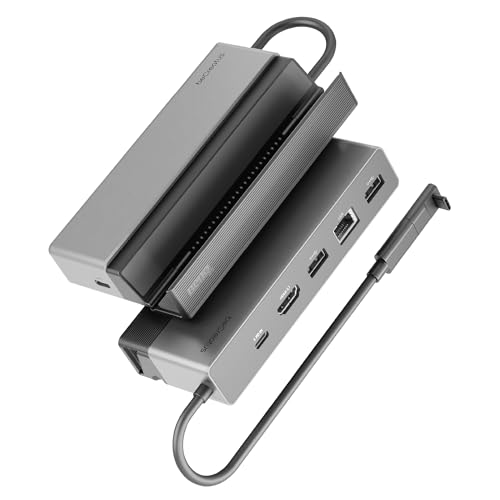 BenQ GR10 HDMI 2.1 Steam Deck Dock5.12 x 2.15 x 1 inches5.12 x 2.15 x 1 inches0.4 PoundsCheck on Amazon
 InnoView 16" TravelPortable Monitor USB-C 144Hz16 Inch0.6 x 14.06 x 9.55 Inches1.73 poundsCheck on Amazon


Top 3 picks at a glance
Match the monitor to the hardware, not the marketing
A handheld APU typically lands somewhere between a last-gen console and an entry desktop GPU. That means 1080p or 1440p at 60-120fps is realistic in most titles, and chasing a 4K 240Hz panel just wastes money and forces heavy upscaling.
As an Amazon Associate we earn from qualifying purchases at no extra cost to you.





Resolution sweet spot
A 27-inch 1440p monitor is the best all-round match. It looks sharp from a couch or desk, and with the handheld’s built-in FSR or on-device scaling you can hit smooth frame rates. If you mostly play lighter or competitive games, a 1080p 120-144Hz panel keeps things buttery.
USB-C with power delivery is the killer feature
The single most useful spec is a USB-C input with Power Delivery of 65W or more. That one cable carries video and charges the handheld at the same time, so you dock and play without a tangle of adapters. Confirm the monitor’s PD wattage meets or beats your device’s charger rating.
Refresh rate and adaptive sync
Since a handheld rarely locks to a perfect 60 or 120fps, VRR (FreeSync or G-Sync Compatible) matters more than raw Hz. A 1440p 144Hz panel with adaptive sync smooths out the frame-rate swings these chips produce far better than a fixed 60Hz screen.
| Use case | Recommended panel | Refresh | Key port | Why |
|---|---|---|---|---|
| All-round docked play | 27″ 1440p IPS | 144-165Hz | USB-C 65W+ PD | Sharp, single-cable, VRR headroom |
| Competitive / lighter games | 24-25″ 1080p IPS | 144Hz | USB-C or HDMI | Easy frames, low cost |
| Couch / big-screen feel | 32″ 1440p VA | 120-144Hz | USB-C or HDMI 2.0 | Immersive from distance |
| Media + play combo | 27″ 4K IPS | 60-120Hz | USB-C 90W PD | Great for video, fine at 60fps |
Ports, sound, and the little things
Built-in speakers are genuinely handy on a docking monitor because the handheld may not pass audio to a separate system easily. A downstream USB hub lets you plug in a controller or keyboard through the monitor. And an HDMI 2.0 input covers you if you use the device’s official dock instead of the USB-C route.
Watch the PD wattage
If the monitor only supplies 15-18W over USB-C, it can run the display but slowly drain the handheld during demanding games. Aim for 65-100W so the battery holds or charges while you play.
Get the output settings right
Docking a handheld is only half the job; the on-device display settings decide whether it looks good. Set the output resolution to match the monitor’s native panel, then use the handheld’s in-game resolution scaling or FSR to hit a smooth frame rate rather than forcing native rendering the chip cannot sustain. Many handhelds also let you cap the TDP higher when plugged in, since you are no longer conserving battery, which unlocks noticeably more performance on a big screen.
Also confirm the refresh rate actually switches to the monitor’s when docked. Some handhelds default to 60Hz over an external output even on a 144Hz panel until you change it manually in display settings, so you leave a lot of smoothness on the table if you never check.
FAQ
Can I run a handheld at 4K on a monitor?
You can output 4K, but the APU will usually rely on upscaling and settle around 30-60fps in demanding games. A 1440p monitor is a better match because it looks sharp while leaving performance headroom, and you avoid heavy upscaling artifacts.
Do I need USB-C or is HDMI fine?
HDMI works through most official docks, but a monitor with USB-C Power Delivery is better because one cable handles video and charging together. Look for 65W or more so the handheld does not drain while docked.
Bottom line
Pick a 27-inch 1440p monitor with a USB-C input rated at 65W+ Power Delivery and adaptive sync. It matches what these chips actually output, charges the device on one cable, and smooths the frame-rate swings handhelds produce. Save the 4K 240Hz money for a desktop GPU that can use it.









