
If your desk juggles a PC, a PlayStation, an Xbox, and maybe a Switch or a handheld dock, you need a monitor built for switching, not just gaming. The right display has enough of the correct inputs, handles each device at its best, and makes hopping between them painless. Here is how to pick one screen that serves your whole battlestation.
Our Top Picks
 Dell OptiPlex Desktop Computer with 24 inch Monitor3040|16-51217 x 13 x 7 inches19.8 PoundsCheck on Amazon
 Philips 24 Inch Computer Monitor FHD 100Hz VA24 inch 100Hz8.7 x 21.3 x 16.4 inches6.4 poundsCheck on Amazon
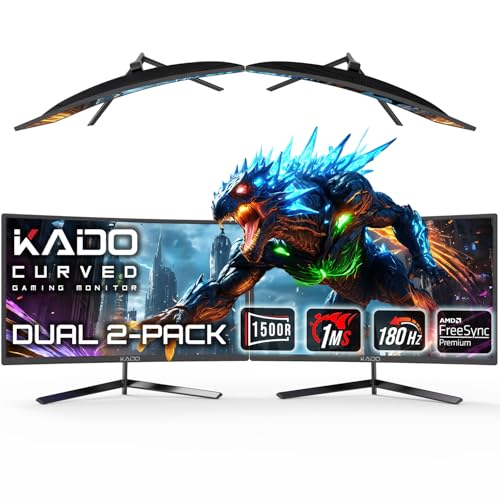 Kado Dual 2-Pack 24" Curved 1500R 180Hz 1ms24" Curved 180Hz2.75 x 21.61 x 12.85 inchesCheck on Amazon
 Kado Dual 2-Pack 24.5" Curved 1500R 240Hz 1ms27" Curved 240Hz4.03 x 21.99 x 13.01 inches26.46 PoundsCheck on Amazon


Top 3 picks at a glance
Inputs Come First
Count your devices and add one for the future. A multi-console setup quickly exhausts a monitor with a single HDMI port. Look for at least two HDMI 2.1 ports for current consoles that support 4K 120Hz, plus a DisplayPort for your PC and ideally USB-C for a laptop or handheld. HDMI 2.1 matters because it carries 4K at 120Hz and features like variable refresh and auto low-latency mode that consoles use.
As an Amazon Associate we earn from qualifying purchases at no extra cost to you.





Port Planning
| Device | Ideal connection | Why |
|---|---|---|
| PlayStation / Xbox current-gen | HDMI 2.1 | 4K 120Hz, VRR, ALLM |
| Gaming PC | DisplayPort 1.4 or 2.1 | Highest refresh and bandwidth |
| Laptop or handheld dock | USB-C | Single-cable video and power |
| Switch / older console | Spare HDMI 2.0 | 1080p 60 is fine |
Panel, Size, and Switching Features
Resolution and Size
A 27-inch 1440p or a 32-inch 4K panel is the versatile choice. Consoles favor 4K, so a 32-inch 4K 120Hz display lets a PlayStation or Xbox look its best while still serving PC duty. If you lean competitive on PC, a 27-inch 1440p high-refresh screen is the better all-rounder, and consoles will happily run at up to 120Hz on it.
Convenience Features
Look for a quick input-switching menu or an auto-detect that jumps to whichever device just powered on. A built-in KVM is a bonus if you want one keyboard and mouse shared between the PC and a laptop. Picture-by-picture, which shows two sources side by side, is handy if you like to watch a guide on one input while playing on another.
Sound
Consoles do not always pair easily with PC speakers, so a monitor with a decent headphone jack and audio passthrough over HDMI simplifies your setup. Built-in speakers are usually weak, so plan for headphones or external speakers you can route through the display.
Wiring and Managing the Whole Desk
A multi-device desk lives or dies by cable management and switching convenience, not just the panel. Once you have chosen a monitor with enough of the right ports, plan the physical layout so each device reaches its ideal input without a tangle. Label your cables at both ends, route them through the monitor arm or a tray, and keep the full-bandwidth HDMI 2.1 ports reserved for the consoles that actually use 4K at 120Hz, since a lower-bandwidth port will quietly cap them.
Input switching is the daily friction point. A monitor with a joystick shortcut you can assign to cycle sources, or a genuinely fast auto-detect, turns a five-second menu dive into a flick. If you also want one keyboard and mouse to serve both your PC and a docked laptop, a built-in KVM is worth prioritizing, because it lets you switch peripherals along with the video in a single action. Finally, sort out audio early: route console sound through the monitor’s headphone jack or an external speaker setup so you are not fumbling with Bluetooth pairings every time you change devices. Get the connectivity, switching, and audio routing right, and hopping between four devices feels effortless instead of exhausting.
Frequently Asked Questions
How many HDMI 2.1 ports do I really need?
Two is the practical minimum for a multi-console desk, so a PlayStation and an Xbox can both run at 4K 120Hz without swapping cables. Many monitors ship with only one full-bandwidth HDMI 2.1 port, so read the spec sheet carefully; the second HDMI is sometimes limited to lower bandwidth.
Will one monitor handle 120Hz on both console and PC?
Yes, as long as it has the right ports. HDMI 2.1 delivers up to 4K 120Hz for consoles, while DisplayPort feeds your PC at high refresh. A single 4K 120Hz or 1440p high-refresh monitor can serve every device; just connect each to its ideal port.
Bottom Line
For a multi-console and PC battlestation, prioritize inputs above all: at least two HDMI 2.1 ports, DisplayPort, and USB-C, on a versatile 27-inch 1440p or 32-inch 4K 120Hz panel with easy switching. Get the connectivity right and one well-chosen monitor can be the hub your entire setup revolves around.









