
The best gaming monitor for Marvel Rivals is the Sceptre 27-Inch Curved Gaming Monitor with its 240Hz refresh rate, but the right choice depends on your graphics card, desk space, and whether you value competitive motion clarity more than image quality. It is the strongest pick for players who want the highest refresh rate in this group, while the MSI PRO MP243L E14 is the safer budget choice for a clean 24-inch IPS display and the Sceptre New 22-Inch is the lowest-cost route to 144Hz gaming. The Sceptre Curved 24-inch Prime is a useful middle ground at 180Hz, and the SANSUI 24-inch Curved 160Hz model fits players who want a compact curved screen without moving into a premium price tier.
Marvel Rivals is a fast third-person competitive shooter, so refresh rate, response behavior, adaptive sync, and a sensible screen size matter more than HDR branding or built-in speakers. A 1080p monitor is also a practical match for the game because it reduces the graphics-card workload, making it easier to maintain a high frame rate. The main caveat is that a 240Hz display only becomes a meaningful upgrade when your PC can deliver frame rates close to 200 frames per second in your chosen settings. If your system normally produces 90–140 FPS, a good 144Hz or 160Hz monitor can deliver nearly the same practical benefit for less money.
Our Top Picks
 New! Sceptre Curved 24-inch Prime Gaming Monitor 1080p24 inches7.6 x 21.6 x 16.3 InchesCheck on Amazon



Top 3 picks at a glance
Quick Comparison
| Product | Best for | Key specs stated by the listing | Price tier |
|---|---|---|---|
| Sceptre New 22-Inch Gaming Monitor | Lowest-cost high-refresh gaming | 22-inch class, 1920×1080 Full HD, up to 144Hz, HDMI, DisplayPort, built-in speakers | Budget |
| msi PRO MP243L E14 24-inch IPS | Budget IPS image quality and mixed use | 24-inch class, IPS, 1920×1080 Full HD, 144Hz, Free-Sync, HDR Ready, HDMI, VGA | Budget |
| Sceptre Curved 24-inch Prime | Affordable 180Hz curved gaming | 24-inch class, 1920×1080, 1500R curve, 1ms class response, up to 180Hz, two DisplayPort and two HDMI connections stated | Mid-range |
| Sceptre 27-Inch Curved Gaming Monitor | Competitive players seeking 240Hz | 27-inch class, 1920×1080 Full HD, 240Hz, 1500R curve, DisplayPort, two HDMI connections, built-in speakers | Premium |
| SANSUI 24-inch Curved 160Hz Gaming Monitor | Compact curved gaming on a moderate budget | 24-inch class, 1500R curved panel, 160Hz refresh rate | Mid-range |
The supplied product list contains five monitors rather than six, so this roundup compares those five models only. Prices change frequently; the budget, mid-range, and premium labels describe their relative position in this selection rather than a fixed retail price.
How We Chose
The selection is based on the requirements of Marvel Rivals rather than on a monitor’s headline specification alone. A high refresh rate is useful for tracking moving heroes and reducing visible blur, but it only helps when the computer can produce enough frames. Resolution, panel category, adaptive-sync support, connection options, screen size, and the likely upgrade path therefore matter together.
We also considered category fit. A 22-inch 1080p display prioritizes affordability and pixel density, a 24-inch 1080p monitor is a balanced desktop size, and a 27-inch 1080p monitor gives a larger image at the cost of lower pixel density. Curved models may feel more immersive, while a conventional flat IPS monitor can be more versatile for schoolwork, office use, and color-sensitive tasks. The product descriptions below use the listed specifications and established characteristics of each monitor class; they do not rely on claimed personal ownership, private measurements, or invented benchmark results.
1. Sceptre New 22-Inch Gaming Monitor – Best for lowest-cost 144Hz gaming
As an Amazon Associate we earn from qualifying purchases at no extra cost to you.

The Sceptre New 22-Inch Gaming Monitor is the most sensible pick when the objective is to spend as little as possible while still getting a genuinely gaming-oriented refresh rate. Its 22-inch class screen and 1920×1080 Full HD resolution keep the workload manageable for entry-level and older gaming PCs, and the listing states support for up to 144Hz. That combination is a strong fit for Marvel Rivals players who are replacing an ordinary 60Hz office monitor.
The smaller panel is not automatically a disadvantage. At 1080p, a 22-inch screen has a higher pixel density than a 27-inch 1080p screen, so menus, character outlines, and environmental details can look relatively crisp at normal desk distance. It also takes less desk space, which helps if the monitor must share a compact study area with a keyboard, speakers, or a second screen.
- Screen class: 22-inch gaming monitor
- Resolution: 1920×1080 Full HD
- Refresh rate: Up to 144Hz
- Connections stated: HDMI and DisplayPort
- Audio: Built-in speakers
- Position in the lineup: Budget
For Marvel Rivals, 144Hz is a useful target because it gives the display a new frame approximately every 6.94 milliseconds, compared with every 16.67 milliseconds at 60Hz. That does not make the game run faster by itself, but it allows the monitor to show more frequent updates when the PC supplies them. The difference is especially visible when turning the camera quickly or following a mobile hero across the screen.
Strengths
The primary strength is value. A 1080p panel at up to 144Hz is much easier to drive than a higher-resolution display at a similar refresh rate. The HDMI and DisplayPort combination also gives a desktop PC user a modern digital connection choice while retaining flexibility for other devices. Built-in speakers are convenient for basic game audio, voice prompts, or system sounds, although dedicated headphones or speakers remain preferable for positional audio and communication.
The 22-inch format can also work well for competitive viewing distance. If you sit fairly close and prefer to keep the entire screen within your central vision, the smaller panel may feel easier to scan than a large display. That is useful in a game where the minimap, ability indicators, team status, and combat effects all compete for attention.
Pros
- Up to 144Hz is a substantial improvement over standard 60Hz office monitors.
- 1080p is relatively easy for a wide range of gaming PCs to render at high frame rates.
- 22-inch size saves desk space and gives 1080p a comparatively dense image.
- DisplayPort and HDMI support desktop and general-purpose connectivity.
- Built-in speakers can handle basic audio without another accessory.
Cons
- The smaller screen is less immersive than a 24-inch or 27-inch model.
- It offers less headroom than the 160Hz, 180Hz, and 240Hz alternatives.
- The listing does not establish an IPS panel, so buyers should not assume IPS viewing angles or color behavior.
- A budget monitor may provide fewer ergonomic adjustment options than a more expensive display.
How it compares with the nearest alternative
The closest alternative is the MSI PRO MP243L E14. Both target 1080p gaming around 144Hz and occupy the budget category, but they prioritize different things. The Sceptre is smaller and explicitly lists DisplayPort, HDMI, and built-in speakers. The MSI is a 24-inch IPS monitor with Free-Sync, HDR Ready labeling, HDMI, and VGA, making it more attractive if panel type and mixed office use matter more than compactness.
Choose the Sceptre if the purchase must remain inexpensive, the desk is small, or the system is unlikely to exceed 144 frames per second. Choose the MSI if you want a larger 24-inch IPS screen and adaptive-sync support is a key part of your buying decision. Neither is an ideal reason to upgrade from an existing, functioning 144Hz display; both are most compelling as an upgrade from 60Hz or 75Hz.
2. MSI PRO MP243L E14 – Best for budget IPS and mixed use

The MSI PRO MP243L E14 is the best fit for a Marvel Rivals player who also needs a monitor for studying, office work, browsing, and general media. Its listed 24-inch IPS panel, Full HD resolution, 144Hz refresh rate, and Free-Sync support form a balanced specification rather than chasing the highest possible refresh rate. The display is especially appealing when consistent everyday image quality and viewing flexibility matter as much as competitive motion.
A 24-inch 1080p screen is a dependable size for a normal desktop. It is large enough to make game HUD elements comfortable to read but compact enough that a typical viewing distance does not make individual pixels excessively conspicuous. Compared with a 27-inch 1080p model, it also gives Full HD a tighter pixel density, which can make text and interface edges look cleaner from close range.
- Screen class: 24-inch IPS gaming and office monitor
- Resolution: 1920×1080 Full HD
- Refresh rate: 144Hz
- Sync feature stated: Free-Sync
- HDR labeling: HDR Ready
- Connections stated: HDMI and VGA
- Position in the lineup: Budget
Free-Sync is relevant because frame rates in Marvel Rivals will not remain perfectly fixed during every fight. Large team engagements, visual effects, crowded objectives, and background applications can all make frame delivery vary. When a monitor and graphics card operate within a compatible adaptive-sync range, the display can coordinate refresh timing with rendered frames, reducing the likelihood of obvious tearing or uneven presentation. Exact behavior depends on the connected graphics hardware, driver, cable, and monitor settings.
Strengths
The IPS panel category is the central advantage. IPS monitors are widely chosen for their broad viewing angles and generally balanced color presentation, which makes them more comfortable for shared viewing and non-gaming work than many narrow-viewing-angle alternatives. This does not mean every IPS monitor has identical contrast or factory calibration, but the category is a sensible compromise for a single-screen setup.
The MSI also has a more versatile role than a display chosen only for esports. The 144Hz refresh rate gives Marvel Rivals noticeably smoother motion than 60Hz, while the 24-inch size remains practical for documents and browser windows. The VGA connection may be useful with older computers or office equipment, although a modern gaming PC should normally use the digital HDMI connection.
Pros
- IPS panel category suits gaming, office work, and general viewing.
- 144Hz is a sensible target for a budget Marvel Rivals system.
- Free-Sync support can help with variable frame delivery.
- 24-inch Full HD is a balanced size and resolution combination.
- HDMI and VGA provide compatibility with newer and older equipment.
Cons
- It does not offer the higher refresh rates of the 160Hz, 180Hz, or 240Hz models.
- HDR Ready is not the same as full high-end HDR performance with strong local dimming.
- The listed connections do not include DisplayPort.
- Players wanting a curved, more immersive presentation may prefer one of the Sceptre or SANSUI alternatives.
How it compares with the nearest alternative
The nearest alternative is the Sceptre New 22-Inch Gaming Monitor. The two are close in refresh-rate class, but the MSI offers a larger 24-inch IPS panel and explicitly lists Free-Sync, while the Sceptre offers DisplayPort, HDMI, and built-in speakers in a smaller 22-inch format. The MSI is therefore the stronger mixed-use recommendation, and the Sceptre is the better compact-value recommendation.
There is also a case for spending more on the Sceptre Curved 24-inch Prime. That model moves to 180Hz and adds a curved design with multiple HDMI and DisplayPort connections, but the extra refresh headroom is valuable only if your computer can render well above 144 FPS. If your system is in the 100–150 FPS range, the MSI may provide the more rational balance, especially when your monitor is used for work during the day.
3. Sceptre Curved 24-inch Prime – Best for affordable 180Hz gaming

The Sceptre Curved 24-inch Prime is the middle-ground choice for players who want more than 144Hz without moving to a 27-inch 1080p screen. Its listed 180Hz refresh rate, 1500R curve, 1ms class response, and 24-inch Full HD format are well suited to fast Marvel Rivals matches. It is particularly attractive when the PC can regularly produce 160–180 frames per second and the buyer wants additional motion headroom at a mid-range price tier.
The 180Hz refresh interval is approximately 5.56 milliseconds, compared with about 6.94 milliseconds at 144Hz. That is a modest numerical difference, not a transformation, but it can improve the feel of a high-frame-rate setup when other parts of the system are also responsive. The benefit is most credible when the game’s frame pacing is stable. A 180Hz monitor cannot compensate for severe stutter caused by a CPU limit, shader compilation, background software, or inconsistent settings.
- Screen class: 24-inch curved gaming monitor
- Resolution: 1080p Full HD
- Curve: 1500R
- Response specification: 1ms class as stated in the listing
- Refresh rate: Up to 180Hz
- Connections stated: Two DisplayPort and two HDMI connections
- Position in the lineup: Mid-range
Strengths
The 24-inch size and 1080p resolution make a strong pairing for high-refresh gaming. Unlike a 27-inch Full HD display, the Sceptre does not stretch the same pixel count across as much physical area. That can make character edges and small interface text appear more defined at an ordinary desk distance. It also means the graphics card has no extra resolution burden compared with a conventional 1080p monitor.
The 1500R curve is more noticeable than a very mild curve. Some players like the way it brings the edges of the display slightly toward the viewing position, particularly when sitting centered. Others prefer a flat screen for spreadsheets, design work, or a multi-monitor layout. The curve should therefore be treated as a preference and desk-layout decision rather than an automatic performance improvement.
The listed two DisplayPort and two HDMI connections are useful for a multi-device desk. A gaming PC, console, laptop dock, or secondary source can remain connected without repeatedly swapping cables. Buyers should still confirm which input supports the desired refresh rate and whether the computer’s graphics output can provide 180Hz at 1080p.
Pros
- 180Hz gives more refresh headroom than the 144Hz budget models.
- 24-inch 1080p maintains a practical pixel density for close desktop viewing.
- 1500R curve adds immersion for players who prefer curved screens.
- Two DisplayPort and two HDMI connections make a multi-device setup easier.
- The listed 1ms class response specification suits a fast-action gaming category.
Cons
- The extra refresh rate is difficult to appreciate if the PC remains below approximately 140–150 FPS.
- A curved screen may be less convenient for precision design, documents, or a mixed flat-panel arrangement.
- 1080p on 24 inches is less spacious than a higher-resolution productivity monitor.
- The listing details do not establish the same IPS panel category as the MSI model.
How it compares with the nearest alternative
The closest alternative is the SANSUI 24-inch Curved 160Hz Gaming Monitor. Both are compact curved displays aimed at high-refresh 1080p-style gaming, and both occupy the mid-range tier in this selection. The Sceptre offers the higher listed refresh rate, the stated 1ms class response, and two DisplayPort plus two HDMI connections. The SANSUI’s main appeal is that it reaches 160Hz while retaining the 24-inch, 1500R curved format.
The Sceptre is the better choice if your computer can use the additional 20Hz and you value connection flexibility. The SANSUI may be the more sensible buy if its current market price is lower and your frame rate normally falls between 120 and 160 FPS. In that range, both monitors can provide a smooth experience, and the difference is less important than stable frame pacing and proper adaptive-sync configuration.
4. Sceptre 27-Inch Curved Gaming Monitor – Best for 240Hz competitive play
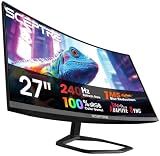
The Sceptre 27-Inch Curved Gaming Monitor is the best overall pick in this list for a player who specifically wants the highest refresh rate available among the supplied products. Its listed 240Hz refresh rate, 27-inch Full HD resolution, 1500R curve, DisplayPort connection, two HDMI connections, and built-in speakers create a feature set aimed at fast, visually immediate gaming. It is the right recommendation for a high-frame-rate PC, not automatically the right recommendation for every Marvel Rivals player.
At 240Hz, the monitor refreshes every approximately 4.17 milliseconds. That is substantially more frequent than 60Hz and meaningfully more frequent than 144Hz, whose interval is about 6.94 milliseconds. If the PC can produce close to 200–240 FPS with consistent frame delivery, the higher refresh rate can make camera movement and rapid tracking feel more immediate. If the PC produces 80–120 FPS, the display still works, but much of its premium capability remains unused.
- Screen class: 27-inch curved gaming monitor
- Resolution: 1920×1080 Full HD
- Refresh rate: 240Hz
- Curve: 1500R
- Connections stated: DisplayPort and two HDMI connections
- Audio: Built-in speakers
- Position in the lineup: Premium
Strengths
The 240Hz ceiling is the obvious strength. Marvel Rivals has rapid movement, close-range ability effects, vertical traversal, and frequent camera changes, so a high-refresh monitor can be a good match for competitive play. A 240Hz panel also gives a fast PC more room to display new frames than a 144Hz or 160Hz monitor.
The 27-inch size creates a more immersive image than the 22-inch and 24-inch options. It can make heroes, objectives, and ability effects easier to see, especially for a player who sits farther back. However, the same 1920×1080 resolution is spread over a larger area. At typical desk distances, the image will have lower pixel density than 24-inch 1080p, so a buyer should not choose this model for the sharpest text or the most compact pixel structure.
The 1500R curve may help the large screen feel more cohesive when viewed from the center. It also makes the monitor feel more enveloping during matches. The DisplayPort and two HDMI connections provide practical source flexibility, while built-in speakers are suitable for casual sound but should not be confused with a substitute for a good headset in team play.
Pros
- 240Hz is the highest refresh rate in this product selection.
- 27-inch size gives Marvel Rivals a more immersive presentation.
- 1500R curve complements the larger screen for centered viewing.
- DisplayPort and two HDMI connections support multiple devices.
- Built-in speakers are convenient for basic audio.
Cons
- 27-inch 1080p has lower pixel density than 22-inch and 24-inch 1080p options.
- A 240Hz display is poor value when the system cannot sustain high frame rates.
- The 1500R curve and large size may be less suitable for close-up productivity work.
- It is categorized as premium within this list despite retaining Full HD resolution.
How it compares with the nearest alternative
The closest alternative is the Sceptre Curved 24-inch Prime. Both are curved Full HD gaming monitors and both list a 1500R curve, but the 27-inch model raises the refresh rate from 180Hz to 240Hz and increases the physical screen size. The 24-inch Prime has a denser image and may be easier to drive at the frame rates needed to use its refresh rate fully.
Choose the 27-inch model when you have a strong gaming PC, sit at least a comfortable arm’s length away, and prioritize competitive motion over pixel density. Choose the 24-inch Prime when you want a tighter image, a smaller footprint, or better odds of consistently reaching the monitor’s maximum refresh rate. If you are upgrading from 60Hz, either will be a major step; if you already own a good 144Hz monitor, move to 240Hz only when your system and playing style justify it.
5. SANSUI 24-inch Curved 160Hz Gaming Monitor – Best for compact curved value

The SANSUI 24-inch Curved 160Hz Gaming Monitor is a practical choice for someone who wants a curved gaming display with more refresh headroom than 144Hz, but who does not need the 180Hz or 240Hz ceiling of the Sceptre alternatives. Its listing identifies a 24-inch curved monitor with a 1500R curve and a 160Hz refresh rate. That makes it a sensible compact option for Marvel Rivals players whose systems usually operate in the upper-100-FPS range.
The 160Hz refresh interval is approximately 6.25 milliseconds. That is faster than 144Hz at approximately 6.94 milliseconds, although the improvement is smaller than the jump from 60Hz to 144Hz. This distinction matters when comparing value. A 160Hz monitor should be chosen because its total package, design, price, and screen preference suit you—not because 16 additional refresh cycles per second will solve inconsistent performance.
- Screen class: 24-inch curved gaming monitor
- Curve: 1500R
- Refresh rate: 160Hz
- Primary use class: Gaming
- Position in the lineup: Mid-range
Strengths
The 24-inch format is a strong compromise for Marvel Rivals. It avoids the lower pixel density of 27-inch Full HD while offering more viewing area than a 22-inch screen. The 1500R curve can make the display feel more immersive without requiring the desk space of an ultrawide monitor. For a centered single-monitor setup, the shape is easy to appreciate during gaming.
160Hz also fits the performance envelope of many mid-range gaming PCs better than 240Hz. If your frame rate varies between approximately 120 and 165 FPS depending on the map, team fight, and graphics settings, the monitor can provide useful headroom without making a premium-refresh-rate purchase. Actual frame rates vary with the processor, graphics card, memory configuration, game patch, background programs, and chosen settings, so the monitor should be paired with your own performance data where possible.
Pros
- 160Hz is a useful step above 144Hz for high-refresh gaming.
- 24-inch Full HD-class sizing is practical for a normal desk.
- 1500R curvature adds immersion while keeping the screen compact.
- Mid-range positioning can suit a balanced gaming build.
Cons
- The available listing information is less detailed than for several competing models.
- It does not offer the stated 180Hz ceiling of the Sceptre Curved 24-inch Prime.
- It does not offer the 240Hz option or larger 27-inch image of the premium Sceptre.
- Buyers should verify the exact inputs, adaptive-sync behavior, stand adjustment, and included accessories before purchase.
How it compares with the nearest alternative
The nearest alternative is the Sceptre Curved 24-inch Prime. Both are 24-inch curved gaming monitors with a 1500R curve, but the Sceptre lists up to 180Hz, a 1ms class response, and two DisplayPort plus two HDMI connections. The SANSUI reaches 160Hz, which remains fast enough for a smooth Marvel Rivals setup, but its more limited stated specification makes it especially important to confirm the exact connection and ergonomics details in the current listing.
Choose the SANSUI when its current market price is meaningfully lower or when 160Hz matches your expected frame rate. Choose the Sceptre Prime if you can use 180Hz and need the explicitly listed multi-input setup. Compared with the MSI, the SANSUI offers the curved format and an extra 16Hz of refresh headroom; compared with the 27-inch Sceptre, it offers a smaller, denser image that may be better for close viewing.
How to Choose
Choosing a monitor for Marvel Rivals starts with the relationship between the screen and the computer, not with the largest number printed on the product page. A fast monitor is only useful when the graphics card, processor, connection, and game settings can support it. The following decision process narrows the five listed models according to performance, viewing distance, panel preference, and budget.
1. Start with the frame rate your PC can actually deliver
Refresh rate describes how often the monitor can update, while frame rate describes how often the computer renders a new frame. They are related but not interchangeable. A 144Hz monitor can refresh every 6.94 milliseconds, a 160Hz monitor every 6.25 milliseconds, a 180Hz monitor every 5.56 milliseconds, and a 240Hz monitor every 4.17 milliseconds. If Marvel Rivals runs at 100 FPS, the computer is producing a new frame every 10 milliseconds on average, so a 240Hz panel cannot display 240 unique rendered frames each second.
Use these broad categories as a buying guide:
| Typical Marvel Rivals frame-rate range | Most sensible refresh class | Best matches in this list | Why |
|---|---|---|---|
| 60–100 FPS | 100–144Hz | Sceptre New 22-Inch or MSI PRO MP243L E14 | Spending on 240Hz gives limited benefit when the computer is well below that range. |
| 100–145 FPS | 144–160Hz | MSI PRO MP243L E14 or SANSUI 24-inch | These options leave useful headroom without requiring an extreme frame-rate target. |
| 130–175 FPS | 160–180Hz | SANSUI 24-inch or Sceptre Curved 24-inch Prime | The extra refresh capacity can be used during lighter scenes and competitive settings. |
| 170–240 FPS | 180–240Hz | Sceptre Curved 24-inch Prime or Sceptre 27-Inch | Higher refresh becomes more meaningful when the PC can sustain it consistently. |
| 200 FPS and above | 240Hz | Sceptre 27-Inch Curved | This is the clearest case for the highest-refresh model in the selection. |
These are not guaranteed game benchmarks. Actual FPS varies with graphics settings, resolution, CPU, graphics card, memory, cooling, drivers, patches, and background activity. Before buying, use the game’s own performance display or a reputable frame-time overlay to observe busy fights rather than relying only on an average number from an empty training area.
2. Decide whether 1080p is the right resolution
Every listed monitor uses a Full HD-class gaming format, with the explicitly stated models using 1920×1080. This is a deliberate strength for a high-refresh Marvel Rivals system. Compared with rendering at 2560×1440, 1920×1080 contains 2,073,600 pixels per frame, while 2560×1440 contains 3,686,400 pixels. The arithmetic is:
- 1920 x 1080 = 2,073,600 pixels
- 2560 x 1440 = 3,686,400 pixels
- 3,686,400 / 2,073,600 = approximately 1.78
A 1440p image therefore asks the graphics card to process approximately 78 percent more pixels per frame than 1080p. The real performance difference depends on the game and system, but the calculation explains why 1080p is often the easier route to 144Hz, 180Hz, or 240Hz. If your priority is competitive responsiveness and your graphics card is modest, Full HD is sensible.
The trade-off is sharpness and desktop space. A 24-inch 1080p display has approximately 91.8 pixels per inch, while a 27-inch 1080p display has approximately 81.6 pixels per inch. The smaller screen therefore packs the same pixel count more tightly. The 27-inch model may feel more immersive, but the 24-inch models are generally the better choice for crisp text at a close desk distance.
3. Match screen size to viewing distance
A 22-inch monitor is useful when the desk is shallow or the player sits close. It can keep the entire image within a narrow field of view and makes 1080p relatively dense. The Sceptre New 22-Inch is the natural choice for that situation.
Twenty-four inches is the safest all-purpose size in this selection. It works on most desks, gives enough physical area for the game interface, and preserves better 1080p pixel density than 27 inches. The MSI, Sceptre Curved 24-inch Prime, and SANSUI 24-inch all fit this category, with the curved models adding a stronger sense of enclosure.
Twenty-seven inches works best when you sit farther back, want a larger image, or value immersion more than text sharpness. The Sceptre 27-Inch Curved can be a satisfying competitive display for a player who wants 240Hz and has enough desk depth. If you sit very close, however, the larger panel can make the edges harder to scan and may make Full HD pixels more visible.
4. Choose flat or curved according to the rest of your use
Curvature is not a performance specification. A 1500R curve describes the approximate radius of the curve, with a stronger visual bend than a very subtle curved panel. The Sceptre Curved 24-inch Prime, Sceptre 27-Inch Curved, and SANSUI 24-inch list a 1500R design.
A curved display can feel immersive in a centered gaming position because the edges are angled slightly toward you. It can be especially pleasant for a single-monitor setup. It may be less convenient if you frequently place a laptop beside it, build a mixed flat-and-curved multi-monitor array, or perform work where straight lines and uniform geometry matter.
The MSI is the clearest conventional choice for mixed gaming and office use because its listing identifies an IPS panel rather than a curved format. The 22-inch Sceptre is also a compact option when curvature is not a priority. Choose based on how you use the desk for eight or more hours, not only on how the monitor looks in a product photograph.
5. Understand IPS, response time, and motion clarity
The MSI listing identifies an IPS panel. IPS displays are commonly selected for wide viewing angles and balanced color behavior. That is useful if more than one person views the screen or if the monitor doubles as a work display. The other product names do not provide enough panel detail to assume they use the same panel technology, so buyers should not infer an exact contrast ratio, color gamut, or response curve from the product category alone.
A listed “1ms” response specification should be read carefully. It describes a target measurement under a particular test mode, not a promise that every pixel transition will always complete in one millisecond without overshoot. Excessive overdrive can create bright or dark trails behind moving objects, while too little overdrive can produce ordinary smearing. Start with the monitor’s middle response setting and adjust only if you can clearly see a benefit without inverse ghosting.
For Marvel Rivals, stable frame delivery and a suitable refresh rate generally matter more than a single response-time number. A monitor with sensible motion behavior at 144Hz can feel better than a nominally faster display paired with severe stutter or an overloaded graphics card.
6. Treat adaptive sync as part of the setup
Marvel Rivals will not necessarily run at exactly the same FPS at all times. Adaptive sync can coordinate the monitor’s refresh timing with the graphics card’s frame output within a supported range. The MSI listing explicitly states Free-Sync. The other listings in this selection should be checked for their current adaptive-sync details rather than being assumed to have a particular compatibility mode.
A practical setup process is:
- Connect the monitor using the recommended digital input and a suitable cable.
- Open the operating system display settings and select the monitor’s highest available refresh rate.
- Enable the compatible adaptive-sync option in the monitor’s on-screen menu if present.
- Enable the corresponding graphics-driver feature.
- Launch Marvel Rivals and confirm that the game is using the monitor’s native 1920×1080 mode where applicable.
- Set a frame-rate limit a few frames below the refresh ceiling if you are trying to keep adaptive sync engaged consistently.
For example, a 144Hz monitor might be capped around 138–141 FPS, while a 240Hz monitor might be capped around 235–237 FPS. The exact number is not universal; the purpose is to leave a small margin so the computer does not repeatedly collide with the display’s maximum refresh rate. If input latency is your absolute priority and tearing is acceptable, some competitive players use different settings, but adaptive sync is the more comfortable general recommendation.
7. Pick connections based on the devices you own
DisplayPort and HDMI are both digital video connections, but the supported refresh rate depends on the monitor implementation, cable, graphics output, and input generation. Do not assume that every port supports every advertised mode. The Sceptre New 22-Inch lists HDMI and DisplayPort. The Sceptre Curved 24-inch Prime lists two DisplayPort and two HDMI connections. The 27-inch Sceptre lists DisplayPort and two HDMI connections. The MSI lists HDMI and VGA, while the SANSUI listing supplied here gives fewer connection details.
For a desktop gaming PC, DisplayPort is often the most convenient route when available, especially if you need a high refresh rate and adaptive-sync compatibility. HDMI may be preferable for a console or laptop. VGA is an older analog connection and should not be the first choice for modern high-refresh gaming, but it can be valuable for compatibility with older hardware.
8. Do not pay extra for features you will not use
Built-in speakers are convenient, but they are rarely the deciding factor for competitive games. Marvel Rivals benefits from clear positional audio, so a headset or dedicated speakers may still be preferable. The Sceptre 22-Inch and 27-Inch listings identify built-in speakers, while that feature is not established for every model here.
Similarly, the MSI is labeled HDR Ready, but that phrase should not be interpreted as equivalent to a premium HDR display with high sustained brightness and local dimming. HDR capability can be useful, but a buyer focused on Marvel Rivals should prioritize refresh rate, frame consistency, motion behavior, screen size, and connection support first.
9. Use a simple value calculation
One way to avoid overspending is to calculate how much of the monitor’s refresh capacity your system can use. Suppose your PC averages 155 FPS in Marvel Rivals but falls to 115 FPS during crowded fights. A 240Hz monitor still displays the 155-FPS average smoothly, but the worst-case fight is governed by the 115-FPS output. A 160Hz or 180Hz monitor would already cover the upper part of that range, while a 144Hz model would cover most of the practical experience.
Now suppose another PC averages 215 FPS and remains above 190 FPS in most competitive matches. The 240Hz Sceptre becomes more rational because the system can approach its refresh ceiling. The point is not to make an exact economic formula out of a subjective purchase; it is to ensure the expensive feature is connected to a real use case.
10. Use the decision matrix
| Your situation | Recommended model | Reason |
|---|---|---|
| Very limited budget, small desk, upgrading from 60Hz | Sceptre New 22-Inch | Compact 1080p format with up to 144Hz and digital inputs. |
| Gaming plus office work and preference for IPS | MSI PRO MP243L E14 | 24-inch IPS panel, 144Hz, and stated Free-Sync support. |
| Strong mid-range PC and preference for a compact curved screen | Sceptre Curved 24-inch Prime | 1500R curve, up to 180Hz, 1ms class response, and multiple inputs. |
| Curved 24-inch display at a moderate price | SANSUI 24-inch Curved 160Hz | 1500R curve and 160Hz without moving to the 27-inch premium model. |
| High-end competitive focus, 200 FPS or more, larger image preferred | Sceptre 27-Inch Curved | 240Hz, 27-inch size, 1500R curve, and multiple listed inputs. |
Frequently Asked Questions
Is 144Hz enough for Marvel Rivals?
Yes. A 144Hz monitor is a strong choice for Marvel Rivals, especially when the computer produces roughly 100–144 FPS. It is a major improvement over 60Hz and usually offers a better balance of price and performance than 240Hz for a budget or mid-range PC.
Is a 240Hz monitor worth it if Marvel Rivals runs at 120 FPS?
Usually not as a performance-focused purchase. A 240Hz monitor can still display a 120-FPS game, but half of its maximum refresh capacity is unused; a quality 144Hz or 160Hz model may provide better value. The 240Hz Sceptre makes more sense when the system regularly approaches 200 FPS and the player prioritizes competitive motion.
Is 1080p good enough for Marvel Rivals?
1080p is a practical resolution for high-refresh Marvel Rivals gaming. It requires approximately 44 percent fewer pixels than 1440p, which can make high frame rates easier to achieve. The trade-off is less desktop workspace and lower image sharpness than a higher-resolution monitor.
Should I choose 24 inches or 27 inches for 1080p?
Choose 24 inches for a denser image, a typical close desk, and easier use of 1080p text. Choose 27 inches if you sit farther away and prefer a larger, more immersive game image. In this selection, the 24-inch models are the safer all-purpose choice, while the 27-inch Sceptre is aimed at players who specifically want 240Hz and a larger screen.
Does a curved monitor improve aim in Marvel Rivals?
Curvature does not directly increase accuracy or reduce input latency. A 1500R screen may feel more immersive and can make the edges seem slightly closer in a centered setup, but aim depends much more on sensitivity, frame consistency, visibility, input devices, and practice. Pick curved or flat according to comfort and desk layout.
What FPS limit should I use with a high-refresh monitor?
If you use adaptive sync, a common starting point is to cap the game a few frames below the monitor’s maximum refresh rate. Examples include approximately 138–141 FPS for 144Hz, 156–158 FPS for 160Hz, 176–178 FPS for 180Hz, and 236–238 FPS for 240Hz. Test for smoothness and stability because the best limit depends on the driver, sync mode, and frame-time behavior.
Are built-in monitor speakers good enough for Marvel Rivals?
They can handle basic game audio and casual play, but they are rarely the best option for competitive positional sound or team communication. The Sceptre 22-Inch and 27-Inch listings identify built-in speakers. A headset or dedicated speakers generally gives clearer directional information and more control over voice chat.
Does the MSI PRO MP243L E14 support adaptive sync?
Its listing states Free-Sync support, so it is the clearest adaptive-sync choice in this group based on the supplied product information. Compatibility still depends on the graphics hardware, driver, connection, and settings. Confirm the supported refresh range and use a suitable digital input when configuring the monitor.
Final Recommendations
Choose the Sceptre 27-Inch Curved Gaming Monitor if you have a powerful PC, can regularly approach 200 FPS, and want the highest refresh rate and largest image in this selection. Choose the MSI PRO MP243L E14 for the best balanced budget setup, particularly when the monitor will also serve as an office or study display. Choose the Sceptre New 22-Inch when price and desk space are the priorities.
For a compact curved display, the SANSUI 24-inch Curved 160Hz is the sensible moderate-refresh option, while the Sceptre Curved 24-inch Prime is the better choice when your system can use 180Hz and you want more explicitly listed connectivity. Across all five, match the refresh rate to real frame output, select the size that suits your viewing distance, and prioritize stable frame pacing over a specification that your PC cannot consistently use.









