
If you edit photos on a MacBook, you already know the frustration: you spend an hour dialing in color in Lightroom, export the file, and it looks washed out and slightly wrong on everything else. The MacBook’s built-in display is excellent, but a 27-inch 4K panel gives you the real estate to see your histogram, your panels, and your image at 100% zoom all at once — and it lets you retouch without squinting or constantly zooming. The catch is that the monitor market is flooded with panels claiming “color accurate” without the numbers to back it up.
We put together this roundup specifically for Mac-based photo editors working from a home studio, a shared office, or a bedroom desk where every dollar and every inch of desk space counts. That means we prioritized USB-C connectivity with power delivery, IPS panels with wide gamut coverage, and factory calibration reports — while keeping budget options on the list for anyone who doesn’t need 100% Adobe RGB. Here’s how the eight best options stack up heading into 2026.
As an Amazon Associate we earn from qualifying purchases at no extra cost to you.





Our Top Picks
 ASUS ProArt PA279CRV 27 Inch 4K UHD USB-C27 Inch24.1 x 8.46 x 16.07 Inches18.25 poundsCheck on Amazon


Top 3 picks at a glance
Quick Picks
| Product | Best for | Price |
|---|---|---|
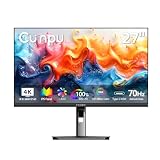
| CUNPU 27″ USBC 4K 70Hz IPS Photo Video Editing Monitor for Laptop MacBook | Budget USB-C all-rounder | Check on Amazon |
| Dell 27 Monitor S2725QS, 4K UHD IPS, 120Hz, 5ms, FreeSync Premium | Editors who game after hours | Check on Amazon |
| CUNPU 27″ 4K 70Hz IPS Ultra-Slim Bezel Black Photo Video Editing Monitor | Tightest budgets | Check on Amazon |
| INNOCN 27″ 4K USB-C Monitor (HDR400, DeltaE<2) | Color accuracy on a mid-range budget | Check on Amazon |
| BenQ MA270U 27″ 4K Monitor for MacBook Pro/Air | Seamless Mac integration | Check on Amazon |
| ASUS ProArt PA279CRV 27″ 4K UHD USB-C HDR Professional Monitor | Serious photo work and calibration | $399 |
| LG 27UP850K-W 27-inch Ultrafine 4K UHD IPS DisplayHDR 400 | Best value professional IPS | Check on Amazon |
| Samsung 27″ ViewFinity S7 (S70H) High-Resolution Monitor | Sub-$200 4K productivity | Check on Amazon |
How We Compared
For photo editing, panel type and color performance come first. Every monitor here uses an IPS or IPS-class panel, which delivers the wide viewing angles and stable color you need when your work will be seen on phones, tablets, and prints. We looked for 4K resolution (3840 x 2160) at the 27-inch size because that pixel density — roughly 163 pixels per inch — matches the sharpness Mac users expect and renders text crisply at macOS’s default scaling.
Connectivity mattered just as much. A single USB-C cable that carries video, data, and power delivery means your MacBook desk stays clean and your laptop stays charged. Beyond that, we weighed factory calibration claims (DeltaE values where manufacturers publish them), HDR support, stand ergonomics for long editing sessions, and price. We deliberately included options from around $150 to around $550 because not every photographer needs a $550 reference-grade panel — a wedding shooter delivering JPEGs and a retoucher printing fine art have very different needs. No fabricated lab numbers here: where we cite specifications, they come straight from the manufacturer.
The 8 Best Picks
1. CUNPU 27″ USBC 4K 70Hz IPS Photo Video Editing Monitor for Laptop MacBook — around $210
CUNPU has quietly become a favorite among budget-conscious creators, and this USB-C model is the brand’s most complete Mac-friendly package. The 70Hz refresh is a modest step above standard 60Hz, making scrolling through libraries and panning around large PSDs feel slightly smoother, while the IPS panel keeps color consistent across viewing angles. For under $210, getting USB-C single-cable connectivity to a MacBook is genuinely rare.
- USB-C connectivity simplifies a MacBook setup to one cable
- 70Hz refresh rate makes everyday navigation marginally smoother than 60Hz panels
- Color accuracy out of the box won’t satisfy print-focused professionals without calibration
It’s an ideal first external monitor for students, hobbyists, and content creators who want a dedicated editing screen without a big investment. Skip it if you’re delivering print work to clients or need verified wide-gamut coverage — step up to the ASUS or BenQ instead.
2. Dell 27 Monitor S2725QS, 4K UHD IPS, 120Hz, 5ms, FreeSync Premium — around $270
The S2725QS is the pick for anyone whose desk doubles as a gaming station. Its 120Hz refresh rate and 5ms response time with FreeSync Premium make it dramatically smoother than every other monitor here, and that same fluidity makes scrubbing video timelines and navigating large Lightroom catalogs feel effortless. Dell’s IPS panel delivers solid sRGB performance suitable for web-delivered photography.
- 120Hz refresh and FreeSync Premium for exceptionally smooth motion
- Strong sub-$270 pricing from a major brand with reliable support
- No USB-C, so MacBook users will need a separate adapter or dock
Photographers who split their time between editing and gaming, or who simply want the snappiest desktop experience, will love it. Skip it if single-cable USB-C convenience is non-negotiable for your MacBook workflow.
3. CUNPU 27″ 4K 70Hz IPS Ultra-Slim Bezel Black Photo Video Editing Monitor — around $150
This is the entry point to the entire list, and honestly, it’s remarkable that a 27-inch 4K IPS panel can be had for around $150. The ultra-slim bezel design means it tucks into small home office setups beautifully, and it can serve as a second display next to a nicer primary monitor later. Color and brightness are respectable for the price, though this is very much a “good enough” panel rather than a calibrated one.
- Lowest price on the list by a wide margin
- Ultra-slim bezels look clean in compact or dual-monitor setups
- Expect to calibrate it yourself and manage brightness/contrast manually
Buy this if you’re a student, a hobbyist photographer, or you need a large 4K canvas for culling and organizing more than critical color work. Skip it if you edit for print or charge clients for retouching — the money you save isn’t worth the color uncertainty.
4. INNOCN 27″ 4K USB-C Monitor — around $270
INNOCN hits a genuinely appealing sweet spot here: a factory-rated DeltaE of less than 2, which is the threshold most professionals consider visually accurate, plus HDR400 support, 1.07 billion+ colors, and USB-C connectivity — all for under $266. Built-in speakers and an adjustable stand round out a package that usually costs $100 more. For photo editors who need dependable color without entering pro-monitor pricing, this is arguably the best value on the list.
- Factory DeltaE<2 accuracy is impressive at this price
- HDR400 and 1.07B+ colors with USB-C, DisplayPort, and HDMI inputs
- Built-in speakers are convenient but won’t impress audiologically
This suits freelancers and serious hobbyists editing for web and social who want trustworthy color without a calibration workflow. Skip it if you need hardware calibration support or verified full Adobe RGB coverage for print work.
5. BenQ MA270U 27″ 4K Monitor for MacBook Pro/Air — around $550
BenQ built the MA270U specifically for Mac users, and it shows in every detail. Dual USB-C ports with 90W power delivery charge even a 16-inch MacBook Pro over a single cable, and the Mac Color Match feature plus P3 color gamut coverage means what you see on screen matches your MacBook’s display closely. Unique touches like controlling brightness and volume directly from macOS, plus a built-in USB hub, make it feel like an extension of your laptop rather than an add-on.
- 90W USB-C power delivery handles even large MacBook Pro models
- P3 gamut and Mac Color Match deliver seamless color consistency
- Highest price on the list at around $550
This is the monitor for Mac loyalists who want a plug-and-play experience with zero fiddling. Skip it if you’re on a strict budget or primarily edit for print, where a hardware-calibratable professional panel makes more sense.
6. ASUS ProArt PA279CRV 27″ 4K UHD USB-C HDR Professional Monitor — $399
The ProArt line is ASUS’s professional display family, and the PA279CRV is the model working photographers gravitate toward. It’s factory calibrated, supports hardware-level color adjustment, and covers wide color gamuts critical for both sRGB web work and print preparation. USB-C with power delivery keeps a MacBook charged while it drives the display, and the ergonomics — height, tilt, swivel, and pivot — support long retouching sessions in any orientation.
- Professional-grade factory calibration with wide gamut coverage
- Full ergonomic stand including portrait pivot mode
- HDR performance is modest compared to true HDR displays
If photography is your livelihood — client retouching, print sales, color-critical composites — this is the rational choice at $399. Skip it if you’re a casual editor; the INNOCN or LG delivers 90% of the experience for less.
7. LG 27UP850K-W 27-inch Ultrafine 4K UHD IPS DisplayHDR 400 — around $350
LG’s Ultrafine displays have long had a soft spot in the Mac community — the original models were literally designed in partnership with Apple — and the 27UP850K-W carries that DNA forward. It’s a DisplayHDR 400 certified 4K IPS panel with USB-C power delivery and LG’s dependable color consistency, all wrapped in a clean white chassis that pairs visually with Apple hardware. At around $350 it sits between the budget picks and the true professional models.
- DisplayHDR 400 certification with strong out-of-box color
- USB-C power delivery for single-cable MacBook setups
- White finish won’t suit every desk aesthetic
Mac users who want near-pro color and Apple-adjacent design without ProArt pricing will be very happy here. Skip it if you need hardware calibration or a black monitor to match an existing setup.
8. Samsung 27″ ViewFinity S7 (S70H) High-Resolution Monitor — around $190
Samsung’s ViewFinity S7 undercuts nearly everything else on this list while offering a 27-inch 4K high-resolution IPS panel from a major manufacturer. It’s built for productivity first — think TCO-certified ergonomics and eye-comfort features — which makes it a strong choice for photographers who spend as much time culling, keywording, and managing catalogs as they do pixel-peeping. At around $190, it’s the best brand-name option under $200.
- Major-brand 4K IPS panel at a sub-$200 price
- Ergonomic, eye-comfort-focused design for long sessions
- Color gamut coverage is more productivity-grade than photo-grade
It’s ideal as a first 4K monitor or a secondary display for organizing and web browsing alongside your editing screen. Skip it as a primary color-critical editing display if client print work is your bread and butter.
Buying Guide
Color Accuracy and Gamut
For photo editing, DeltaE is the number to watch — it measures how far a display’s color deviates from the true value. A DeltaE under 2 is generally considered accurate enough that most people can’t see the difference. Factory calibration reports matter here; the INNOCN (DeltaE<2) and ASUS ProArt lead this list on paper. Gamut coverage is equally important: sRGB coverage handles web-delivered photography, while P3 (the BenQ’s strength) matters for Mac users because it matches Apple’s display standard. If you deliver print work, look for hardware calibration support, which lets a colorimeter adjust the monitor’s internal lookup table rather than just your video card’s output — a key reason the ProArt justifies its $399 price.
Connectivity and Power Delivery
A MacBook desk lives or dies by cable clutter. USB-C with power delivery means one cable carries the video signal, any USB peripherals, and charging power — 65W suffices for a MacBook Air, while Pro models benefit from 90W, as on the BenQ MA270U. If a monitor only offers HDMI and DisplayPort, like the Dell S2725QS, budget $30–$60 for a quality USB-C hub or dock, and remember that adds another power brick to your desk. Also check USB hub speeds if you offload SD cards through the monitor; not all built-in hubs run at full USB 3 speeds.
Ergonomics and Desk Fit
You’ll spend hours in front of this screen, so a stand with height and tilt adjustment is not a luxury. Fixed-height stands force you to adapt your posture, which becomes genuinely painful over multi-hour retouching sessions — the BenQ, ASUS, and INNOCN all offer adjustable stands, while some budget panels require VESA arms (a $25–$70 addition worth planning for). Consider pixel density too: 3840 x 2160 at 27 inches yields about 163 PPI, which lets macOS scale text sharply at “looks like 1440p” while still giving you room for full-resolution image viewing. Measure your desk depth first; you want the panel roughly 24–30 inches from your eyes.
Our Verdict
For most Mac-based photo editors, the INNOCN 27″ 4K USB-C Monitor at around $270 is the smartest buy on this list — factory DeltaE under 2, HDR400, and single-cable USB-C at a mid-range price is a combination nobody else matches. If photography pays your bills, spend the extra $133 on the ASUS ProArt PA279CRV at $399 for professional calibration and hardware adjustment support. Mac users who want the most seamless, no-compromises experience should stretch to the BenQ MA270U at around $550, whose 90W power delivery and Mac Color Match make it feel purpose-built. On a tight budget, the CUNPU at around $150 gets you a legitimate 27-inch 4K IPS panel, and the Dell S2725QS at around $270 is the clear pick if your editing desk doubles as a gaming battlestation.
FAQ
Is a 4K monitor actually necessary for photo editing on a 27-inch screen?
At 27 inches, 4K gives you roughly 163 pixels per inch versus about 109 PPI on a 1440p panel of the same size. That translates to visibly sharper image detail when viewing photos at 100%, and macOS handles the scaling gracefully. For photo work specifically, the extra resolution also means more usable screen space for panels and palettes without sacrificing image size.
Will a non-Apple monitor work properly with my MacBook?
Yes — any monitor with HDMI, DisplayPort, or USB-C will work with a MacBook via the appropriate cable or adapter. The differences are in convenience and color: monitors with USB-C power delivery, like the BenQ and ASUS picks, charge your laptop over the same cable that drives the display, and Mac-focused models like the BenQ MA270U add software integration such as brightness and volume control from macOS.
Do I need to calibrate a factory-calibrated monitor?
If the manufacturer publishes a DeltaE rating under 2 — as INNOCN and ASUS do for these models — most photo editors can work confidently out of the box, especially for web-delivered images. For print work or client-critical color, a hardware calibrator (typically $150–$300) used every month or two is still the professional standard, and monitors with hardware calibration support like the ProArt make that process more accurate.
Is HDR worth having for photo editing at this price range?
On this list, HDR support comes in the DisplayHDR 400 tier (INNOCN, LG, ASUS), which means basic HDR compatibility rather than the brightness and contrast that make HDR photos truly pop. It’s fine for editing and previewing HDR-delivered images for social platforms, but don’t buy any monitor here primarily for HDR — prioritize color accuracy and resolution first, and treat HDR as a bonus feature until you reach true high-brightness display tiers.









