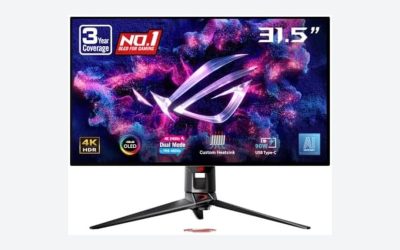
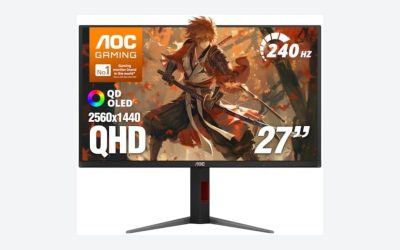
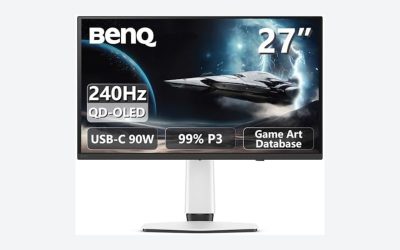
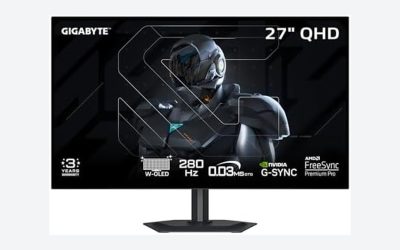
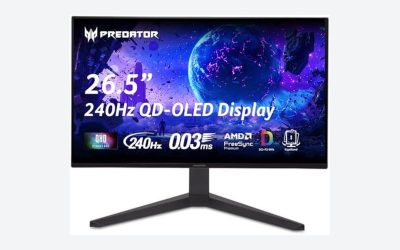
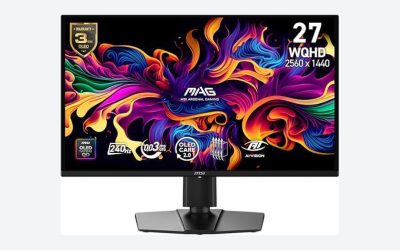
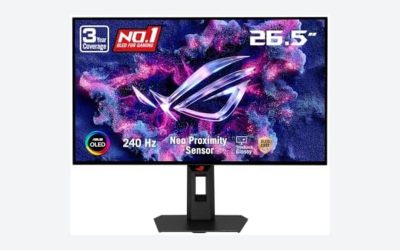
If you play a lot of HUD-heavy games — racers, MOBAs, shooters, MMOs — your OLED TV or monitor is working overtime in all the wrong places. Those static mini-maps, health bars, ammo counters, and scoreboards sit in the exact same screen positions for hundreds of hours, and that repetition is precisely what leads to OLED burn-in: faint ghost images you can see even when the screen is showing something else. Done badly, burn-in prevention turns into guesswork — you dim your panel into a muddy mess, run pointless “screen savers” that do nothing, or buy warranty coverage too late. Done right, it takes about 20 minutes to set up and only a few minutes per week to maintain, and it can add years to the usable life of a panel that may have cost you $900 to $2,500. Here’s the full process.
What You Need
| Item | Why | Optional? |
|---|---|---|
| OLED TV or monitor with the latest firmware | Manufacturers keep improving pixel-refresher cycles and logo-dimming logic; updates are free and take 5–15 minutes | No |
| Console or PC HDR calibration guide (built-in or free app) | Correct HDR settings keep peak brightness where it belongs instead of maxing it unnecessarily | Recommended |
| Ambient light (lamp or bias lighting) | Room light lets you lower OLED pixel brightness without the image looking dim | No |
| A screen-off routine or break timer | Gives the pixel refresher cycles a chance to run and reduces cumulative static-display hours | No |
| Analog or screen-free game for breaks | A card game such as the Card Plug trivia game (about $13) gives your eyes and your panel a genuine rest between sessions | Yes |
| Extended warranty with burn-in coverage | Some retailers offer 3–5 year plans that explicitly cover burn-in, typically $60–$200 depending on panel size | Yes |
Step-by-Step
1. Update your display’s firmware (10–15 minutes)
Go to your TV or monitor’s settings menu and check for system updates. Modern OLED panels run periodic pixel-refresher cycles automatically, and firmware updates frequently improve how and when those cycles trigger. Write down the date you updated so you can confirm the panel’s maintenance features are active later.
As an Amazon Associate we earn from qualifying purchases at no extra cost to you.


2. Lower OLED pixel brightness — not just backlight (10 minutes)
In picture settings, set OLED pixel brightness to roughly 60–80 for SDR gaming in a normally lit room, and avoid maxing it out for HDR. Peak brightness on a 65-inch OLED panel can draw 100–150 watts during bright HDR scenes; you rarely need that for HUD elements, which are typically small white or yellow text and icons — the highest-risk content on the screen. Aim for a setting that still looks punchy with your room lights on.
3. Enable every built-in protection feature (5 minutes)
Turn on screen shift (also called pixel shift), the logo luminance adjustment or static-content dimmer, and the automatic screen saver or dim timer. Pixel shift typically moves the image by a few pixels every few minutes — imperceptible during gameplay but effective at spreading wear. Set the idle dim timer to the shortest interval available, usually 1–5 minutes.
4. Reduce HUD opacity or scale if the game allows it (10 minutes per game)
Many games let you shrink the mini-map, hide the reticle when idle, enable a “dynamic HUD” that fades elements when not in use, or reduce HUD transparency to 50–70%. Dropping opacity alone cuts the brightness of static elements dramatically. Check the accessibility and HUD settings menus — this is the single most effective in-game change you can make.
5. Vary your content and take real breaks (ongoing)
Follow long gaming sessions with 20–30 minutes of full-screen moving content — a movie, a streaming show, or a full-screen video. Content variety lets uniform wear even out. For breaks, step away from screens entirely: a quick round of the Hud party game (around $14) or a trivia card game at the table keeps the fun going while your panel goes dark.
6. Let the pixel refresher run (5–15 minutes, unattended)
After extended sessions, many OLEDs prompt or automatically run a pixel refresher when the TV enters standby. This cycle takes roughly 5–10 minutes after normal use and up to an hour after cumulative 2,000+ hours of use. Don’t unplug the TV during the cycle, and leave it powered at the outlet (standby, not switched off at a power strip).
7. Check for early signs quarterly (10 minutes every 3 months)
Display a solid gray or red test image (most consoles and many free apps have one). Look for faint outlines of mini-maps, scoreboards, or channel logos. Catching uniformity issues early — while they’re only visible on test patterns — means your habits are working or need a small adjustment. Anything visible on normal content in a bright room is a sign to change settings immediately.
Mistakes to Avoid
- Maxing brightness “because it’s HDR.” Peak brightness matters for specular highlights, not HUD icons. Running a panel near its maximum for hundreds of static hours accelerates uneven wear.
- Leaving pause screens and menus up. A paused game with a full HUD is the worst-case scenario. If you’re stepping away for more than a minute, power the display off.
- Trusting pixel shift alone. A few pixels of movement helps, but it doesn’t fix a HUD that’s 600 pixels wide. Combine it with opacity reduction and content variety.
- Running “burn-in fixer” videos constantly. Full-screen color-cycling videos can help with mild image retention, but image retention and true burn-in are not the same thing. Hours of cycling won’t reverse genuine panel wear.
- Playing in a pitch-black room at high brightness. With no ambient light, you’ll push brightness higher than needed. A simple bias light behind the panel lets you run 20–30% lower brightness comfortably.
- Assuming all warranties cover burn-in. Many standard manufacturer warranties exclude it. Read the terms before you need them.
How Often
- Every session: Power off during breaks longer than a minute; avoid pause screens.
- Weekly: Finish with 20–30 minutes of varied full-screen content after long sessions.
- Monthly: Confirm the pixel refresher has been running (check the TV’s maintenance status menu if available).
- Quarterly: Run a gray or red test image and inspect for retention or early burn-in; recheck that automatic protections are still enabled after updates.
- Yearly: Recheck firmware, revisit picture settings, and consider whether an extended burn-in warranty still makes sense — most plans must be bought within 30–60 days of purchase.
When to Call a Pro or Replace
If you notice ghost images visible on normal content in ordinary room lighting, first run several pixel-refresher cycles manually (most TVs allow this from the settings menu). If a full refresh cycle doesn’t clear it, contact the manufacturer — if you’re within the warranty period or a covered extended plan, document the issue with photos of a solid test screen. Panel replacement on a 55–65 inch OLED typically runs $600–$1,200 installed, which is rarely worth it on panels more than three or four years old; at that point, replacing the display and applying these habits from day one is the better investment. Persistent, worsening burn-in despite correct settings can also indicate a panel fault, which a warranty claim may cover.
FAQ
How long does it take for burn-in to appear from HUD games?
It varies enormously by panel, brightness settings, and how static the content is. Heavy static content at high brightness can produce visible wear in hundreds of hours on some panels, while conservative settings and varied content can push it well past several thousand hours. There’s no fixed number, and manufacturers don’t publish burn-in hour ratings.
Is burn-in permanent?
Short-term image retention usually clears with one or more refresh cycles. True burn-in — uneven long-term pixel wear — is effectively permanent and can’t be repaired by software. That’s why prevention, not correction, is the strategy.
Do OLED monitors need the same precautions as OLED TVs?
Yes, and arguably more. Monitors often display taskbars, icons, and static interfaces for entire workdays on top of gaming hours. Use the same settings discipline: moderate brightness, dark-mode interfaces, hidden taskbars, and scheduled screen-off time.
Should I just buy an LCD instead?
If you exclusively play one HUD-heavy game for thousands of hours, a high-quality mini-LED or IPS display is a reasonable choice. But modern OLEDs with proper settings handle mixed gaming, movies, and general use very well — for most players who follow the steps above, burn-in remains a manageable risk, not an inevitability. Entering 2026, pixel-shift and refresh technology on current panels is meaningfully better than older generations, which tilts the math further toward keeping your OLED and protecting it.