
For desk gaming, the real choice between a 27-inch and 32-inch monitor is not simply “bigger is better.” It is about how far you sit, how much desk depth you have, the resolution you choose, and whether the screen must also work for homework, remote work, streaming, or shared family use.
A 27-inch monitor is usually the easier fit: it keeps more of the screen in your natural field of view, leaves room for speakers and desk accessories, and works especially well on compact desks. A 32-inch monitor creates a more cinematic gaming setup and can make single-player games feel more immersive, but it needs more breathing room. Put one too close on a shallow desk and the extra size can become tiring rather than exciting.
As an Amazon Associate we earn from qualifying purchases at no extra cost to you.


In 2026, both sizes are widely available at budget and premium price points, so the best option comes down to the room and the way the desk is used every day.
Our Top Picks
 Sceptre 27-inch Prime Gaming Monitor 100Hz 1ms DisplayPort277.66 x 24.13 x 17.21 inches7.21 poundsCheck on Amazon
 SANSUI 32 Inch Curved 240Hz Gaming Monitor High32 inch24.19 x 8.06 x 17.75 Inches9.7 PoundsCheck on Amazon
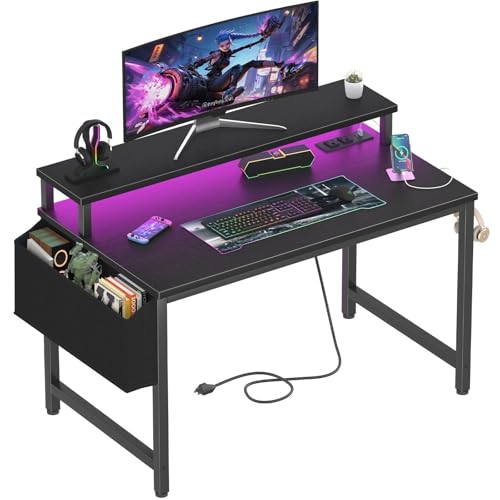 Lufeiya Small Desk with Power Outlets and LED31.5"19.7 x 31.5 x 33.4 inches19.8 poundsCheck on Amazon

Top 3 picks at a glance
Quick Verdict
Choose a 27-inch monitor if your desk is 20 to 24 inches deep, your gaming space is in a bedroom or apartment, or you play competitive games where seeing the full screen quickly matters. It is also the better match for Full HD resolution, since 1920 x 1080 pixels remain reasonably sharp at this size.
Choose a 32-inch monitor for desk gaming if you have a desk at least 28 to 30 inches deep, sit roughly 30 to 36 inches away, and prioritize large-scale immersion in racing, RPG, adventure, sports, and cinematic games. A 32-inch display is generally best paired with 1440p or 4K resolution; Full HD can look less crisp when viewed up close.
Side by Side
| Buying Factor | 27-Inch Monitor | 32-Inch Monitor |
|---|---|---|
| Comfort | Comfortable from about 24 to 30 inches away; less head and eye movement. | Best from about 30 to 36 inches away; can feel overwhelming on a shallow desk. |
| Typical screen width | About 24 inches wide, excluding the stand. | About 28 inches wide, excluding the stand. |
| Space needed | Works well on a 32- to 40-inch-wide desk with 20 to 24 inches of depth. | More comfortable on a 48-inch-wide desk with 28 to 30 inches of depth. |
| Resolution fit | 1080p, 1440p, and 4K can all work, depending on budget and GPU. | 1440p and 4K are preferable; 1080p is mainly a value-focused choice. |
| Typical price range | About $90 to $350 for mainstream gaming models. | About $160 to $500 for mainstream gaming models. |
| Power use | Often around 25 to 45 watts during normal use. | Often around 35 to 65 watts during normal use. |
| Weight and moving | Commonly 8 to 13 pounds without packaging; easier to reposition. | Commonly 12 to 18 pounds without packaging; more awkward on an arm or small desk. |
| Look in a room | Clean, balanced, and less visually dominant. | More dramatic and entertainment-focused; can become the room’s focal point. |
| Maintenance | Less surface area to dust and simpler to move for cable cleaning. | More screen area to clean and more care needed when relocating or mounting. |
| Best for | Compact desks, esports, school-and-gaming setups, and multi-monitor use. | Immersive solo gaming, larger home offices, and desk setups that double as media stations. |
Where 27 Inch Wins
A 27-inch screen is the practical all-around winner for most desk setups. Its approximate 24-inch width leaves room for a keyboard, large mouse pad, small speakers, a console dock, and everyday items without making the desk feel crowded. It also fits well on narrower furniture, including compact writing desks and wall-facing workstations.
For competitive gaming, 27 inches is often easier to manage. The entire screen is closer to your central vision, so you can track a mini-map, health bar, opponent movement, and chat window with less scanning. This is especially useful in shooters, battle royale games, strategy titles, and fast sports games.
It is also the safer choice at Full HD. Budget-friendly 27-inch displays can deliver a smooth, affordable experience without demanding a powerful gaming PC. For example, the Sceptre 27-inch Prime Gaming Monitor is priced around $91 and offers a 100Hz refresh rate, while the Dell SE2726H is about $110 with a 144Hz refresh rate, IPS panel technology, and AMD FreeSync support. These kinds of monitors make sense for a first gaming station, a teen bedroom, or a secondary setup.
Another advantage is flexibility. A 27-inch monitor can easily become part of a dual-screen arrangement later, while two 32-inch screens consume a great deal of desk width and visual attention. If you expect to add a second monitor for schoolwork, streaming controls, Discord, or productivity, starting with 27 inches is usually the more adaptable path.
Where 32 Inch Monitor for Desk Gaming Wins
A 32-inch monitor for desk gaming wins when immersion is the priority. The larger image gives open-world games, driving simulators, flight games, and story-driven titles a more expansive feel without requiring a television across the room. It can also be appealing for split-screen console games, since each player gets a larger portion of the image than on a 27-inch screen.
The size is particularly useful when one monitor serves several roles. A 32-inch display can make spreadsheets, editing timelines, building plans, and side-by-side windows easier to read. If the computer desk is in a home office or family room, that larger workspace may justify the bigger footprint even for someone who games only a few nights each week.
Resolution matters more here. At 32 inches, 1440p is a strong middle ground for PC gaming: it provides more detail and workspace than 1080p without the graphics-card demands of 4K. A 32-inch 4K monitor can look excellent for mixed work and gaming, but it costs more and may require more powerful hardware to maintain high frame rates.
Budget 32-inch options do exist. The SANSUI 32-inch curved gaming monitor, priced around $180, combines a Full HD panel with a 240Hz refresh rate. That type of screen can be attractive for players who value speed and a curved format over maximum pixel density. Still, on a desk where you sit close, inspect the text and game menus in person if possible: a 1080p image is spread over a larger area than it is on a 27-inch display.
Cost Over 5 Years
The purchase price is the biggest cost difference, but desk space, power use, and mounting hardware deserve consideration too. A mainstream 27-inch gaming monitor commonly costs about $90 to $350, while a comparable 32-inch model often lands around $160 to $500. Features such as 1440p resolution, high refresh rates, adjustable stands, USB hubs, and curved panels can move either size higher.
For electricity, assume four hours of use per day over five years and an electricity rate of 15 cents per kilowatt-hour. A 27-inch monitor drawing 25 to 45 watts would use roughly $27 to $49 in electricity over that period. A 32-inch monitor drawing 35 to 65 watts would use roughly $38 to $71. Actual use varies with brightness, HDR settings, sleep mode, and the specific panel.
There can also be furniture costs. A 27-inch monitor may sit comfortably on an inexpensive small desk. A 32-inch display may encourage an upgrade to a deeper desk or sturdier monitor arm. For context, a compact 32-inch Lufeiya desk with outlets, LED lights, and a monitor stand is priced around $79, but its limited surface depth may be better suited to a 27-inch screen than a large 32-inch display placed very close to the user.
Which One for Your Home
Small Apartment
Choose 27 inches. In a studio, bedroom, or shared apartment, the monitor needs to coexist with furniture, storage, and daily life. A 27-inch model looks proportionate on a compact desk and is easier to move when rearranging the room. If you want the feel of a larger display, use a monitor arm to reclaim desk depth before jumping to 32 inches.
Family With Kids or Pets
Choose based on placement, but 27 inches is usually the lower-risk option. It is lighter, takes up less space, and is easier to position farther back from the desk edge. A 32-inch monitor should be secured on a stable stand or VESA-compatible arm, especially in a busy family room where children or pets may bump the desk.
Rental
Choose 27 inches if you expect to move within a year or two. It is easier to pack, carry, and fit into changing rooms and furniture layouts. A 32-inch monitor can still work in a rental, but avoid building the entire room around it unless you have a sufficiently deep desk and a safe transportation plan.
Long-Term Home
Choose 32 inches if you have a dedicated gaming room, a deep desk, and enough viewing distance. It can become a satisfying long-term centerpiece for gaming and home-office tasks. For a flexible household workstation that may later become a student desk, guest-room setup, or dual-monitor station, 27 inches remains the more versatile investment.
FAQ
Is a 32-inch monitor too big for desk gaming?
It can be if your desk is shallow. A 32-inch screen is most comfortable when your eyes are roughly 30 to 36 inches from the display. On a desk only 20 to 24 inches deep, a 27-inch monitor is usually easier on the eyes and neck.
Is 1080p good enough on a 32-inch gaming monitor?
It can be good enough for fast-paced gaming, console use, or a tight budget, particularly if you sit farther back. For close desk use, 1440p generally delivers sharper text and finer image detail on a 32-inch panel.
Should I get a 27-inch 1440p monitor or a 32-inch 1080p monitor?
For most PC desk gamers, the 27-inch 1440p option is the stronger all-around choice. It combines a manageable screen size with sharper detail. Choose the 32-inch 1080p option when screen size, high refresh rate, and a more immersive view matter more than text sharpness.
Do I need a monitor arm for a 32-inch monitor?
No, but it can help. A compatible arm can push the monitor farther back, free desk surface, and improve viewing distance. Check the monitor’s VESA mounting pattern and weight, then choose an arm rated above that weight for a safer setup.









