
An OLED gaming monitor is worth it if most of your screen time is games, movies and video in a room where you can control the light, and you are willing to follow a few burn-in habits. It is a poor fit if the screen will show static spreadsheets, a fixed taskbar and bright office windows for eight hours a day, or if you need razor-sharp text above all else. This guide explains what OLED actually improves, where the trade-offs sit, how to choose between QD-OLED and WOLED, and how four current 27-inch models compare.
Our Top Picks
 ASUS ROG XG27AQDMGR 27 Inch 1440p 240Hz Glossy14.5" x 23.8" x 2.5"7.4 x 23.8 x 19.7 inches14.6 poundsCheck on Amazon
Pros & cons
- Neo Proximity sensor helps guard against OLED burn-in
- DisplayPort 2.1a with 80Gbps bandwidth future-proofs connections
- 3-year coverage includes burn-in protection
- Nearly 17-pound panel needs a sturdy stand or mount
- 4th-gen QD-OLED still needs care around static images
 msi MAG 272QP QD-OLED X24 27-Inch WQHD Gaming24.1" x 24.1" x 2.2"24 x 9.5 x 20.9 inches19.9 poundsCheck on Amazon

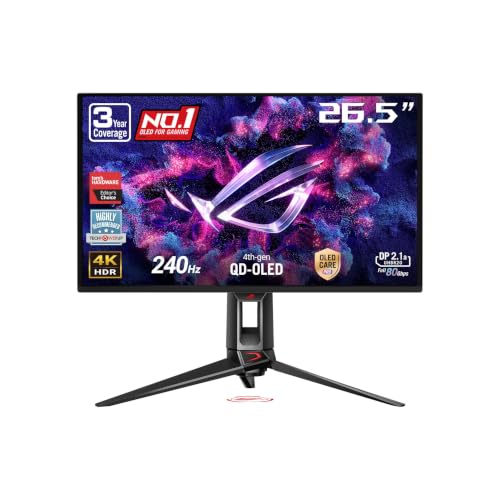
Top 3 picks at a glance

Quick Verdict
| Your situation | Our verdict |
|---|---|
| Gaming and streaming in a dim or controlled room | Yes. Contrast and motion are where OLED earns its premium. |
| Same screen is your all-day work monitor | Think twice. Static windows raise burn-in risk and text can show color fringing. |
| Sunlit room with lots of glare | Test a matte-style finish first, or consider a bright LCD instead. |
| Play competitive shooters at 1440p | Yes. A 240Hz OLED combines near-instant pixel response with high refresh. |
| Want 4K with strong PC hardware | Worth it only if your GPU and ports can drive 4K at high refresh. |
| Tight budget, mixed office and gaming use | A good IPS or VA panel is the safer value pick. |
What Changes With OLED
Contrast and black level
Each OLED pixel makes its own light, so a pixel showing black is switched off. That is why OLED monitors can reach black levels no backlit LCD matches without local dimming zones, and why the VESA DisplayHDR True Black tiers exist. VESA’s True Black 400 requirement is a peak luminance of at least 400 nits and a black level no higher than 0.0005 nits, a number chosen because it is about the lowest level standard colorimeters can measure. Not every OLED carries that certification, so check the spec sheet rather than assuming. In a dark room the practical result is that night skies, shadows and neon signs look separated from the background in a way IPS panels cannot copy, while VA panels come closer but still glow.
Motion and response time
Current gaming OLEDs list a 0.03 ms gray-to-gray response. That is a best-case panel figure, not a measurement of the full signal chain, but pixel transitions are fast enough that motion blur is dominated by sample-and-hold persistence rather than slow pixels. In practice, this means a 240Hz OLED can look clearer in motion than a 240Hz LCD with slower transitions. It also means low frame rates can look choppy because the pixels respond instantly instead of smearing frames together.
Burn-in: real, manageable, and not equal across uses
Burn-in is permanent image retention from uneven pixel wear. RTINGS, which runs long-term OLED tests, reports that the risk is highest for people who use an OLED only for work with static elements on screen most of the day, and that varying your content reduces risk substantially. It also finds no significant burn-in difference between QD-OLED and WOLED panel types. Manufacturers add pixel shifting, screensavers, dimming after inactivity and periodic refresh cycles. Warranty terms vary: ASUS states three-year coverage that includes burn-in on its recent OLED monitors, while other brands cover parts and labor only, so read the exact terms for the model and region you buy in.
Text clarity and subpixel layout
Windows text rendering assumes a standard red-green-blue stripe, and OLED panels do not use one. First- and second-generation QD-OLED panels use a triangular arrangement that can show a thin green line along the bottom edge and a purple line along the top edge of text. WOLED panels use a red-white-blue-green structure that tends to show faint shadows along text. Newer QD-OLED panels announced for 2026 use a V-Stripe layout intended to reduce this, but verify the layout on the exact model. Higher pixel density helps: a 27-inch 4K panel at roughly 166 pixels per inch renders text more cleanly than a 27-inch 1440p panel at roughly 110.
Brightness and VRR flicker
OLED monitors dim large bright scenes to protect the panel, so full-screen white is much dimmer than a small highlight. Samsung lists the G61SH at 200 nits typical and 400 nits peak, which is fine in a dim room and weak in a bright one. Separately, OLED gamma is tuned for steady refresh rates, so when frame rate swings rapidly with variable refresh rate, dark scenes can show brightness flicker. RTINGS says this affects both panel types, and severity depends on the monitor and the game.
Four models compared
| Model | Panel | Resolution and refresh | Surface | Notable inputs |
|---|---|---|---|---|
| Samsung Odyssey OLED G6 G61SH | QD-OLED | 2560×1440, 240Hz | Glare Free film | DisplayPort 1.4, HDMI 2.1 |
| ASUS ROG XG27AQDMGR | WOLED | 2560×1440, 240Hz | Glossy | Confirm ports for this Gen 2 version |
| ASUS ROG PG27UCDM | QD-OLED | 3840×2160, 240Hz | See listing | DisplayPort 2.1, HDMI 2.1, USB-C |
| MSI MAG 272QP QD-OLED X24 | QD-OLED | 2560×1440, 240Hz | Sources conflict | DisplayPort 1.4a, HDMI 2.1, USB-C |
Refresh, resolution and panel type come from manufacturer and retailer listings. Where sources disagree, the table says so.
How to Decide
Use this checklist to decide whether the OLED premium makes sense for you.
- Estimate your mix. If gaming and video are more than half of your screen time, OLED value rises. If more than half is a static work layout, the burn-in and text trade-offs rise. As a rule of thumb, treat anything you leave on screen for hours, such as a fixed sidebar or taskbar, as a risk factor.
- Check room lighting. Glossy panels give the richest blacks but reflect lamps and windows. A Glare Free or matte-style finish cuts reflections and slightly raises the black level in bright rooms. If your desk faces a window, prioritize the finish.
- Match resolution to your GPU. 1440p at 240Hz is within reach of mid-range GPUs in many games. 4K at 240Hz asks much more of the GPU, so pick it only if you plan to play at 4K and accept lower frame rates or upscaling.
- Verify ports. A 1440p panel at 240Hz needs DisplayPort 1.4 or HDMI 2.1 on both ends to reach full refresh. At 4K and 240Hz, confirm your graphics card has DisplayPort 2.1 or an HDMI 2.1 output and supports DSC if your link needs compression.
- Read the warranty. Compare how each brand treats burn-in. A three-year policy that explicitly covers burn-in reduces the financial risk compared with parts-and-labor-only terms.
- Plan a care routine. Enable the built-in pixel refresh, hide the taskbar if you can, use a dark theme, and let the monitor run its compensation cycle when it asks. Do not interrupt a refresh cycle.
Worked example: you play four hours of games and watch an hour of video each evening, and use the PC for web browsing and documents about two hours a day. That is a varied mix, and a 1440p 240Hz OLED with a glare-reducing finish matches it well. If instead you spend eight hours in a trading terminal with a fixed layout, a high-quality LCD is the lower-risk pick.
Products That Fit
These four OLED monitors cover the main choices: QD-OLED versus WOLED, glossy versus matte-style finishes, and 1440p versus 4K. Specifications come from manufacturer pages and listing fields; items not stated are marked “confirm on listing”.
Samsung Odyssey OLED G6 (G61SH) – dim-room gamer who dislikes reflections
As an Amazon Associate we earn from qualifying purchases at no extra cost to you.

This model fits the first and fourth rows of the verdict table: gaming at 1440p, 240Hz, with a finish designed to reduce reflections. Samsung says its Glare Free film is 54 percent less glossy than a conventional anti-reflection film, which helps in rooms with a window or lamp behind you.
- 27-inch class QD-OLED, 2560×1440, 240Hz, 0.03 ms GTG
- 200 nits typical and 400 nits peak brightness per Samsung
- FreeSync Premium and G-Sync Compatible; HDR10 and HDR10+ Gaming
- DisplayPort 1.4 and HDMI 2.1; height adjustment around 105 mm
Caveat: brightness is modest compared with a bright LCD, so it suits a dim room better than a sunny office, and burn-in terms vary, so confirm warranty details on the listing.
ASUS ROG XG27AQDMGR – glossy WOLED for dark-room image quality and strong warranty terms

The “Gen 2” naming indicates an updated version of ASUS’s glossy 1440p WOLED monitor. TFTCentral reports it uses the same underlying LG-based panel as the 2024 version with an improved glossy coating, and ASUS says it adds burn-in protection tools such as a proximity sensor that blacks out the screen when you step away. It suits someone who wants maximum contrast and will control reflections with the room.
- 27-inch class WOLED, 2560×1440, 240Hz, glossy finish
- 0.03 ms response listed by ASUS
- ASUS OLED Care features (pixel move, screen saver); confirm exact Gen 2 tools on listing
- Warranty: ASUS cites three years with burn-in coverage on recent OLEDs; confirm for your region
Caveat: glossy panels reflect light sources, and the original model’s HDMI ports were limited to 144Hz, so check the Gen 2 input specifications before connecting a console.
ASUS ROG PG27UCDM – 4K QD-OLED for strong GPUs and sharper text
This monitor addresses the “4K with strong hardware” row. At about 166 pixels per inch it reduces the text fringing that bothers some users on lower-density OLEDs, and ASUS lists DisplayHDR True Black 400 compliance. It is the best fit if you split time between gaming, video and creative work on a capable PC.
- 27-inch class QD-OLED, 3840×2160, 240Hz, 0.03 ms GTG
- VESA DisplayHDR True Black 400; 99 percent DCI-P3
- DisplayPort 2.1, two HDMI 2.1 ports, USB-C with power delivery listed
- ASUS OLED Care Pro; three-year warranty with burn-in coverage per ASUS
Caveat: reaching 240 fps at 4K needs a very powerful GPU, and some GPUs may need DSC or DisplayPort 2.1 outputs to hit full refresh, so confirm your graphics card first.
MSI MAG 272QP QD-OLED X24 – 1440p QD-OLED with True Black certification

This is the straightforward 1440p QD-OLED choice for players who want certified HDR black levels and a USB-C input in addition to the usual ports. MSI lists VESA ClearMR 13000, a motion clarity certification, along with DisplayHDR True Black 400 and its OLED Care 2.0 software.
- 26.5-inch QD-OLED, 2560×1440, 240Hz, 0.03 ms GTG
- DisplayHDR True Black 400; 200 nits SDR and 400 nits HDR typical
- DisplayPort 1.4a, HDMI 2.1, USB Type-C with DisplayPort Alt Mode
- Height adjustable with tilt, swivel and pivot per MSI
Caveat: retailer pages disagree on whether the screen finish is glossy or anti-reflective, so check before buying, and confirm the burn-in warranty terms.
Common Mistakes
- Using an OLED as an eight-hour static work screen and ignoring the care features.
- Judging text sharpness from product photos instead of looking at subpixel layout and pixel density.
- Assuming every OLED is HDR-certified; check for DisplayHDR True Black or similar on the spec sheet.
- Putting a glossy panel opposite a window and blaming the monitor for the reflections.
- Interrupting a pixel-refresh cycle by switching the monitor off at the wall.
- Skipping the warranty text, which is where burn-in coverage actually lives.
Questions
Is QD-OLED better than WOLED?
Neither wins everywhere. QD-OLED is often praised for color volume, while WOLED panels use different subpixel layouts and surface treatments. RTINGS finds no significant burn-in difference between them, so choose based on the finish, text appearance and warranty of the exact model.
Will an OLED monitor burn in if I only game?
Varied gaming content lowers the risk, though game HUDs and static menus can still leave marks if they sit on screen for long periods. Use pause screens sparingly and enable the monitor’s protection features.
Do I need a special cable or port?
For 1440p at 240Hz, DisplayPort 1.4 or HDMI 2.1 is generally sufficient. For 4K at 240Hz, you need a GPU and monitor that support DisplayPort 2.1 or HDMI 2.1, and DSC may be involved.
Is an OLED monitor good for work?
It can be, with a dark theme, an auto-hidden taskbar and screen savers, but it is less ideal than an LCD for static all-day layouts. Higher pixel density, such as 4K at 27 inches, reduces text fringing.
Why do some OLED monitors look dim?
They limit brightness on large bright areas to protect the panel. A model with 200 nits typical brightness will look dimmer in a bright room than an LCD rated at 350 nits or more.
Update History
- October 14, 2026 – Initial publication.
- Check the product page for current specifications and availability before buying.
Sources
- VESA DisplayHDR True Black certification criteria
- RTINGS monitor learning articles on burn-in, subpixel layout and VRR flicker
- Manufacturer product pages from Samsung, ASUS and MSI, plus TFTCentral review notes
- Retailer listing fields for each monitor









