
The best monitor for an RX 9070 XT is a 27-inch 1440p display running at 240Hz to 280Hz, ideally OLED, because that resolution matches where the card is strongest: high frame rates in shooters and smooth, high-detail play in single-player games with FSR 4. Our top pick is the Gigabyte MO27Q28G, a 1440p 280Hz Tandem WOLED that reviewers at Tom’s Hardware, PCWorld and Club386 praised, with the Alienware AW2726DM as the value OLED and the AOC Q27G3XMN as the budget Mini LED option. If you want 4K, the RX 9070 XT can drive a 4K 240Hz panel with upscaling, and RTINGS’ top 4K pick is the ASUS ROG Swift OLED PG32UCDM Gen3.
Our Top Picks
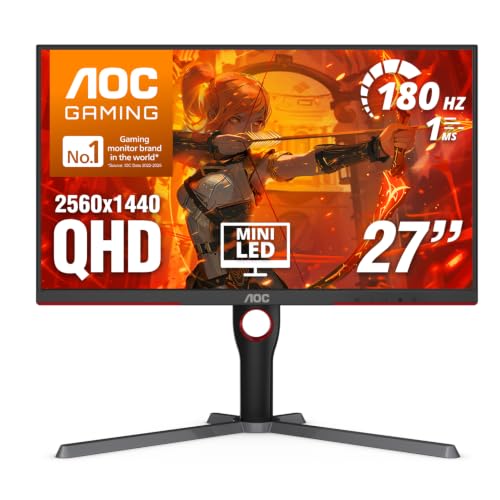 AOC 27 Inch Gaming Monitor QHD 180Hz Mini-LED27" 180Hz Mini-LED10.19 x 23.82 x 20.94 Inches15.6 poundsCheck on Amazon
 ASUS ROG PG27AQWP-W 27 Inch 1440p 540Hz Tandem14.5" x 23.8" x 2.5"10.8 x 23.8 x 21.6 inches15.52 poundsCheck on Amazon
 ASUS ROG PG32UCDM3 32 Inch 4K 240Hz Tandem16.3" x 28.3" x 2.6"10.9 x 28.3 x 20.9 inches19.18 poundsCheck on Amazon

Top 3 picks at a glance

Verdict at a glance
- Best overall: Gigabyte MO27Q28G. 1440p, 280Hz, Tandem WOLED, HDMI 2.1 bandwidth for full refresh without compression.
- Best value OLED: Alienware AW2726DM. 1440p, 240Hz QD-OLED that Tom’s Hardware called a price breakthrough for desktop OLED.
- Best budget: AOC Q27G3XMN (or the newer Q27G40XMN). 1440p 180Hz VA with Mini LED local dimming; RTINGS praised its contrast but flagged VRR flicker.
- Best for esports: ASUS ROG Swift OLED PG27AQWP-W. 1440p at 540Hz, plus a 720Hz 720p mode; RTINGS and TFTCentral both rate it the best 1440p gaming OLED.
- Best 4K: ASUS ROG Swift OLED PG32UCDM Gen3, RTINGS’ top overall gaming monitor, or the ASUS ROG Strix OLED XG32UCWMG dual-mode 4K 240Hz / 1080p 480Hz, favored by TechSpot and Tom’s Hardware.
What resolution and refresh rate suit the RX 9070 XT?
The RX 9070 XT has 64 RDNA 4 compute units and 16GB of GDDR6, and after driver updates it trades blows with the RTX 5070 Ti in raster games, per Hardware Unboxed data reported by TechPowerUp. Here is how that translates to real frame rates in recent games:
- Competitive shooters: Wccftech measured about 204fps at 1440p on Black Ops 7’s Extreme preset without ray tracing, and higher at lower presets. A 240Hz or faster panel is fully used.
- Demanding single-player games: TechPowerUp’s Borderlands 4 launch tests needed an RX 9070 XT class card just to hold 60fps at native 1080p on max settings, and upscaling was essential above that. Here a 1440p panel plus FSR 4 is the sweet spot.
- 4K: playable in most games with FSR 4 Quality or Balanced, but native 4K with ray tracing is beyond the card in the heaviest titles.
That is why 1440p at 240Hz to 280Hz is the best all-round match. 4K is a good choice if you play slower, cinematic games and accept upscaling. 1080p wastes much of the card unless you only play esports titles at very high frame rates.
RX 9070 XT display outputs: what your monitor needs
Most RX 9070 XT cards have three DisplayPort 2.1a outputs and one HDMI 2.1b, though some partner designs, such as the Sapphire Nitro+, use two of each. The DisplayPort outputs run at UHBR13.5, or 54 Gbps, rather than the full 80 Gbps UHBR20 that RTX 50 cards support, a limitation Club386 highlighted. Display Stream Compression is supported, and Puget Systems lists each DisplayPort output as capable of up to 4K at 480Hz or 8K at 165Hz with DSC.
In practice this means:
- Any 1440p monitor up to 280Hz runs at full refresh with no compression over HDMI 2.1, and DSC handles the faster ones.
- 4K at 240Hz works over DisplayPort or HDMI with DSC, which is visually lossless for gaming.
- A monitor with a full UHBR20 DisplayPort 2.1 input gains nothing extra on this card compared with DSC; do not pay a premium for UHBR20 alone.
- FreeSync Premium or Premium Pro support is ideal; most current gaming monitors also carry VESA AdaptiveSync, which the card supports.
Comparison table: best monitors for the RX 9070 XT
| Monitor | Size / resolution | Refresh | Panel | Key inputs | Budget tier |
|---|---|---|---|---|---|
| Gigabyte MO27Q28G | 27-inch class / 2560×1440 | 280Hz | Tandem WOLED | 2x HDMI 2.1, 1x DP 1.4, USB-C (18W) | Mid-range |
| Alienware AW2726DM | 27-inch class / 2560×1440 | 240Hz | QD-OLED | 1x DP 1.4 (DSC), 2x HDMI 2.1 | Lower mid-range |
| AOC Q27G3XMN | 27-inch / 2560×1440 | 180Hz | VA, Mini LED (336 zones) | 1x DP 1.4, 2x HDMI 2.0 | Budget |
| ASUS ROG Swift OLED PG27AQWP-W | 26.5-inch / 2560×1440 | 540Hz (720Hz at 720p) | Tandem WOLED, glossy | 2x HDMI 2.1, 1x DP 2.1 (80 Gbps) | Premium |
| ASUS ROG Strix OLED XG32UCWMG | 31.5-inch / 3840×2160 | 240Hz (480Hz at 1080p) | WOLED, glossy | 1x DP 1.4 (DSC), 2x HDMI 2.1, USB-C | Upper mid-range |
| ASUS ROG Swift OLED PG32UCDM Gen3 | 32-inch / 3840×2160 | 240Hz | QD-OLED | See manufacturer listing | Premium |
Gigabyte MO27Q28G: best overall
The MO27Q28G uses LG Display’s Tandem WOLED panel at 2560×1440 and 280Hz, with a 0.03ms grey-to-grey response time and VESA DisplayHDR True Black 500. Gigabyte lists 99.5% DCI-P3 coverage, 335 nits typical full-screen SDR brightness and 1,500 nits peak HDR brightness at a 1.5% window, plus factory calibration to Delta E under 2. Tom’s Hardware reported HDR highlights easily in the 1,000-nit range, and PCWorld called it a great entry-level OLED. Club386 noted the HDMI 2.1 inputs carry enough bandwidth to hit 1440p 280Hz without DSC.
Reasons to pick:
- 280Hz lines up with the frame rates the RX 9070 XT reaches in shooters at 1440p.
- Bright for an OLED, with strong HDR highlights per Tom’s Hardware.
- Three-year warranty and USB-C with DisplayPort Alt Mode for a laptop.
- A glossy version, the MO27Q28GR, is available if you prefer that finish.
Reasons to skip:
- Like all OLEDs, it carries some burn-in risk with static desktop elements.
- DisplayPort is only 1.4; use HDMI 2.1 for the cleanest full-refresh signal.
The catch: full-screen brightness is still below a good Mini LED, so very bright rooms favor the AOC below.
Alienware AW2726DM: best value OLED
The AW2726DM is a 27-inch class QD-OLED at 1440p and 240Hz. It uses an older-generation Samsung QD-OLED panel, which is how Dell reaches a lower price tier. Specs include a 0.03ms response time, DisplayHDR True Black 400, 99% DCI-P3, FreeSync Premium and VESA AdaptiveSync. Inputs are one DisplayPort 1.4 with DSC and two HDMI 2.1; full 240Hz needs DisplayPort, while HDMI supports up to 120Hz VRR for consoles. Tom’s Hardware called it a price breakthrough for desktop OLED, and Tom’s Hardware’s best gaming monitors guide names it its best value pick.
Reasons to pick: OLED contrast and motion clarity for far less than premium models; 240Hz is a good match for the RX 9070 XT at 1440p; reviewed by RTINGS, PC Gamer and Tom’s Guide.
Reasons to skip: no USB hub; 240Hz only over DisplayPort; older panel generation with lower full-screen brightness.
The catch: you give up some brightness and features, not image quality fundamentals.
AOC Q27G3XMN: best budget pick
RTINGS describes the Q27G3XMN as a 1440p 180Hz VA gaming monitor with Mini LED backlighting and 336 local dimming zones, certified to DisplayHDR 1000. It has one DisplayPort 1.4 and two HDMI 2.0 inputs, an ergonomic stand and few extras. RTINGS found it impressive for PC gaming with an excellent response time and deep blacks for dark-room play, but it also measured distracting VRR flicker when frame rates fluctuate. AOC has since released the Q27G40XMN with 1,152 dimming zones.
Reasons to pick: far brighter HDR than budget OLEDs, very high contrast for the money, no burn-in risk.
Reasons to skip: VRR flicker per RTINGS, 180Hz cap, some smearing in fast dark scenes typical of VA.
The catch: cap your frame rate a few frames below 180 so it stays steady; stable frame rates reduce VRR flicker.
ASUS ROG Swift OLED PG27AQWP-W: best for esports
The PG27AQWP-W runs a 26.5-inch fourth-generation Tandem WOLED at 1440p and 540Hz natively, with a dual mode for 720p at 720Hz. TFTCentral said its 540Hz native refresh is the fastest of any OLED panel currently available. It supports FreeSync Premium Pro, G-Sync Compatible and Adaptive Sync with a 48Hz to 540Hz VRR range, 99.5% DCI-P3 and 1,500 nits peak HDR. Inputs are two HDMI 2.1 and one DisplayPort 2.1 rated at 80 Gbps, all capable of full refresh. RTINGS ranks it the best 1440p gaming monitor it has measured.
Reasons to pick: the clearest motion available on an OLED; useful in older or lighter esports titles where the RX 9070 XT can exceed 300fps.
Reasons to skip: premium pricing; in modern AAA games the RX 9070 XT will not get near 540fps, so you are paying for headroom you will rarely use outside esports.
The catch: its UHBR20 DisplayPort does not run faster on the RX 9070 XT than DSC would, so connect over DisplayPort with DSC or HDMI 2.1.
4K picks: ASUS PG32UCDM Gen3 and XG32UCWMG
RTINGS currently ranks the ASUS ROG Swift OLED PG32UCDM Gen3, a 32-inch 4K 240Hz QD-OLED, as the best gaming monitor it has measured. TechSpot and Tom’s Hardware instead favor the ASUS ROG Strix OLED XG32UCWMG, a 31.5-inch 4K WOLED with a glossy TrueBlack coating and a dual mode that switches between 4K at 240Hz and 1080p at 480Hz. Its inputs are one DisplayPort 1.4 with DSC, two HDMI 2.1 and a USB-C port with DisplayPort Alt Mode. Watch the model name: the similar XG32UCWG, without the M, tops out at 4K 165Hz.
Reasons to pick 4K: sharper image for slower single-player games and desktop work; the dual mode on the XG32UCWMG gives you a 1080p 480Hz esports option.
Reasons to skip: the RX 9070 XT needs FSR 4 to reach high frame rates at 4K in modern games; native 4K with ray tracing will drop well below 60fps in the heaviest titles.
The catch: you will rely on upscaling far more at 4K than at 1440p, so 4K suits patient players more than competitive ones.
OLED vs Mini LED vs IPS: which panel type for an RX 9070 XT?
OLED (QD-OLED and WOLED)
OLED pixels switch almost instantly, which is why every OLED in this guide lists a response time around 0.03ms. Combined with per-pixel black levels, that gives the clearest motion and the best contrast available. QD-OLED panels, such as the Alienware AW2726DM, tend to show very saturated colors, while the newer Tandem WOLED panels in the Gigabyte MO27Q28G and ASUS PG27AQWP-W push brightness higher. The trade-offs are lower full-screen brightness than LCDs and a risk of burn-in with static elements, which manufacturers mitigate with pixel refresh routines and, in some cases, longer warranties.
Mini LED VA
Mini LED monitors use hundreds or thousands of local dimming zones behind an LCD. They get much brighter in HDR and cannot burn in, which suits bright rooms and long desktop sessions. The downsides are blooming around bright objects on dark backgrounds, slower pixel response than OLED, and, on some VA models, VRR flicker as RTINGS found on the AOC Q27G3XMN.
Fast IPS
IPS remains the safe, affordable choice, with good viewing angles and no burn-in. Contrast is the weak point, so dark scenes look greyish compared with OLED or Mini LED. If your budget does not stretch to OLED or Mini LED, a 1440p IPS panel at 165Hz to 240Hz is still a good match for the RX 9070 XT’s frame rates.
For most RX 9070 XT owners, an OLED offers the biggest visible upgrade, because the card delivers the high frame rates that make OLED motion clarity worthwhile.
How to choose: quick decision guide
| If you want… | Pick | Why |
|---|---|---|
| The best all-round match | 1440p 240Hz to 280Hz OLED | Matches the RX 9070 XT’s frame rates in most games |
| Lowest cost with great contrast | Mini LED VA such as AOC Q27G3XMN | High HDR brightness, no burn-in, lower budget tier |
| Competitive esports | 1440p 360Hz to 540Hz OLED | Frame rates in lighter games exceed 300fps |
| Cinematic single-player | 4K 240Hz OLED | Sharper image with FSR 4 upscaling |
| Mixed work and gaming | 4K dual-mode such as XG32UCWMG | Sharp text plus a fast 1080p mode |
Setup tips for an RX 9070 XT and a new monitor
- Enable FreeSync: turn on Adaptive Sync or FreeSync in the monitor’s menu first, then enable AMD FreeSync in AMD Software: Adrenalin Edition under Display.
- Set the refresh rate in Windows: Settings, Display, Advanced display, and choose the highest refresh rate. Many monitors default to 60Hz.
- Use the right cable: a certified Ultra High Speed HDMI cable for HDMI 2.1, or the DisplayPort cable shipped with the monitor.
- Cap frame rate below refresh: use Radeon Chill or an in-game limiter a few frames below the maximum refresh to stay inside the VRR range.
- Turn on HDR in Windows and run the Windows HDR Calibration app for OLED and Mini LED panels.
- Protect your OLED: enable the monitor’s pixel refresh and screen-saver features, hide the taskbar, and use a dark desktop theme.
Common mistakes
- Buying a 1080p 144Hz monitor for an RX 9070 XT, which leaves most of the card’s capability unused.
- Paying extra for UHBR20 DisplayPort expecting a benefit on RDNA 4; the card’s DisplayPort tops out at UHBR13.5.
- Running a high-refresh monitor over an old HDMI cable that limits refresh.
- Choosing 4K for competitive shooters, where 1440p at high refresh is more responsive.
- Ignoring VRR flicker on VA panels; check RTINGS measurements if your frame rate swings a lot.
Products Mentioned in This Guide
These are the specific monitors from the picks above that are currently listed, so you can check live specs and availability.
GIGABYTE MO27Q28GR 27″ W-OLED QHD Gaming Monitor
As an Amazon Associate we earn from qualifying purchases at no extra cost to you.

The glossy version of our best overall pick, the MO27Q28G: a 1440p 280Hz Tandem WOLED whose refresh rate lines up with the frame rates the RX 9070 XT reaches in shooters.
AOC Q27G3XMN 27″ QHD 180Hz Mini-LED
Our best budget pick, a 1440p 180Hz VA panel with 336 local dimming zones and bright HDR with no burn-in risk. Cap your frame rate just under 180 to reduce VRR flicker.
ASUS ROG Swift OLED PG27AQWP-W 1440p 540Hz
The esports pick, with 540Hz at 1440p plus a 720Hz 720p mode, best suited to lighter titles where the RX 9070 XT can exceed 300fps.
ASUS ROG Swift OLED PG32UCDM Gen3 32″ 4K 240Hz

The 4K pick that RTINGS ranks as its best gaming monitor, for slower, cinematic games where you accept FSR 4 upscaling.
ASUS ROG Strix OLED XG32UCWMG 32″ 4K 240Hz

The dual-mode 4K alternative that switches between 4K at 240Hz and 1080p at 480Hz, a good fit for mixed work and gaming. Check for the M in the model name.
How we compared
We compared these monitors using manufacturer specifications, independent lab measurements from the sources named above, and owner reports. We did not bench-test these units ourselves. GPU performance figures come from the publications credited in the text.
Sources
- AMD, Radeon RX 9070 XT specifications
- Puget Systems, RX 9070 XT display output specifications
- Club386, RX 9070 series specification coverage
- TechPowerUp, RX 9070 XT driver performance report and Borderlands 4 benchmark
- Wccftech, Black Ops 7 PC benchmarks
- RTINGS, AOC Q27G3XMN review, Alienware AW2726DM review and best gaming monitor rankings
- TFTCentral, ASUS ROG Swift PG27AQWP-W review, ROG Strix XG32UCWMG review and OLED recommendations
- Tom’s Hardware, Gigabyte MO27Q28G review, Alienware AW2726DM review and best gaming monitors guide
- PCWorld, Gigabyte MO27Q28G review
- Club386, Gigabyte MO27Q28G review
- Gigabyte, MO27Q28G specifications
- TechSpot, best gaming monitors 2026
Frequently Asked Questions
Is the RX 9070 XT a 1440p or 4K card?
It is best at 1440p high refresh, and capable at 4K with FSR 4 upscaling. Native 4K with ray tracing is too heavy in the most demanding games.
What refresh rate should I get with an RX 9070 XT?
240Hz to 280Hz at 1440p is the sweet spot. Wccftech measured around 204fps in Black Ops 7 at 1440p Extreme, so a 240Hz panel is well used in shooters.
Does the RX 9070 XT support DisplayPort 2.1?
Yes, DisplayPort 2.1a at UHBR13.5 (54 Gbps), plus HDMI 2.1b. It does not support the faster UHBR20 mode, but DSC covers high refresh 4K.
Can the RX 9070 XT run a 4K 240Hz monitor?
Yes, using DSC over DisplayPort or HDMI. Reaching 240fps at 4K is realistic only in lighter games or with upscaling.
Is OLED worth it with an RX 9070 XT?
For most gamers, yes. OLED’s response time and contrast pair well with high frame rates. If you game in a very bright room or leave static content on screen for hours, a Mini LED may suit you better.
Do I need a G-Sync monitor?
No. The RX 9070 XT uses FreeSync and VESA AdaptiveSync. Most G-Sync Compatible monitors also support FreeSync, but check the listing.
Is a 1080p monitor enough for an RX 9070 XT?
Only for esports players aiming for very high frame rates. For everyone else, 1440p makes better use of the card.
Which cable should I use?
Use the DisplayPort cable that came with the monitor or a certified Ultra High Speed HDMI cable for HDMI 2.1 connections.









