
The best gaming monitor for Rainbow Six Siege is the AOC Q27G41ZE for players who want a serious competitive advantage without moving all the way to an expensive 300Hz display: its 27-inch QHD panel, 260Hz overclocked refresh rate, IPS design, and G-SYNC support create an excellent balance of clarity, motion fluidity, and upgrade value. For a lower-cost 1080p setup, the Dell SE2426HG is the most sensible competitive pick, while the ASUS TUF Gaming VG27AQM5A is the premium choice for a high-end PC that can sustain very high frame rates at 1440p.
Rainbow Six Siege rewards fast target acquisition, clean visibility around doorways and angles, and low display latency more than cinematic image quality. That makes refresh rate, response behavior, adaptive synchronization, resolution, and pixel density more important than a monitor’s curved shape or built-in speakers. A 24-inch 1080p screen remains extremely practical because it is easy for a mid-range graphics card to drive at 200 FPS or more. A 27-inch 1440p monitor gives a sharper image and more workspace, but it demands considerably more GPU performance. The right purchase therefore depends on your graphics card, expected frame rate, desk depth, and whether you prioritize ranked play, mixed gaming, or image quality.
Our Top Picks
 AOC 27" Gaming Monitor QHD 260Hz Overclocked IPS27" 240Hz IPS7.46 x 24.17 x 17.7 InchesCheck on Amazon
 Sceptre Curved 24.5-inch Prime Gaming Monitor up to24.58.54 x 21.99 x 16.38 inches6.9 poundsCheck on Amazon


Top 3 picks at a glance

Quick Comparison
| Product | Best for | Key specifications stated by the listing | Price tier |
|---|---|---|---|
| AOC Q27G41ZE | Best overall competitive 1440p | 27-inch QHD, IPS, 260Hz overclocked, G-SYNC support | Mid-range |
| ASUS TUF VG27AQM5A | Premium 1440p high-refresh gaming | 27-inch 1440p, 300Hz, G-SYNC | Premium |
| Dell SE2426HG | Best budget competitive monitor | 23.8-inch FHD, IPS, 240Hz | Budget |
| Dell SE2726HG | Large 1080p IPS high refresh | 27-inch FHD, IPS, 240Hz | Mid-range |
| Sceptre 24-inch New | Affordable 1080p entry point | 24-inch curved FHD, up to 180Hz, DisplayPort and HDMI | Budget |
| Sceptre 24.5-inch Prime | Low-cost 240Hz gaming | 24.5-inch curved FHD, up to 240Hz, 1ms class, two DisplayPort and two HDMI inputs | Mid-range |
| LXZ 27-inch Curved | Large budget curved display | 27-inch curved FHD, 180Hz, 1800R VA, frameless design | Mid-range |
| Sceptre 27-inch Prime | Budget 27-inch 180Hz gaming | 27-inch curved, 180Hz, 1500R, 1ms class, DisplayPort, HDMI, built-in speakers | Budget |
| ASUS TUF 27-inch FHD | Feature-rich 1080p gaming | 27-inch FHD, 165Hz, supports 144Hz, 1ms class, Extreme Low Motion Blur | Premium |
| SANSUI 32-inch Curved | Very large high-refresh budget-style setup | 32-inch curved FHD, 240Hz | Premium |
| Samsung Odyssey G55C | Immersive 1440p single-player gaming | 32-inch QHD, 1000R curved | Premium |
| Sceptre 22-inch | Smallest low-cost setup | 22-inch FHD, up to 144Hz, HDMI, DisplayPort, built-in speakers | Budget |
How We Chose
This roundup focuses on the demands of Rainbow Six Siege rather than treating every gaming monitor as interchangeable. Refresh rate matters because Siege can produce very high frame rates on suitable hardware, while a fast response class helps reduce visible smearing during rapid peeks and target transitions. Resolution and screen size were considered together: 1080p is easier to run at competitive frame rates, whereas 1440p provides a sharper view and more useful desktop space.
We also considered adaptive-sync support, panel type, listed connectivity, practical desk fit, and upgrade path. A 240Hz 1080p display makes more sense than a 165Hz 1440p model for a player whose computer is optimized for ranked play, but the opposite can be true for someone who also plays visually demanding games. Products are described from their listed specifications and established category characteristics; performance can vary with settings, drivers, firmware, cable choice, and the individual unit.
1. AOC Q27G41ZE – Best for competitive 1440p
As an Amazon Associate we earn from qualifying purchases at no extra cost to you.

The AOC Q27G41ZE is the strongest all-round recommendation for players who want Rainbow Six Siege to look sharper than standard 1080p without giving up a very high refresh rate. Its 27-inch QHD IPS panel and 260Hz overclocked refresh rate target the part of the market where competitive speed and image clarity overlap. The listed NVIDIA G-SYNC support is also useful when the computer cannot hold a perfectly stable frame rate.
At 2560×1440, this monitor gives Siege’s environment noticeably more definition than a 24-inch 1080p display. Fine geometry, distant objects, and interface text generally look cleaner because the pixels are packed more tightly. The tradeoff is GPU load. Rendering QHD requires about 1.78 times as many pixels as 1080p, so a graphics card that delivers 300 FPS at low settings in Full HD may deliver closer to the mid-100s at 1440p depending on the CPU, map, settings, and patch.
- 27-inch QHD resolution for sharper competitive and desktop use.
- IPS panel class for broad viewing angles and generally consistent color.
- 260Hz overclocked refresh rate for very smooth motion when the system can supply high frame rates.
- NVIDIA G-SYNC support for variable-refresh operation with compatible graphics hardware.
Strengths: The combination of QHD, IPS, and 260Hz is more versatile than a basic 1080p esports screen. It leaves room for a future graphics-card upgrade, and it is easier to recommend for both Siege and modern single-player games. The 27-inch size is also a natural match for 1440p because it provides substantially better pixel density than 27-inch Full HD.
Pros
- Excellent balance of sharpness and competitive refresh rate.
- IPS technology is well suited to shared desks and multi-purpose use.
- G-SYNC support can reduce tearing and uneven motion.
- Strong upgrade path for a performance gaming PC.
Cons
- 260Hz is useful only when the PC can produce very high frame rates.
- QHD places more demand on the GPU than 1080p.
- The overclocked mode may require checking the on-screen menu and cable setup.
Its nearest alternative here is the ASUS TUF VG27AQM5A. ASUS offers a higher listed 300Hz ceiling, which benefits an exceptionally fast system, but the AOC is likely the more balanced choice when price, QHD clarity, and practical competitive use are considered together. Choose the ASUS if you are specifically building around the highest available refresh rate; choose the AOC if you want a more rational all-purpose 1440p target.
2. ASUS TUF Gaming VG27AQM5A – Best for premium 1440p speed
The ASUS TUF Gaming VG27AQM5A is aimed at players who want a premium 27-inch 1440p display with a 300Hz refresh rate and G-SYNC support. It is the most ambitious option in this list for high-refresh QHD play. For a powerful desktop that can keep Rainbow Six Siege well above 200 FPS at 1440p, the extra refresh headroom can make sense.
Its key decision is not simply “300Hz is better.” The benefit depends on frame rate. At 300Hz, each refresh interval is approximately 3.33 milliseconds; at 240Hz it is approximately 4.17ms, and at 165Hz it is approximately 6.06ms. Those differences are real, but they are smaller than the jump from 60Hz to 144Hz. Players should therefore buy this display because their system and priorities justify the premium, not because the number alone guarantees better aim.
- 27-inch 1440p panel for high pixel density.
- 300Hz refresh rate for very smooth competitive motion.
- G-SYNC support for compatible variable-refresh systems.
- Premium TUF Gaming positioning aimed at demanding PC players.
Strengths: QHD at 27 inches is a particularly strong size-resolution pairing, and 300Hz gives fast systems room to grow. The screen can serve competitive shooters while remaining more suitable for general PC use than a small, highly specialized esports panel. G-SYNC support is valuable when frame delivery varies between scenes or when a player prefers a frame cap below the maximum refresh rate.
Pros
- Highest listed refresh rate among the 1440p choices here.
- Sharper QHD image than every Full HD model in the roundup.
- Good fit for a powerful modern graphics card and CPU.
- G-SYNC support improves synchronization flexibility.
Cons
- Higher purchase tier and greater GPU requirements.
- 300Hz brings diminishing returns for systems that remain below 200 FPS.
- QHD performance depends heavily on graphics settings and CPU capability.
The closest alternative is the AOC Q27G41ZE. Both target 27-inch QHD competitive gaming, but ASUS provides the higher 300Hz ceiling while AOC offers a more moderate 260Hz target. For most players, the practical difference will be less important than the price gap and the frame rate their PC can sustain. If your machine commonly sits between 160 and 240 FPS, the AOC is easier to justify; if it stays near 300 FPS, the ASUS has the clearer purpose.
3. Dell SE2426HG – Best for budget competitive play

The Dell SE2426HG is the most sensible choice for a budget-focused Rainbow Six Siege player who wants a 240Hz Full HD IPS monitor in a compact format. Its 23.8-inch 1920×1080 panel is close to the traditional competitive monitor size, and the listed 240Hz refresh rate gives a high ceiling without requiring QHD-level rendering power.
For Siege, 24-inch 1080p remains a practical formula. The image is large enough for comfortable play at a normal desk distance, while the lower resolution makes it easier for a mid-range PC to maintain high frame rates. The IPS panel also makes the monitor more useful outside competitive play than a narrow-purpose display with weak viewing angles.
- 23.8-inch Full HD resolution.
- 240Hz refresh rate.
- IPS technology.
- Compact size suited to normal desk depths and esports-style viewing distances.
Strengths: The Dell’s main advantage is balance. It avoids the performance cost of QHD while going beyond the 144Hz and 165Hz class. A 240Hz screen refreshes every 4.17ms, compared with 6.94ms at 144Hz, so fast camera movement can appear more continuous when the computer produces matching frames.
Pros
- Excellent refresh rate for a budget-oriented 1080p setup.
- Compact 23.8-inch format is well suited to competitive viewing.
- IPS panel class supports broad viewing angles.
- Full HD is relatively easy to drive at high frame rates.
Cons
- Less desktop sharpness and workspace than a 1440p 27-inch model.
- 240Hz has limited value if the PC stays near 100 FPS.
- Less immersive for cinematic games than a larger QHD display.
The nearest alternatives are the Sceptre 24.5-inch Prime and Dell SE2726HG. The Sceptre also targets 240Hz at 1080p, while the larger Dell gives a 27-inch view at the same broad refresh class. The Dell SE2426HG is the better fit when desk space, pixel density, and competitive viewing distance matter most. Choose the 27-inch Dell if you sit farther away or want a larger image, accepting softer Full HD pixel density.
4. Dell SE2726HG – Best for a large 240Hz 1080p view

The Dell SE2726HG is for players who want the motion benefits of a 240Hz-class Full HD monitor but prefer a 27-inch screen. Its IPS technology and 1920×1080 resolution make it a straightforward choice for a gaming room where the monitor is viewed from slightly farther back than a typical 24-inch esports display.
The important compromise is pixel density. A 27-inch 1080p screen spreads the same 2.07 million pixels over a larger area than a 23.8-inch 1080p model. Text and fine edges are therefore less dense, and some users may notice a softer image at close range. On the other hand, the larger physical image can make menus and targets easier to see, particularly for players who do not like sitting close to a small display.
- 27-inch Full HD display.
- 240Hz refresh rate.
- IPS panel technology.
- Designed for high-refresh PC gaming rather than QHD sharpness.
Strengths: It provides a large viewing area without asking the graphics card to render QHD. This can be useful for a competitive PC that prioritizes frame rate, or for a mixed household setup where a 24-inch screen feels too small. The IPS panel also makes it a more flexible general-use monitor.
Pros
- High refresh rate and large physical image.
- 1080p is relatively manageable for gaming hardware.
- IPS viewing angles are useful for shared spaces.
- Good option for players who sit farther from the desk.
Cons
- Lower pixel density than a 24-inch 1080p monitor.
- Less sharp than every QHD product in this guide.
- Requires enough desk depth to keep the larger screen comfortable.
Compared with the Dell SE2426HG, this model trades density for size. Compared with the AOC Q27G41ZE, it trades QHD detail for easier high frame rates. Select the SE2726HG when competitive speed and a large image are more important than sharpness; select the AOC if your PC can handle QHD and you want one monitor for both esports and visually rich games.
5. Sceptre 24-inch New – Best for affordable 180Hz gaming
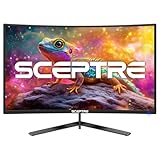
The Sceptre New 24-inch Curved Gaming Monitor is a budget-friendly route into high-refresh Rainbow Six Siege play. The listing identifies a Full HD curved panel with up to 180Hz, DisplayPort and HDMI connectivity, 100% sRGB coverage, and AMD FreeSync support. It is most appropriate for players upgrading from 60Hz or 75Hz who want a meaningful motion improvement without stepping into premium pricing.
At 24 inches and 1080p, the screen has a useful pixel density for desktop gaming. The up-to-180Hz rating is also a reasonable match for a mid-range graphics card. A system that cannot sustain 240 FPS may still make excellent use of 144Hz to 180Hz, especially with adaptive sync enabled. The curved format is a preference rather than a competitive feature: it can make the edges feel closer, but it does not automatically reduce input latency or improve aim.
- 24-inch curved Full HD display.
- Up to 180Hz refresh rate.
- DisplayPort and HDMI inputs.
- 100% sRGB claim in the listing.
- AMD FreeSync support.
Strengths: This is a sensible first high-refresh monitor for a player with a modest PC. Full HD keeps rendering requirements under control, while FreeSync can smooth frame-rate fluctuations below the display’s maximum. The listed sRGB coverage is also useful for general desktop and content use, although color coverage is not the same as factory calibration or HDR performance.
Pros
- Affordable entry into 144Hz-plus gaming.
- Compact 24-inch size works well at ordinary desk distances.
- FreeSync can reduce tearing with compatible systems.
- DisplayPort is suitable for high-refresh PC connection.
Cons
- Lower refresh ceiling than the 240Hz options.
- Curvature offers preference value rather than a direct Siege advantage.
- Full HD has less detail than QHD.
The closest alternative is the Sceptre 24.5-inch Prime. That model raises the listed refresh rate to 240Hz and adds more listed inputs, but it occupies a higher tier. Choose the 24-inch New model if the computer typically produces 120–180 FPS or the budget is tight. Choose the Prime if the PC can exceed 180 FPS and competitive play is the central use.
6. Sceptre 24.5-inch Prime – Best for low-cost 240Hz play

The Sceptre Curved 24.5-inch Prime Gaming Monitor is aimed at players who want a 240Hz 1080p display without moving to a larger or more expensive QHD screen. The listing specifies a curved R1500 panel, 1ms class response, two DisplayPort inputs, two HDMI inputs, and blue-light shielding. Those connectivity options are useful if the monitor will be shared between a gaming PC, laptop, console, or second source.
Its 24.5-inch size remains close to the conventional competitive format. At Full HD, it keeps the GPU workload manageable and allows a strong CPU-and-GPU combination to chase very high frame rates. The 240Hz rating is particularly relevant for Siege because the game can run at high FPS on appropriate hardware and competitive settings, though actual results vary substantially with processor, graphics card, map, resolution scale, background applications, and game updates.
- 24.5-inch curved Full HD display.
- Up to 240Hz refresh rate.
- R1500 curvature.
- 1ms response class listed.
- Two DisplayPort and two HDMI inputs listed.
- Blue-light-shielding feature listed.
Strengths: The combination of compact size and 240Hz is well matched to competitive play. Multiple inputs give it more flexibility than a display intended only for one desktop. Blue-light features may make evening use more comfortable, but they should not be confused with reduced motion blur or a faster panel response.
Pros
- 240Hz ceiling at a resolution that is easy to render.
- Competitive-friendly 24.5-inch size.
- Multiple DisplayPort and HDMI inputs.
- 1ms response class suits fast games on paper.
Cons
- FHD is less detailed than QHD.
- Curvature may not appeal to players who prefer flat esports displays.
- “1ms” class figures depend on the selected response mode and conditions.
Against the Dell SE2426HG, the Sceptre offers a similar competitive concept, while the Dell emphasizes an IPS panel and compact 23.8-inch format. The Sceptre is attractive when input flexibility and the 24.5-inch curved design matter. The Dell is the safer choice for users who prioritize IPS viewing behavior and a conventional flat-screen experience.
7. LXZ 27-inch Curved – Best for a large budget 180Hz screen

The LXZ 27-inch Curved Gaming Monitor is a large Full HD option with a listed 180Hz refresh rate, 1800R VA panel, and frameless design. It suits players who want a more immersive screen than a 24-inch monitor while keeping the resolution low enough for high frame rates on a modest gaming computer.
VA technology is known for strong native contrast compared with many IPS designs, which can help dark scenes appear deeper. That can be appealing in games with shadowed interiors, although panel response behavior can vary and dark transitions may show more smearing on some VA displays. For Rainbow Six Siege, this means the 180Hz ceiling is appealing, but buyers should value the monitor’s overall response tuning rather than relying only on the advertised refresh rate.
- 27-inch Full HD resolution.
- 180Hz refresh rate.
- 1800R curved VA panel.
- Frameless design.
Strengths: The LXZ provides a large physical image and higher contrast than the typical budget IPS category can offer. The 180Hz refresh rate is enough for smooth competitive use when paired with a suitable system. Its curved shape can also be comfortable for users who sit centered and want the edges to feel more visually connected.
Pros
- Large screen with smooth 180Hz motion.
- VA contrast can benefit dark-room gaming.
- 1800R curve is moderate rather than extremely aggressive.
- Frameless styling works well in a multi-monitor arrangement.
Cons
- 27-inch Full HD is less dense than 24-inch Full HD.
- VA dark-transition behavior can vary by model and mode.
- Not as fast on paper as the 240Hz choices.
The closest competitors are the Sceptre 27-inch Prime and Dell SE2726HG. The LXZ emphasizes VA contrast and an 1800R curve; the Sceptre offers 180Hz with a 1500R curve and speakers; the Dell offers IPS technology and 240Hz. Choose LXZ for contrast and curved immersion, Dell for competitive refresh and IPS behavior, or Sceptre for a similar large curved concept with built-in audio.
8. Sceptre 27-inch Prime – Best for budget curved 180Hz gaming

The Sceptre New 27-inch Prime Gaming Monitor is a practical choice for a player who wants a larger curved Full HD screen and a 180Hz refresh rate at a budget tier. Its listing specifies two DisplayPort inputs, two HDMI inputs, 1500R curvature, 1ms class response, and built-in speakers. That combination makes it convenient for a bedroom, small office, or mixed PC-and-console setup.
The 1500R curve is more pronounced than the LXZ’s 1800R curve. Some players find that helpful on a 27-inch screen because the edges remain within a comfortable visual arc. Others prefer a flat panel for precise straight lines and less geometric distortion in productivity work. Neither curve is an inherent Siege advantage, so desk position and personal comfort should decide the issue.
- 27-inch curved display.
- 180Hz refresh rate.
- 1500R curvature.
- 1ms response class listed.
- Two DisplayPort and two HDMI inputs.
- Built-in speakers.
Strengths: The Sceptre is flexible and easy to position as a general gaming display. Its multiple inputs are useful for switching devices, and built-in speakers remove the immediate need for external audio when desk space is limited. The 180Hz refresh rate is a substantial improvement over office monitors and is accessible to many mid-range systems at 1080p.
Pros
- Large 27-inch image and smooth 180Hz refresh rate.
- Useful set of listed inputs.
- Built-in speakers are convenient for basic audio.
- 1500R curve suits players who like immersive screens.
Cons
- 27-inch Full HD has modest pixel density.
- Built-in speakers are unlikely to replace dedicated competitive headphones.
- 240Hz models provide more motion headroom.
Compared with the LXZ 27-inch Curved, this Sceptre has a stronger listed connectivity and convenience package, while the LXZ uses an 1800R VA panel. Compared with the Dell SE2726HG, it gives up the Dell’s IPS and 240Hz positioning in exchange for curvature and speakers. It is best for a larger, uncomplicated budget setup rather than a specialist esports station.
9. ASUS TUF 27-inch FHD – Best for feature-rich 1080p gaming

The ASUS TUF Gaming 27-inch monitor is a 1080p model built around a 165Hz refresh rate, support for 144Hz, 1ms class response, and Extreme Low Motion Blur. It is suited to players who want a recognizable gaming-focused feature set but whose computer or budget does not justify a QHD display.
Extreme Low Motion Blur is designed to reduce perceived persistence blur by controlling the backlight behavior during motion. Such modes can make moving objects appear clearer, but they often have compatibility tradeoffs: brightness may fall, adaptive sync may be unavailable simultaneously, and the result depends on frame-rate stability. For Siege, it is worth comparing the normal adaptive-sync mode with the blur-reduction mode rather than assuming one is always superior.
- 27-inch Full HD panel.
- 165Hz refresh rate with 144Hz support.
- 1ms response class listed.
- Extreme Low Motion Blur feature.
- TUF Gaming product positioning.
Strengths: The monitor offers a useful middle ground for players who want more than a basic office display. A stable 144–165 FPS target is easier to reach than 240 FPS, and the blur-reduction feature gives enthusiasts an additional way to tune motion. The large 27-inch size is also convenient for general gaming and media.
Pros
- Useful 165Hz refresh rate for mid-range systems.
- Motion-clarity feature provides extra configuration flexibility.
- Large screen suitable for mixed gaming.
- 1080p keeps graphics requirements moderate.
Cons
- 27-inch Full HD is not as sharp as 24-inch Full HD or 27-inch QHD.
- Lower refresh ceiling than the 180Hz and 240Hz alternatives.
- Blur-reduction modes can involve brightness or synchronization compromises.
The closest alternatives are the Sceptre 24-inch New and Dell SE2426HG. The ASUS offers a larger screen and blur-reduction feature, while the Sceptre reaches 180Hz and the Dell reaches 240Hz. Pick ASUS when 144–165 FPS is your realistic target and you value tuning options; pick Dell when competitive speed is more important than size.
10. SANSUI 32-inch Curved – Best for a very large 240Hz display

The SANSUI 32-inch Curved Gaming Monitor is designed for players who want an unusually large Full HD screen with a listed 240Hz refresh rate. Its main attraction is physical size: it can make games feel more expansive from a greater viewing distance and may also serve as a television-like display in a small room.
However, size and resolution must be considered together. At 32 inches, 1920×1080 produces visibly lower pixel density than 24-inch 1080p. Text, fine edges, and distant detail can look soft when viewed close to the screen. In Siege, sitting farther back can make the image more comfortable, but it also changes the relationship between eye movement, crosshair placement, and target recognition. This is a niche choice rather than the default competitive recommendation.
- 32-inch curved screen.
- Full HD 1920×1080 resolution.
- 240Hz high-refresh rating.
- Large-format gaming design.
Strengths: The 240Hz specification provides competitive motion potential, while the large panel works well for a room where the user sits farther away. It can also be appealing for racing games, video, and couch-adjacent PC gaming. The key is to match it with an appropriate viewing distance.
Pros
- Very large image with a high 240Hz ceiling.
- Full HD is easier to render than QHD or 4K.
- Curved format can suit immersive, centered viewing.
- Useful for mixed gaming and media in a larger room.
Cons
- Low pixel density for close-up desktop use.
- Large size may require more desk depth.
- Not the clearest choice for precise competitive viewing.
Its nearest alternatives are the Dell SE2726HG and Sceptre 24.5-inch Prime. Those models offer a more conventional competitive size, while the SANSUI prioritizes physical scale. Choose SANSUI only if you specifically want a large screen and can sit far enough away; choose the Dell or Sceptre for a sharper, more focused Siege setup.
11. Samsung Odyssey G55C – Best for immersive QHD gaming

The Samsung 32-inch Odyssey G55C is the choice for players who place immersion and image quality above maximum competitive refresh. Its listing identifies a QHD 1000R curved display. The 2560×1440 resolution supplies much more detail than Full HD, while the 32-inch size creates a broad, cinematic view for story games, exploration, and general PC use.
The 1000R curve is aggressive compared with 1500R and 1800R designs. It is intended to match the curvature of the human field of view more closely, but comfort depends on seating position and personal preference. A centered user at a suitable distance may find the screen enveloping; someone who uses spreadsheets or sits off-center may prefer a flatter or smaller display.
- 32-inch QHD resolution.
- 1000R curved design.
- Odyssey gaming-series positioning.
- Sharper image than the Full HD models in this list.
Strengths: QHD at 32 inches delivers a useful increase in clarity over 27-inch Full HD, and the large curved panel is excellent for games where atmosphere matters. It is also a good choice for users who want a single screen for gaming, media, and productivity. For Siege, the extra resolution can improve environmental definition, although the monitor’s listed emphasis is not the same high-refresh specialization as the 240Hz and 300Hz models.
Pros
- Detailed QHD image on a large screen.
- Strong immersive effect from the 1000R curve.
- Good fit for cinematic games and media.
- More desktop workspace than 1080p displays.
Cons
- Large footprint and aggressive curve are not for every desk.
- QHD requires more GPU power than Full HD.
- Less focused on maximum competitive refresh than the 240Hz and 300Hz choices.
The closest alternative is the AOC Q27G41ZE. AOC is the better competitive choice because its 27-inch QHD design reaches a listed 260Hz overclocked refresh rate. Samsung is better for immersive gaming, a larger image, and a pronounced curved experience. If Siege ranked play is your priority, choose AOC; if your library includes mostly cinematic games, Samsung is more compelling.
12. Sceptre 22-inch – Best for the smallest budget setup

The Sceptre New 22-inch Gaming Monitor is the most compact and accessible option in this roundup. It offers Full HD resolution, up to 144Hz, HDMI and DisplayPort connectivity, built-in speakers, and a small footprint. It is suitable for a secondary gaming station, a student desk, or a first upgrade from an ordinary 60Hz monitor.
A 22-inch 1080p screen has a relatively dense image for its size, so text and interface elements can look crisp from a normal desk distance. The tradeoff is viewing area: the screen feels less spacious than a 24-inch or 27-inch display. For Siege, the size can work well if you sit fairly close and prefer keeping the entire image within a compact field of view.
- 22-inch Full HD display.
- Up to 144Hz refresh rate.
- HDMI and DisplayPort inputs.
- Built-in speakers.
Strengths: The monitor makes high-refresh play accessible to systems that do not need a 240Hz panel. Its small size is useful where desk depth is limited, and the built-in speakers simplify a basic setup. Full HD also keeps the GPU workload predictable.
Pros
- Compact footprint and dense 1080p image.
- 144Hz is a major improvement over 60Hz.
- Includes both HDMI and DisplayPort according to the listing.
- Built-in speakers add convenience.
Cons
- Smallest viewing area in the roundup.
- Lower refresh ceiling than the 165Hz, 180Hz, and 240Hz options.
- Less suitable for immersive games and split-screen productivity.
The nearest alternative is the Sceptre 24-inch New. The 24-inch model provides a more comfortable general-purpose image and raises refresh potential to 180Hz, while the 22-inch model is easier to fit into a restricted space. Choose the 22-inch monitor for minimum size and cost; choose the 24-inch model if your desk can accommodate it.
How to Choose
Start with your graphics card and realistic frame rate
The best gaming monitor for Rainbow Six Siege is the one whose refresh rate your computer can use. A 240Hz monitor can refresh every 4.17 milliseconds, but it does not make a 120 FPS game behave like a 240 FPS game. If your frame rate is usually 100–140 FPS, a 144Hz or 165Hz monitor may provide nearly the same practical experience as a 240Hz model while leaving more budget for a better GPU, CPU, or mouse.
Use a frame-time target rather than chasing a specification in isolation. At 60 FPS, a new frame arrives every 16.67ms. At 144 FPS, it arrives every 6.94ms. At 180 FPS, it arrives every 5.56ms. At 240 FPS, it arrives every 4.17ms. At 300 FPS, it arrives every 3.33ms. The gains become progressively smaller, so moving from 60Hz to 144Hz is a much larger change than moving from 240Hz to 300Hz.
For a typical competitive setup, aim for a stable frame rate comfortably above the refresh rate or use adaptive sync with a sensible cap. Stability matters because inconsistent frame delivery can feel less clear than a slightly lower but steady frame rate. Actual FPS varies with CPU model, graphics card, game settings, resolution, background processes, drivers, and patches.
Choose 1080p or 1440p deliberately
Full HD renders 2,073,600 pixels per frame. QHD at 2560×1440 renders 3,686,400 pixels. The calculation is:
3,686,400 ÷ 2,073,600 = 1.778
That means QHD requires about 78% more pixels per frame than 1080p. It does not mean every game needs exactly 78% more GPU power, because CPU limits, engine behavior, and settings affect the result, but it illustrates why a 1080p system can reach 240Hz more easily than a QHD system.
Choose 1080p when you prioritize ranked performance, own a modest or mid-range graphics card, or prefer a 24-inch competitive screen. Choose QHD when you want sharper text, more detailed environments, a larger desktop, and a PC capable of maintaining strong frame rates at the higher resolution. The AOC and ASUS QHD models are the clearest upgrades for players who want both Siege and modern single-player games on one screen.
Match screen size to viewing distance
For 1080p competitive gaming, 23.8 to 24.5 inches is the safest size range. It keeps the entire image easy to scan without requiring much eye movement. A 27-inch 1080p monitor can still work, especially if you sit farther back, but it spreads the same pixels over a larger surface and therefore looks less dense.
At 27 inches, QHD is usually a more natural pairing. It provides approximately 109 pixels per inch, compared with about 92 pixels per inch for 24-inch 1080p. A 32-inch QHD display remains detailed and immersive, but it occupies more desk space. A 32-inch Full HD display can feel soft at close range, so the SANSUI model makes more sense for a roomier seating position than for a tightly packed esports desk.
Understand IPS, VA, and curved designs
IPS panels are commonly selected for broad viewing angles and generally consistent color across the screen. That makes them attractive for multi-purpose desks and for users who do not sit perfectly centered. The Dell, AOC, and several ASUS options use or list IPS technology or an IPS-oriented design.
VA panels are known for higher native contrast, which can make dark scenes look deeper. The LXZ specifically lists VA technology. VA response behavior can vary more noticeably in dark transitions, so players sensitive to trailing should compare the monitor’s available response modes and avoid using an extreme overdrive setting that creates bright inverse trails.
Curvature is mainly a comfort and immersion choice. A 1000R curve is more aggressive than 1500R, which is more aggressive than 1800R. Curved screens are usually most comfortable when centered at a consistent distance. For a competitive Siege setup, flat versus curved is less important than refresh rate, response consistency, and the correct size.
Use the right connection and cable
High refresh modes often depend on using DisplayPort or the correct HDMI standard and cable. Connect a gaming PC through DisplayPort when the monitor and graphics card support it, then confirm the desired refresh rate in Windows and in the game. Do not assume that a monitor advertises 240Hz means every HDMI input and every older cable can deliver 240Hz at the selected resolution.
After connecting the display, open the operating system’s advanced display settings and choose the maximum available refresh rate. Then check the monitor’s on-screen menu for adaptive sync, overdrive, and any overclock setting. If the refresh option is missing, try another cable, another input, a direct connection instead of an adapter, and a current graphics driver.
Configure adaptive sync for Siege
Adaptive sync matches the monitor’s refresh timing to the GPU’s frame delivery within its supported range. It can reduce tearing when frame rate changes, but it cannot fix stutter caused by a CPU bottleneck, shader compilation, background software, or a poorly configured game.
A useful starting configuration is:
- Set the monitor to its rated refresh rate.
- Enable FreeSync or G-SYNC-compatible mode when available.
- Enable the matching graphics-driver synchronization option if required.
- Cap FPS a few frames below the maximum refresh rate when using adaptive sync; for example, use roughly 237 FPS on a 240Hz monitor, 177 FPS on a 180Hz monitor, or 141 FPS on a 144Hz monitor.
- Use a moderate response-time setting first, then check moving edges for overshoot or inverse ghosting.
The cap leaves a small timing buffer so the GPU does not repeatedly hit the monitor’s ceiling. Exact best settings vary by display, driver, and game. If latency is your absolute priority and tearing is acceptable, some competitive players disable synchronization and use an uncapped or tightly capped frame rate. For a mixed-use setup, adaptive sync is usually the more comfortable compromise.
Choose motion clarity features carefully
Terms such as “1ms” describe a response class or selected mode rather than a universal result across every transition. A very aggressive overdrive mode may reduce some blur while producing bright halos behind objects. Check a dark doorway, a white reticle, and a high-contrast edge while moving the camera. If you see inverse trails, reduce the overdrive setting.
Backlight-strobing systems such as ASUS Extreme Low Motion Blur can make motion appear clearer by showing the backlight in timed pulses. They work best with stable frame rates and may reduce brightness or conflict with adaptive sync. Use them when your system maintains a steady target and you prefer maximum motion clarity; use adaptive sync when frame rate varies frequently.
Consider desk materials, stand movement, and ergonomics
A monitor’s panel is only part of the setup. A 27-inch or 32-inch curved model needs adequate depth so you are not sitting uncomfortably close. A stable desk surface made from solid wood, engineered wood, or a rigid metal frame is preferable to a flexible surface that transmits keyboard movement. Check the stand’s footprint, cable routing, height adjustment, and tilt range before purchase.
Place the top edge near eye level and keep the screen centered with your keyboard. For a 24-inch competitive display, a closer viewing distance can make the full image easy to scan. For 32 inches, move farther back rather than increasing brightness or sharpening excessively. If the monitor supports a compatible arm or mount, confirm the mounting standard and the arm’s weight capacity before buying accessories.
Decide which features are actually worth paying for
Built-in speakers are convenient for system sounds, but headphones remain preferable for locating footsteps and gunfire. Blue-light modes can change color temperature for evening use, but they do not make a monitor faster. A wide-gamut or sRGB claim can help with color, yet it does not replace accurate calibration. Extra HDMI and DisplayPort inputs are valuable if several devices will share the screen.
Spend first on the correct size, resolution, and refresh rate. Then consider adaptive sync and panel behavior. Cosmetic features, speakers, and curvature should come afterward. For most Siege players, a 24-inch 1080p 240Hz display or a 27-inch QHD 240Hz-class display is a better use of money than an oversized screen with a refresh rate the computer cannot reach.
Frequently Asked Questions
What is the best gaming monitor for Rainbow Six Siege?
The AOC Q27G41ZE is the best overall choice for many PC players because it combines 27-inch QHD clarity, IPS technology, a 260Hz overclocked refresh rate, and G-SYNC support. The Dell SE2426HG is a better budget choice when 1080p performance and 240Hz matter more than resolution.
Is 144Hz enough for Rainbow Six Siege?
Yes. 144Hz is a major improvement over 60Hz and is enough for a very capable competitive setup. A 180Hz or 240Hz model can look smoother when the PC consistently produces higher frame rates, but the improvement is progressively smaller.
Should I choose 1080p 240Hz or 1440p 165Hz?
Choose 1080p 240Hz for ranked play, a modest GPU, and a 24-inch competitive screen. Choose 1440p 165Hz for sharper image quality, broader desktop use, and visually demanding games. The decision depends on whether frame-rate headroom or resolution is the higher priority.
Is a 27-inch 1080p monitor good for Siege?
It can be good if you sit farther from the screen and prefer a large image. However, 27-inch 1080p has lower pixel density than 24-inch 1080p, so fine text and edges may look softer. A 27-inch QHD monitor is the sharper long-term choice when the PC can drive it.
Does a curved monitor improve aim?
No direct aim improvement is guaranteed by curvature. A curve may feel comfortable and immersive, but refresh rate, response behavior, screen size, viewing distance, and stable frame delivery matter more for Siege. Choose curved or flat according to comfort and desk layout.
Do I need G-SYNC or FreeSync for Rainbow Six Siege?
You do not strictly need adaptive sync, especially if the PC maintains a stable frame rate above the monitor’s refresh rate. It is useful when FPS fluctuates because it can reduce tearing and uneven presentation. Enable it only after confirming that the monitor, graphics card, cable, and driver support the desired mode.
What FPS should I target on a 240Hz monitor?
Around 240 FPS lets the display use its full refresh capability, but a stable 180–220 FPS can still look excellent. If adaptive sync is enabled, many players cap a few frames below the maximum, such as approximately 237 FPS on a 240Hz screen. Actual ideal settings depend on latency preferences and frame-time consistency.
Can a console use these monitors?
Many Full HD and QHD monitors can accept a console signal, but the available resolution and refresh rate depend on the console, input, HDMI version, and game. Check the monitor’s supported HDMI modes rather than assuming the PC refresh specification applies to every source. Extra HDMI inputs are helpful for switching between devices.
Final Recommendations
Choose the AOC Q27G41ZE for the best balance of competitive speed, QHD clarity, and long-term value. Choose the ASUS TUF VG27AQM5A if you have a powerful system and specifically want 300Hz at 1440p. Choose the Dell SE2426HG for the most practical budget 240Hz setup, or the Sceptre 24-inch New when 180Hz is enough. For immersive gaming, the Samsung Odyssey G55C is the better large-format QHD option, while the 27-inch and 32-inch curved Full HD models suit players who value physical screen size over pixel density.









