
You buy a sharp new monitor, plug it in, and the text looks oddly fringed with color despite the high resolution. Before blaming the panel, look at its subpixel layout. How the red, green, and blue subpixels are arranged, and whether your operating system expects that arrangement, has a big effect on text clarity. This guide explains the issue and the fixes.
As an Amazon Associate we earn from qualifying purchases at no extra cost to you.


Our Top Picks
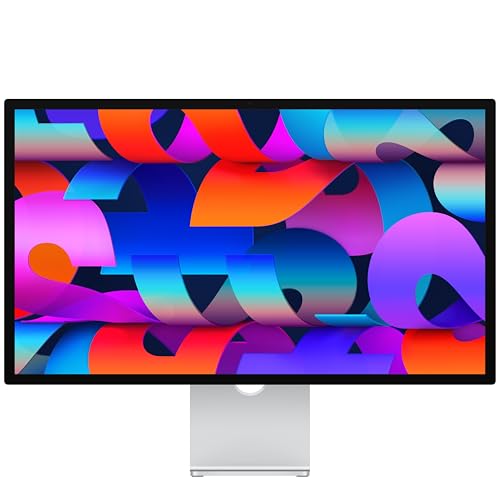 Apple Studio Display: Standard GlassTilt-adjustable stand1.22 x 14.25 x 24.53 Inches24.96 PoundsCheck on Amazon
- Apple Studio Display: Nano-Texture GlassTilt-adjustable stand1.22 x 14.25 x 24.53 Inches24.65 poundsCheck on Amazon

Top 3 picks at a glance
What subpixels are
Each pixel is made of smaller colored elements called subpixels, usually one red, one green, and one blue. By varying their brightness the pixel produces any color. Text rendering systems like Windows ClearType exploit these subpixels to smooth the edges of letters, a technique called subpixel anti-aliasing. It assumes a specific left-to-right order.
The standard order
Most monitors use RGB order, red then green then blue from left to right, and operating systems are tuned for it by default. When a panel instead uses BGR order or a non-standard shape, the OS smooths text against the wrong subpixels and letters gain faint colored fringes, looking slightly blurry or tinted.
Where non-standard layouts appear
| Layout | Where you see it | Text impact |
|---|---|---|
| Standard RGB stripe | Most IPS/VA monitors | Crisp, OS default |
| BGR stripe | Some VA panels, certain TVs | Color fringing on text |
| Triangular / RGBG | Some OLED panels | Slightly softer thin text |
| QD-OLED triad | QD-OLED monitors | Faint color fringe on edges |
Why OLED text can look different
Non-stripe arrangements
Many OLED and QD-OLED monitors do not use a simple RGB stripe. QD-OLED uses a triangular subpixel arrangement, and some WOLED panels add a white subpixel. Standard subpixel anti-aliasing assumes stripes, so on these panels fine text can show a subtle green-magenta fringe. It is most visible on thin black text against white backgrounds at 100% scale.
Resolution helps hide it
Higher pixel density reduces the visibility of any subpixel quirk because each letter is drawn with more pixels, so the fringing shrinks below what your eye notices. This is why a 4K 32-inch OLED shows cleaner text than a 1440p 27-inch one with the same panel technology.
How to fix fuzzy text
Start with the ClearType Text Tuner in Windows, which lets you pick the sharpest-looking sample and adapts to your panel. If a monitor is genuinely BGR, some users disable subpixel anti-aliasing and rely on grayscale smoothing, trading a little smoothness for no color fringe. Increasing display scaling and choosing a higher-resolution panel for its size also help. On macOS, subpixel anti-aliasing was removed, so it sidesteps the issue but can make text look slightly heavier.
Operating system differences and scaling
How much subpixel layout bothers you depends heavily on your operating system and scaling. Windows leans on subpixel anti-aliasing through ClearType, so it is the most sensitive to non-standard layouts and shows the clearest fringing on BGR or OLED panels. macOS dropped subpixel rendering entirely and uses grayscale smoothing with high-resolution displays, so it sidesteps the fringing but renders text slightly heavier, which some people prefer and others do not.
Display scaling is the quiet fix that helps everywhere. Running a higher-resolution panel at 125 or 150 percent scaling draws each glyph with more physical pixels, shrinking any subpixel quirk below what the eye resolves at normal distance. This is a strong argument for buying denser panels, such as 4K at 27 or 32 inches, if crisp text is a priority, because high pixel density papers over layout oddities that would be obvious on a lower-density screen.
FAQ
Is BGR a defect?
No, it is just a different arrangement, and the panel is not faulty. The fringing comes from the operating system expecting RGB order. It is a compatibility quirk you can mitigate with ClearType tuning or by disabling subpixel anti-aliasing, not a hardware fault.
Why does text look fringed on my new OLED?
Many OLED and QD-OLED panels use non-stripe subpixel layouts that standard text smoothing was not designed for, producing faint color edges on thin text. Running the ClearType tuner and using a higher-resolution panel for its size both reduce the effect significantly.
Bottom line
Subpixel layout quietly shapes how crisp your text looks. Standard RGB stripes match how operating systems render fonts, while BGR and OLED triangular layouts can cause faint color fringing. If new text looks fuzzy, run the ClearType tuner, consider disabling subpixel smoothing, and favor higher pixel density, which hides these quirks best.









