
Designing a streamlined, visually cohesive home office in 2026 demands a careful balance between decor aesthetics and technical capabilities. For photographers, graphic designers, video editors, and interior stylists working from home, screen color accuracy is essential. However, home office creators quickly encounter a fundamental dilemma: hardware calibration vs software calibration for monitors. This choice impacts far more than just color science; it shapes your desk footprint, cable organization, long-term equipment budget, and daily workflow efficiency.
Whether you want a minimalist, clutter-free desk with a single USB-C cable or an adaptable budget setup using existing office hardware, understanding how these two calibration methods function—and how they fit into a home environment—is the first step toward building your ideal workspace.
As an Amazon Associate we earn from qualifying purchases at no extra cost to you.



Our Top Picks
 BenQ SW272U 27-inch 4K 90W USB-C Photographer Monitor27 Inch10.78 x 24.17 x 17.78 inches18.95 PoundsCheck on Amazon
 Calibrite Display 123 Monitor Calibration Colorimeter for Photo2.501.5 x 1.5 x 1.4 inches0.3 PoundsCheck on Amazon
 Datacolor SpyderExpress Monitor Calibrator & Screen Color CalibratorSpyderExpress2.6 x 4.8 x 4.8 inches0.3 poundsCheck on Amazon
Top 3 picks at a glance
Quick Verdict
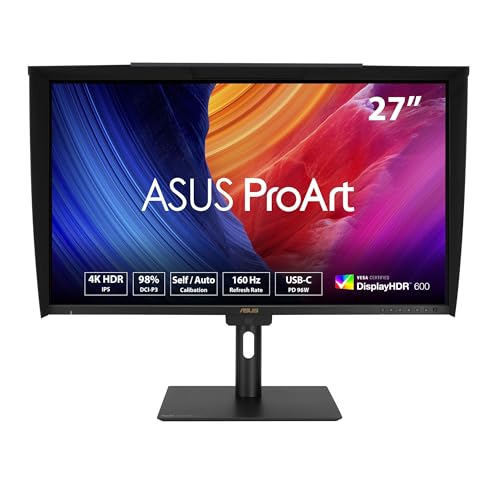
Hardware calibration is the gold standard for color-critical work. It adjusts and stores color data directly inside the monitor’s internal Look-Up Table (LUT). High-end displays like the BenQ SW272U 27-inch 4K 90W USB-C Photographer Monitor ($1499.99) or the ASUS ProArt PA27UCGE 27 Inch 4K HDR USB-C Professional Monitor for Mac ($799) utilize hardware calibration to deliver smooth gradients, maximum dynamic range, and consistent colors regardless of which computer is plugged in.
Software calibration, on the other hand, adjusts the signal coming from your computer’s graphics card (GPU) using an ICC profile created by an external USB probe. Entry-level colorimeters like the Calibrite Display 123 Monitor Calibration Colorimeter ($119) or the Datacolor SpyderExpress Monitor Calibrator ($119) offer an accessible entry point. Software calibration works with virtually any display, making it an ideal choice for multi-use home offices, budget-conscious setups, or standard productivity displays.
Side by Side
| Feature | Hardware Calibration | Software Calibration |
|---|---|---|
| Visual Comfort & Gradients | Superior; preserves full tonal range without color banding or highlight clipping. | Good; may compress tonal response in shadows or highlights on entry panels. |
| Color Durability & Stability | High; internal 14-bit or 16-bit LUTs maintain stability over long work sessions. | Moderate; depends on GPU output and requires frequent software updates. |
| Price Range (Initial Investment) | $800 – $2,000+ (requires dedicated hardware-supported monitor). | $119 – $300 (uses an external sensor with existing screens). |
| Desk Space & Aesthetic Impact | Ultra-clean; settings live on the monitor, keeping cables to a minimum. | Requires storing an external sensor and plugging in USB cables during profiling. |
| Maintenance & Effort | Low; automated schedules run quietly via dedicated vendor utilities. | Moderate; requires manual recalibration every 2 to 4 weeks. |
| Cable Management | Streamlined; often integrated with high-power USB-C hub displays (up to 90W). | Temporary cable tethering during active calibration cycles. |
| Resale & Upgradability | High resale value due to professional-grade panel specifications. | High portability; the USB colorimeter moves with you to future screens. |
| Best For | Dedicated home studios, professional print work, and multi-device desks. | Flexible home offices, remote workers, and casual content creators. |
Where Hardware Calibration Wins
Hardware calibration excels by bypassing the host computer’s graphics processing altogether. When you calibrate a display using native hardware tools, the adjustments are written directly into the monitor’s built-in 16-bit 3D LUT. This architecture ensures that the full bit-depth of your graphics card remains intact, completely eliminating the visual banding and posterization that can occur when a graphics card output is artificially clipped.
From a home office design perspective, hardware calibration provides an unmatched multi-device experience. Because the color profile resides on the display panel itself, you can disconnect your personal Mac desktop, plug in a work-issued Windows laptop via a single USB-C cable, and instantly see identical, perfectly calibrated colors. Displays such as the BenQ SW272U offer high-wattage power delivery (90W USB-C), which powers demanding laptops while simultaneously carrying video and data. This single-cable connectivity keeps your desk surface free from bulky power bricks and cable clutter.
Furthermore, hardware-calibrated panels are engineered for professional durability. They feature uniform backlight distribution and anti-reflective coatings—like TUV-certified nano-matte panels—that minimize ambient light reflection from home windows, reducing eye strain during long working hours.
Where Software Calibration for Monitors Wins
Software calibration offers unmatched versatility and affordability. Rather than requiring a specialized, high-end monitor, software calibration allows you to calibrate almost any display—from standard office monitors to dual-screen home productivity setups—using a standalone USB colorimeter.
Devices like the Calibrite Display 123 Monitor Calibration Colorimeter ($119) and the Datacolor SpyderExpress Monitor Calibrator ($119) make professional-grade color accuracy accessible without replacing your current desk setup. You simply hang the lightweight sensor (typically under 6 ounces) over your screen, run a guided software wizard, and let the application measure color output against industry standards. The software then generates a custom ICC profile for your computer’s operating system.
This approach is particularly beneficial if you work on a versatile desktop that spans multiple screens. A single $119 colorimeter can profile two or more monitors, bringing visual harmony to mismatched displays. When you are finished calibrating, the sensor tucks neatly into a desk drawer, leaving your home office uncluttered.
Cost Over 5 Years
Evaluating the long-term investment helps clarify which route aligns with your budget. While hardware-calibrated setups require a larger initial outlay, they offer exceptional longevity and build quality.
- Hardware Calibration Path: A professional display like the ASUS ProArt PA27UCGE ($799) or BenQ SW272U ($1499.99) represents a major upfront purchase. However, these panels typically include extensive multi-year warranties, robust heat management, and factory-calibrated uniformity. Over a 5-year period, the average cost ranges from $160 to $300 per year, with no additional software license fees required.
- Software Calibration Path: Pairing an existing or mid-tier $300 productivity screen with a $119 calibrator (such as the Datacolor SpyderExpress or Calibrite Display 123) results in an initial setup cost of roughly $420. Over 5 years, this breaks down to about $84 per year. If you upgrade your monitor down the road, your existing calibration hardware remains fully functional.
Energy consumption is another factor. High-performance professional monitors generally draw between 45W and 90W depending on brightness and HDR modes, but integrated USB-C power delivery often replaces separate laptop chargers, consolidating energy use and eliminating power strip clutter under your desk.
Which One for Your Home
Small Apartment Desk Setup
In a compact living space where a desk may sit in a living room corner or bedroom nook, keeping visual noise to a minimum is essential. A single-monitor setup featuring software calibration with a compact probe like the Calibrite Display 123 allows you to maintain a clean workspace without heavy equipment. Alternatively, choosing a hardware-calibrated 27-inch display with integrated 90W USB-C hub functionality eliminates external docks and extra power bricks, preserving valuable desktop real estate (typically occupying a footprint of just 24 inches by 8 inches).
Shared Family Workspace
If your home office desk is shared among multiple family members using different laptops or operating systems, hardware calibration is the superior choice. Since the color correction parameters are saved internally on monitors like the ASUS ProArt PA27UCGE, colors remain consistent whether your child plugs in a Chromebook for homework, a partner attaches a corporate PC laptop, or you connect a MacBook Pro for image editing.
Rental Home Office
For renters who frequently reconfigure their workspaces or move, portability and versatility matter most. A standalone colorimeter like the Datacolor SpyderExpress ($119) can be safely stored in a drawer and used anywhere. It lets you achieve reliable color accuracy on temporary displays, secondary screens, or mobile monitors without committing to heavy, fixed equipment setups.
Long-Term Dedicated Home Studio
For creative professionals operating out of a dedicated home office or commercial-grade home studio, hardware calibration is an indispensable choice. The combination of wide color space coverage (99% Adobe RGB/DCI-P3), high bit-depth 3D LUTs, and anti-reflective matte screens ensures that what you see on display precisely matches your final printed media or client deliverables.
FAQ
Does software calibration change the physical settings of my monitor?
No. Software calibration creates an ICC profile within your computer’s operating system that adjusts the signal output from your graphics card before it reaches the screen. It does not alter the monitor’s internal hardware registers or hardware LUTs.
Can I use software calibration on a hardware-calibrated monitor?
Yes. Many creators use third-party software calibrators to quickly check or re-verify a hardware-calibrated display. However, to get the full benefits of direct internal LUT writing, you should use the proprietary calibration software provided by the monitor manufacturer.
How often should I calibrate my home office monitor?
For standard productivity and casual photo editing, calibrating every 4 to 6 weeks is sufficient. For color-critical work like commercial printing or professional video grading, recalibrating every 2 to 3 weeks maintains optimal precision as panel backlights naturally shift over time.
Do I need a hardware-calibrated monitor for web photo editing and social media?
For web content viewed on standard consumer phones and laptops, software calibration using an affordable sensor like the Calibrite Display 123 or Datacolor SpyderExpress ($119) provides more than enough accuracy. Hardware calibration is primarily recommended for high-end print production, wide-gamut workflows, or multi-device home studio environments.









