For a typical 24-inch to 32-inch gaming monitor, the MOUNT PRO Single Monitor Wall Mount is the best overall pick: it is a full-motion, height-adjustable wall arm rated for screens from 13 to 32 inches and up to 19.8 lb, which covers most 1440p and 1080p gaming panels. Owners of a 34-inch to 57-inch ultrawide should step up to the ARES WING gas-spring arm, which the listing rates for 24 to 57 inch screens and up to 60 lb. A VESA wall mount holds a monitor on the wall through the standard hole pattern on the back, and its weight capacity and wall fixings matter more than its looks.
Our Top Picks


Top 3 picks at a glance
Quick List
- MOUNT PRO Single Wall Mount – best for one 13-inch to 32-inch gaming monitor up to 19.8 lb
- HUANUO Gaming Dual Wall Mount – best for two 17-inch to 32-inch monitors side by side
- Extra Long Single Wall Mount Arm – best for reaching far from the wall on a 17-inch to 32-inch screen
- HUANUO FlowLift Dual Stand – best as a desk-mount alternative if you cannot drill into a wall (runner-up, not a wall mount)
- MOUNT PRO Ultrawide Wall Mount – best for ultrawides up to 43 inches with a VESA extension kit
- ARES WING Ultrawide Gas-Spring Wall Mount – best for large 24-inch to 57-inch ultrawides up to 60 lb
Which One Is Right for You?
| If you… | Choose |
|---|---|
| Have one mainstream gaming monitor from 24 to 32 inches | MOUNT PRO Single Wall Mount |
| Own a heavy 49-inch to 57-inch super-ultrawide | ARES WING Ultrawide Gas-Spring Wall Mount |
| Run two 27-inch monitors on one wall | HUANUO Gaming Dual Wall Mount |
| Need the screen to pull a long way out from the wall | Extra Long Single Wall Mount Arm |
| Have a 34-inch to 43-inch ultrawide with an unusual VESA pattern | MOUNT PRO Ultrawide Wall Mount |
| Cannot or do not want to drill into the wall | HUANUO FlowLift Dual Stand (desk mount) |
Before comparing mounts, find three numbers: your monitor’s weight without its stand, its VESA hole pattern, and its screen size. Then find out what your wall is made of, since a wall mount is only as secure as the studs or masonry behind it.
One more point before the detailed picks: wall mounts are rated for the monitor’s weight, but the wall itself decides how safe the installation is. A mount that is perfectly adequate on a stud in a wood-framed wall may be unsuitable on thin drywall, plaster or brick. Treat the wall check as part of the purchase, and ask a qualified installer if there is any doubt. Also note that the minimum weight on dual and gas-spring arms matters as much as the maximum.
All 6 Picks in Detail
1. MOUNT PRO Single Monitor Wall Mount – Best for One Mainstream Gaming Monitor
As an Amazon Associate we earn from qualifying purchases at no extra cost to you.

This is the straightforward option for a standard setup. The listing names a single-monitor wall mount for 13 to 32 inch screens, a height-adjustable wall arm that holds up to 19.8 lb, and full-motion adjustment. That weight capacity fits the large majority of 24-inch to 32-inch gaming monitors, which commonly weigh well under 20 lb without the stand. It suits a player who wants to free desk space, line the screen up at eye level, and swing it aside when not in use. It is not meant for ultrawides above 32 inches.
- Screen size range: 13 to 32 inches
- Weight capacity: up to 19.8 lb
- Movement: full motion, height adjustable
- Design: single-monitor wall arm
- Wall type and hardware: confirm on listing
- VESA pattern: confirm on listing
Pros:
- Covers the most common gaming monitor sizes
- Height adjustment plus full motion on a single arm
Cons:
- Not suited to large or heavy ultrawides
- VESA pattern is not stated in the listing name
It is the standard alternative to the extra-long arm in position 3, which swaps this model’s compact reach for far more extension.
2. HUANUO Gaming Dual Monitor Wall Mount – Best for Two Monitors on One Wall

HUANUO’s dual wall mount holds two screens from 17 to 32 inches, with a weight range of 4.4 to 17.6 lb per arm. The listing names VESA 75 by 75 and 100 by 100 support and a height-adjustable stand. It suits a streamer or a player with a two-screen layout, such as a game on one monitor and chat or a guide on the other. The per-arm limit is lower than the single MOUNT PRO’s 19.8 lb, so confirm that each of your monitors fits within the 17.6 lb maximum, and also within the 4.4 lb minimum.
- Screen size range: 17 to 32 inches per screen
- Weight per arm: 4.4 to 17.6 lb
- VESA: 75 by 75 and 100 by 100
- Design: dual monitor wall mount, height adjustable
- Movement: confirm exact arm motion on listing
- Wall hardware: confirm on listing
Pros:
- Two screens on one wall plate
- Stated VESA support is the common pair of patterns
Cons:
- The per-arm limit is lower than the single-screen models
- Both monitors share one wall anchor point, so stud placement matters
Versus the HUANUO FlowLift in position 4, this is the true wall option for two screens, while the FlowLift is a desk-mounted alternative.
3. Extra-Long Single Wall Mount Arm, 30.28 Inches – Best for Long Reach
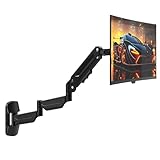
This listing is distinguished by its length: a 30.28-inch single wall arm for 17 to 32 inch screens, with full-motion movement and VESA 75 and 100 mm support. The long extension allows the screen to travel far from the wall, which suits a room where the desk sits well back from the wall or where you want to pull the screen over a bed or sofa. The catalog entry we reviewed is truncated after the length, so the weight capacity is not shown here; check the product page before assuming it matches the other arms.
- Arm length: 30.28 inches
- Screen size range: 17 to 32 inches
- VESA: 75 and 100 mm
- Movement: full motion
- Design: single wall bracket
- Weight capacity: confirm on listing
Pros:
- Long reach from the wall
- Common VESA patterns supported
Cons:
- Weight rating is not shown in the listing name
- A long arm puts more leverage on the wall fixings
Next to the MOUNT PRO single arm, you gain reach but lose clarity on the load limit, so read the page.
4. HUANUO FlowLift Dual Monitor Stand – Best Desk-Mount Alternative (Runner-Up, Not a Wall Mount)

We include this listing as a runner-up because it is a desk-mounted dual monitor stand, not a wall mount. The listing describes a fully adjustable gaming monitor desk mount for 13 to 32 inch screens, with full-motion movement and VESA 75 by 75 and 100 by 100 support. It is a good alternative for readers who like the dual-arm layout but cannot drill into a wall, for example in a rented room or where the wall is brick or concrete. It clamps to the desk edge rather than the wall.
- Type: desk-mounted dual monitor stand
- Screen size range: 13 to 32 inches
- VESA: 75 by 75 and 100 by 100
- Movement: full motion, fully adjustable
- Mount: desk clamp style; confirm clamp and grommet options
- Weight per arm: confirm on listing
Pros:
- No wall drilling needed
- Full-motion dual layout
Cons:
- Does not free the desk edge or mount to the wall
- Weight per arm is not shown in the listing name
It is the desk-side twin of the HUANUO Gaming Dual Wall Mount, offering the same two-screen idea without the wall.
5. MOUNT PRO Ultrawide Wall Mount, Up to 43 Inches – Best for Mid-Size Ultrawides
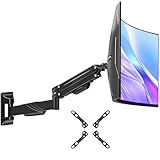
This MOUNT PRO bracket is made for ultrawides up to 43 inches. The listing describes a fully adjustable wall bracket with a VESA extension kit and a maximum VESA pattern of 200 by 200 mm. That extension kit is what makes it useful: many wide monitors use larger hole patterns, or recessed backs, that standard 100 by 100 mm brackets cannot reach. It suits a 34-inch to 38-inch ultrawide or a large monitor with a bigger hole pattern. The weight capacity is not shown in the catalog entry, so confirm it on the product page.
- Screen size: up to 43 inches
- Maximum VESA: 200 by 200 mm
- Extras: VESA extension kit
- Movement: fully adjustable
- Design: single wall bracket for ultrawides
- Weight capacity: confirm on listing
Pros:
- Larger VESA support with an extension kit
- Made for wide, curved or recessed monitors
Cons:
- Weight rating is not shown in the listing name
- Not intended for the largest 49-inch to 57-inch screens
It sits between the 32-inch arms above and the ARES WING below, covering the middle band of ultrawide sizes.
6. ARES WING Ultrawide Gas-Spring Wall Mount – Best for Large and Heavy Ultrawides
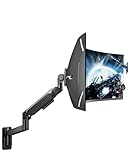
The ARES WING is the heavy-duty entry. The listing describes a premium heavy-duty full-motion arm for 24 to 57 inch ultrawide screens, rated for 60 lb and using a gas spring. A gas-spring mechanism lifts and lowers the screen with little effort and holds it where you leave it, and a 60 lb capacity leaves plenty of margin even for a 49-inch super-ultrawide. It suits someone with a very large gaming monitor who wants to mount it high and reach it easily. Because such a screen exerts strong leverage on the wall, this arm in particular should be anchored into studs or a backer board.
- Screen size range: 24 to 57 inches
- Weight capacity: 60 lb
- Mechanism: gas spring, full motion
- Design: single-monitor ultrawide wall arm
- VESA pattern: confirm on listing
- Finish and hardware: black; confirm hardware on listing
Pros:
- Highest weight capacity and widest size range in the group
- Gas-spring adjustment for easy movement
Cons:
- Heavy arm that needs a solid wall behind it
- More arm than a small 24-inch monitor needs
Compared with the MOUNT PRO ultrawide bracket, it supports bigger and heavier panels and adds a gas spring, with a more demanding installation.
Specs Compared
| Mount | Type | Screen size | Weight capacity | VESA | Movement |
|---|---|---|---|---|---|
| MOUNT PRO Single | Wall, single | 13 to 32 in | Up to 19.8 lb | confirm on listing | Full motion, height adjustable |
| HUANUO Gaming Dual | Wall, dual | 17 to 32 in | 4.4 to 17.6 lb per arm | 75×75 and 100×100 | Height adjustable |
| Extra Long Single Arm | Wall, single | 17 to 32 in | confirm on listing | 75 and 100 mm | Full motion, 30.28 in arm |
| HUANUO FlowLift Dual | Desk, dual (runner-up) | 13 to 32 in | confirm on listing | 75×75 and 100×100 | Full motion |
| MOUNT PRO Ultrawide | Wall, single | Up to 43 in | confirm on listing | Max 200×200 with extension kit | Fully adjustable |
| ARES WING Ultrawide | Wall, single | 24 to 57 in | 60 lb | confirm on listing | Full motion, gas spring |
How We Chose These
We compared the six listed mounts by reading their listing titles and the specification fields on each product page, then checking the numbers against VESA mounting conventions and general wall-mounting guidance from mounting guides. The criteria were mount type (wall or desk), supported screen sizes, weight capacity, stated VESA patterns, the kind of motion, and whether the listing names any extras such as an extension kit. When the listing name leaves out a value, we wrote “confirm on listing” instead of guessing. This is a research-based comparison, not a physical evaluation of the mounts, so check the product page for the full load capacity, hardware list and wall requirements before buying.
What to Look For
Weight Rating, Screen Size and the Margin You Need
Match the mount’s weight capacity to your monitor’s weight without the stand. Most 24-inch to 32-inch gaming monitors are well under 20 lb, so a 19.8 lb mount is workable, but a heavy 32-inch panel can come close. Super-ultrawides in the 49-inch class commonly weigh in the mid-20s of pounds without the stand, so look for capacities of 44 lb or more. Guides recommend choosing a mount rated for roughly one and a half to two times the load as a safety cushion. Remember that dual mounts rate each arm separately.
VESA Patterns and Adapters
The VESA pattern is the square or rectangle of threaded holes on the back of your monitor. The 75 by 75 mm and 100 by 100 mm patterns belong to the VESA MIS-D interface, which is specified for loads of up to about 30.8 lb (14 kg). Larger or heavier displays may use 200 by 100 mm or 200 by 200 mm patterns. If your monitor has no standard holes, a VESA adapter plate can add them. If the back is curved or recessed, you may need the spacers that come with some mounts, and you should use the screws supplied, since a screw that is too long can damage the panel.
Wall Type and Fixings
Wall mounting is a structural job. In a wood-framed home, studs are typically 16 inches apart on center, and the safest installation uses lag bolts driven into at least 1.5 inches of solid wood. Mounting guides generally treat plain drywall anchors as a fallback, and recommend heavy-duty toggle anchors, or a hardwood backer board spanning two studs, when no stud lines up. Brick or concrete needs masonry anchors and the right drill bit. Articulating arms are the riskiest case, since extending the arm creates a lever that tries to pull the top of the bracket away from the wall. If you are unsure about the wall, ask a professional installer.
Arm Style: Gas Spring, Friction and Long Reach
Gas-spring arms balance the screen so you can reposition it with a light touch. Friction arms hold position through tightened joints, and they are simple and durable for lighter screens. Long-reach arms let you pull the monitor away from the wall, which helps at a desk set far from the wall, but they put more leverage on the fixings. Pick the style that matches how often you move the screen.
Cable Management and Placement Height
Plan where the power and video cables will run before you drill. Some mounts include cable clips, and a cable cover or in-wall kit makes the result tidy. Set the center of the screen slightly below eye level when seated, and mark the wall with painter’s tape before you drill. A worked example: if your eyes sit 45 inches above the floor when seated, the center of a 27-inch monitor can sit at around 42 to 44 inches, which puts the top edge near your eye line.
Installing a Monitor Wall Mount Step by Step
A typical installation follows a fixed order. Find and mark the stud centers, hold the wall plate level against the wall, mark the screw holes, and drill pilot holes sized for the lag bolts in the instructions. Drive the bolts in until the plate is snug, and stop there, because overtightening can crack the plate or strip the wood. Attach the VESA plate to the monitor with the screws supplied, use spacers if the back is curved or recessed, and then hang the monitor on the wall plate. Finish by adjusting the arm tension and testing the full range of motion with the cables connected. Two people make the final lift much safer, especially with a super-ultrawide, and a quick check of the bolts after a few weeks catches any loosening.
Common Mistakes to Avoid
The most common mistake is ignoring the minimum weight on a gas-spring or dual arm: a monitor that is too light can float upward or sag unevenly. The second is trusting a drywall anchor to carry a long arm that sticks out far from the wall. The third is forgetting the cables. If the power cord and video cable are not long enough to follow the arm’s full range, they get pulled at the connector and can fail. Measure the path from the monitor to the PC, add slack for the arm’s travel, and choose a cable length accordingly. Finally, leave a little clearance between the monitor and the wall behind it, so the vents are not blocked and the arm can fold flat.
Wall Mount or Desk Mount?
A wall mount frees the entire desk surface and lets the screen sit at any height on the wall, which is neat for a compact room. A desk mount is easier to install, works on any wall type and can be moved with the desk. If you rent, if the wall is concrete or brick, or if you are unsure about the studs, the desk-mounted alternative in this guide is a sensible choice. If you want a clean, permanent layout and your wall is wood-framed with accessible studs, a wall mount is a good fit.
Questions
Can I wall mount any gaming monitor?
Only if it has VESA holes on the back, or you add an adapter. Check your monitor’s spec sheet for the pattern and weight, and match both to the mount’s listing.
Do I need to hit a wall stud?
For a wood-framed wall, a stud is the safest choice, and mounting guides treat drywall anchors as a fallback. Use a stud finder, and consider a backer board if the stud placement does not match the bracket.
What does 75×75 or 100×100 mean?
It is the spacing in millimeters between the screw holes on the back of the monitor. Both are part of the VESA MIS-D standard, and many mounts support both.
Is a dual wall mount good for two gaming monitors?
Yes, as long as each monitor is within the per-arm weight range and the wall can carry the combined load. Check both the minimum and maximum weights.
Can an ultrawide use a normal wall mount?
Often not. Ultrawides are wider and heavier and may use a larger VESA pattern, so look for a mount rated for the screen size and weight, such as the two ultrawide models in this guide.
Is a desk mount a safe alternative?
Yes, if you cannot drill into the wall. A desk-mounted dual stand clamps to the desk edge and does not touch the wall, though the desk must be sturdy enough for the load.
Update History
- October 20, 2026 – Initial publication; product set drawn from current catalog listings.
- Check the product page for current specifications and availability before buying.
Sources
- Retailer listing titles and specification fields for each mount named above
- VESA Flat Display Mounting Interface conventions (75 by 75 mm, 100 by 100 mm and larger patterns), as explained in mount-maker and mounting guides
- Wall-mounting installation guides covering stud spacing, lag bolts and anchor fallbacks