Buying a 4K gaming monitor is only half the job. Out of the box, most panels ship with oversaturated colors, motion blur from overdriven pixel response, and Windows running at a refresh rate below what the hardware supports. Getting the best settings for a 4K gaming monitor is mostly about fixing defaults: matching refresh rate in Windows, calibrating the on-screen display (OSD), configuring GPU driver options correctly, and choosing in-game render resolutions that your graphics card can actually sustain. This guide walks through each of those layers in order, because a wrong setting at one layer undermines everything above it.
Priority order matters. First, make sure the panel runs at its native refresh rate and native 3840×2160 resolution — no gain elsewhere compensates for a 60 Hz cap on a 144 Hz monitor. Second, fix scaling so text isn’t blurry. Third, tune response time overdrive and adaptive sync. Only then move on to in-game graphics presets, where resolution scaling and upscaling give you the biggest performance-per-image-quality return at 4K.
As an Amazon Associate we earn from qualifying purchases at no extra cost to you.





Our Top Picks
 LG 32GS60QC-B Ultragear 32-inch Curved Gaming Monitor QHD32 inch8.9 x 27.6 x 20 inches13 PoundsCheck on Amazon


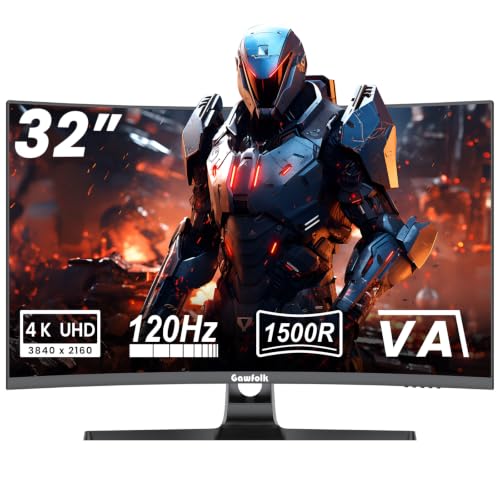

Top 3 picks at a glance
Quick Recommended Settings
| Setting | Recommended value | Why |
|---|---|---|
| Windows refresh rate | Maximum native (e.g., 144 Hz or 240 Hz) | Windows often defaults to 60 Hz on new 4K displays, wasting the panel. |
| Windows scaling | 150% (27–32″) or 200% (below 27″) | Prevents tiny UI and blurry non-integer scaling at 3840×2160. |
| HDR | Windows HDR On only for HDR/VRR-capable panels with a game that supports it | HDR on a poorly calibrated panel washes out SDR content. |
| Response time / Overdrive | Manufacturer “Normal” or second-lowest setting | Lowest adds ghosting; highest causes inverse ghosting artifacts. |
| Adaptive Sync / G-SYNC / FreeSync | Enabled, with V-SYNC On in NVIDIA Control Panel | Eliminates tearing and stutter within the VRR window. |
| In-game resolution scale / DLSS / FSR | DLSS Quality or FSR Quality | Internal ~1440p–1800p render keeps frame rates high with minimal image loss at 4K. |
| Sharpness (OSD) | 50 / default midpoint | Higher values create haloing around text and edges. |
| Brightness | 120–200 nits for SDR in a lit room | Panel defaults often exceed 300 nits, causing eye fatigue. |
Setting-by-Setting
Refresh Rate in Windows
Exact value: the highest listed option (e.g., 144 Hz, 160 Hz, 240 Hz). Trade-off: higher refresh requires more GPU headroom in games, but desktop use costs nothing.
Windows frequently defaults to 60 Hz over DisplayPort on 4K panels. Check it: right-click the desktop → Display settings → Advanced display → look at “Refresh rate (Hz).” Set it: open Advanced display settings → select the maximum rate from the dropdown. If only 60 Hz appears, verify you’re using a DisplayPort 1.4 (or HDMI 2.1) certified cable and that it’s plugged into the GPU, not the motherboard. Undo by simply selecting a lower rate in the same dropdown.
Display Scaling
Exact value: 150% for 27–32 inch panels; 200% for anything smaller. Trade-off: higher scaling enlarges UI in some older games that don’t respect DPI awareness.
Wrong scaling causes either microscopic text or blurry fractional scaling. Check: right-click desktop → Display settings → “Scale.” Set the recommended value, sign out and back in if apps look wrong. Undo by returning to the previous value in the same menu.
Response Time / Overdrive
Exact value: the “Normal,” “Standard,” or second-from-bottom OSD option. Trade-off: lower settings leave visible pixel ghosting; the top setting (“Extreme,” “Fastest”) pushes pixels past their target, creating inverse ghosting — bright halos trailing moving objects.
Check using the UFO Test (testufo.com) or any fast side-scrolling game: look for smears behind the saucer (too low) or bright outlines (too high). Adjust in the monitor OSD, usually under Game or Picture → Response Time / Overdrive. Undo by resetting to the previous OSD level.
Adaptive Sync Configuration
Exact value: enable FreeSync/Adaptive-Sync in the OSD, then in NVIDIA Control Panel: Set up G-SYNC → check “Enable G-SYNC, G-SYNC Compatible” → select “Enable for full screen mode” → and under Manage 3D settings set Vertical sync = On. For AMD, open AMD Software → Display → enable AMD FreeSync and Wait for Vertical Refresh = Off, unless application specifies.
Trade-off: V-SYNC On with G-SYNC caps frame rate below the refresh ceiling, eliminating tearing with no added input lag at normal frame rates; capping via RTSS at 3–4 fps below the VRR maximum achieves similar results.
How to check: run a fast-panning scene and look for horizontal shear. How to undo: uncheck the same boxes. If you enable HDR or 10-bit color and VRR range shrinks, re-check the OSD’s VRR range readout.
HDR
Exact value: Windows key + Alt + B toggles HDR off quickly; enable per-session via Win + Alt + B again or Settings → System → Display → HDR. Trade-off: HDR looks great in supported titles (Cyberpunk 2077, Alan Wake 2) but desaturates the Windows desktop and SDR games unless the panel has good SDR-in-HDR mapping.
Check whether your monitor is DisplayHDR 400/600/1000 certified — 400-certified panels often look worse in HDR than SDR. Run the built-in HDR calibration app (Windows Settings → HDR → Calibrate) and set the three sliders where the patterns just stop clipping. Undo with Win + Alt + B.
In-Game Resolution and Upscaling
Exact value: render at native 3840×2160 with DLSS Quality (internal 2560×1440) or FSR Quality; use DLAA if your GPU supports it and frame rate permits. Trade-off: Performance mode gains more fps but softens fine detail like foliage and distant text noticeably at 4K.
Check current internal resolution in each game’s Display menu under Resolution Scaling / Upscaling. Set the mode, not a raw percentage, so the game maintains the ratio. Undo by switching the upscaler off or to “Native.”
Sharpness and Color in the OSD
Exact value: Sharpness at the default midpoint (usually 50); picture mode sRGB or Custom with gamma 2.2; brightness 120–200 nits for SDR desk use. Trade-off: “Vivid”/”FPS” modes inflate saturation and crush shadow detail for a punchy demo look at the cost of accuracy.
Check with a monitoring tool like the Lagom.nl gamma and black-level test patterns. Undo by selecting Reset or Factory Reset in the OSD’s System menu.
By Hardware Tier
Lower Tier (e.g., GTX 1660 Super, RTX 3050, RX 6600)
A 4K panel on this hardware is a productivity screen first. Keep Windows at native 4K and full refresh, but render games at 1080p or 1440p with GPU scaling enabled in the driver so the image upscales cleanly: NVIDIA Control Panel → Adjust image settings → Use my preference, and under Adjust desktop size and position choose GPU scaling. Use FSR wherever a game offers it, favor Medium image quality presets, and disable expensive effects first: ray tracing, then volumetric lighting, then shadow quality. Expect to play esports titles at high fps and AAA games at 30–60 fps.
Middle Tier (e.g., RTX 4070/5070 class, RX 7800 XT)
This is the sweet spot for 4K with upscaling. Enable DLSS/FSR Quality as the default in every supported game, keep textures at Ultra (VRAM allows it), and drop ray tracing to Medium or off in demanding titles. Cap frame rates with RTSS at 3–4 fps below your monitor’s VRR maximum to keep latency low and tearing absent. Keep adaptive sync on and HDR on for supported games only.
High Tier (e.g., RTX 4080/5080 and above, RX 7900 XTX/9070 XT)
Run native 4K in esports and older AAA titles; use DLSS Quality or DLAA in current heavyweights. You can afford ray tracing at Ultra in most games, and frame generation becomes a genuine option for single-player titles at base frame rates above roughly 60 fps. Enable 10-bit color where offered (NVIDIA Control Panel → Change resolution → Output color depth) with full RGB output dynamic range. Cap frame rates only if you want reduced power draw and coil whine.
Common Mistakes
Stuck at 60 Hz. What causes it: Windows defaulting to 60 Hz, or a non-certified HDMI cable on a DisplayPort panel. How to check: Settings → System → Display → Advanced display, read the refresh rate. What to do: select the max rate; swap to a DP 1.4-certified or Ultra High Speed HDMI cable; confirm the cable is in the GPU. How to undo: choose a lower rate in the same dropdown.
Blurry text. What causes it: 125% or 175% fractional scaling, or the monitor’s sharpness set to 0. How to check: look at small system text for soft edges; check the scaling value in Display settings. What to do: set scaling to 150% (or 200% on smaller panels) and sharpness to the OSD midpoint. How to undo: revert both values.
Inverse ghosting trails. What causes it: overdrive set to its maximum level. How to check: fast horizontal motion shows bright halos behind objects. What to do: step overdrive down one level at a time until halos disappear. How to undo: restore the prior OSD value.
Tearing with adaptive sync “on.” What causes it: the game running above the VRR ceiling, or V-SYNC left off in the driver. How to check: check the monitor’s OSD refresh indicator while gaming. What to do: enable V-SYNC in the NVIDIA Control Panel (or the AMD equivalent), or cap fps with RTSS. How to undo: remove the cap or the V-SYNC setting.
Washed-out HDR desktop. What causes it: leaving Windows HDR enabled with SDR content, often with the SDR slider at default. How to check: compare the desktop with HDR on and off (Win + Alt + B). What to do: disable HDR when not using HDR content, or lower the “SDR content brightness” slider under HDR settings. How to undo: re-enable HDR the same way.
FAQ
Is 4K worth it over 1440p for gaming?
At 27 inches and typical desk distance, the pixel-density jump is visible mainly in fine detail — foliage, distant geometry, text sharpness. If your GPU can’t sustain roughly 60 fps at 4K with upscaling, a high-refresh 1440p panel usually delivers a better experience than a 4K one running at half that rate.
Should I use DLSS or FSR at 4K?
Whichever your GPU supports natively — DLSS on NVIDIA RTX cards, FSR on AMD and anything else. At 4K, both Quality modes look very close to native because the higher internal resolution gives the reconstruction algorithm more data. Prefer DLAA when available and frame rate allows.
What refresh rate do I need for 4K gaming?
120 Hz is the practical floor; 144–160 Hz is the sweet spot for most GPUs; 240 Hz benefits mainly competitive players with top-tier hardware. The value only matters if your settings let games actually reach those frame rates, so treat refresh rate and GPU tier as a matched pair.
Does HDMI 2.1 matter for a 4K gaming monitor?
Yes, if you connect consoles or a laptop and want 4K at 120 Hz with VRR over one cable. For a desktop PC, DisplayPort 1.4 handles 4K 144 Hz+ with DSC, so the monitor’s DP input should be your default; use HDMI 2.1 for console connectivity.